
Filters, export and who can see what
Narrow the log by status, category, branch, person and dates, export it as CSV, and understand the scope each role gets.
Filters
On the web
Above the log: the All, Unpaid and Paid chips; Search expenses…; All categories; All branches; Everyone; and From / To dates. Clear filters resets. The footer shows totals for This page: and All matching:.
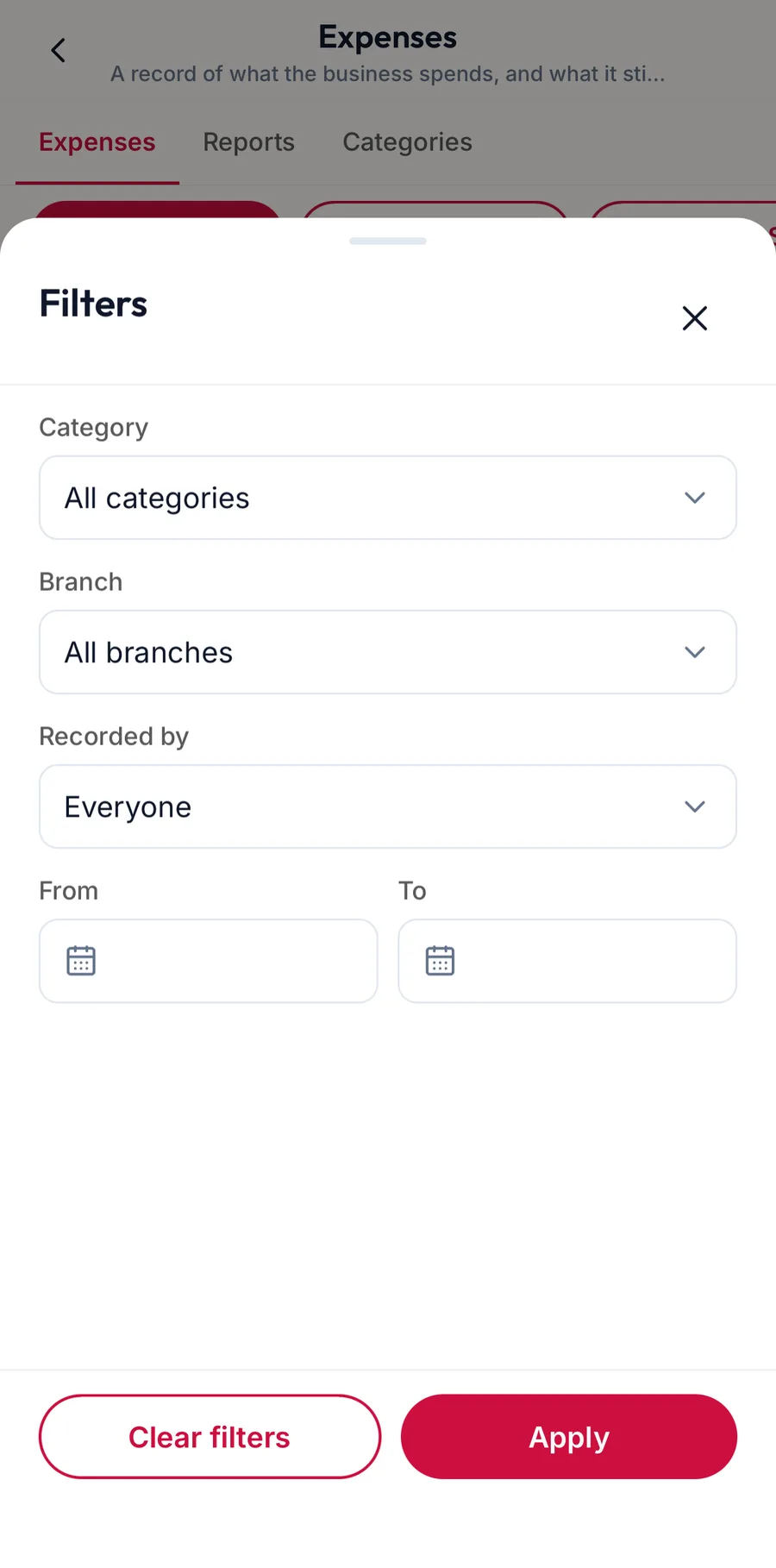
In the app
Tap Filters (the sliders icon) for Branch, Category, Recorded by and the From / To dates, then Apply. The status chips and Search expenses… sit above the list.
Export
On the web
Export CSV downloads what the filters currently show, one row per expense with its category, ledger code, branch, merchant, amounts, tax, status and dates. The toast reads Export downloaded.
In the app
More actions (the three dots) offers Export CSV, which hands the file to any app on the phone.
Who sees what
The line under the heading, Showing: {{scope}}, tells you.
| Your access | You see |
|---|---|
| Expenses read at business level | all branches |
| Expenses read at branch level | your branch only |
| Expenses read for your own records only | expenses you recorded |
- Anyone with expense create can record and edit their own expenses.
- Expense update lets you edit anyone's; delete lets you delete.
- The Reports tab needs business-wide read; the Categories tab needs expense manage.
Related articles
- Record an expense · Expenses
- How permissions work: resource, action and scope · Roles, permissions & audit