
Approve, record payment, cancel
Lock the figures, tell the portal the salaries have been paid, or reverse a run that was wrong.
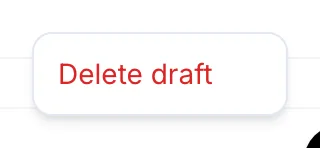
Open the pay run from the list. The bottom of its sheet has one big button for the Next step (the same label the list shows), and a More actions menu beside it for everything else: Submit for approval, Move back to draft, Cancel pay run and, on a draft, Delete draft.
Submit for approval
With the review step on, Submit for approval moves a draft to Awaiting approval; the toast reads Submitted for approval. Move back to draft reverses it.
Approve & lock
On the web
-
Click Approve & lock.
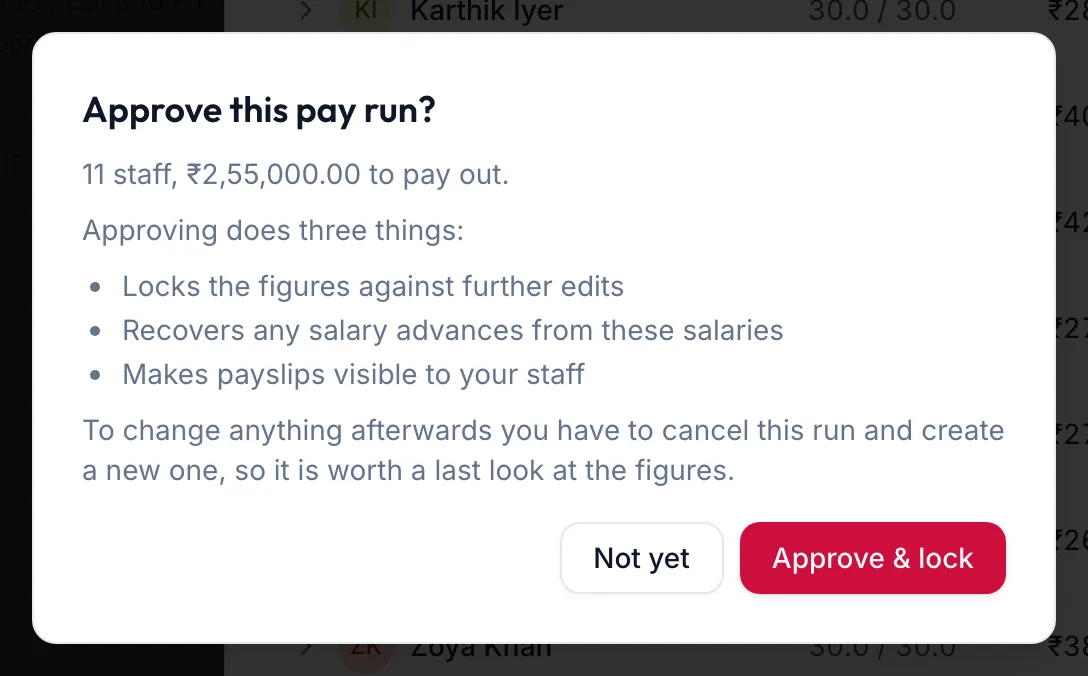
The Approve this pay run dialog -
The dialog lists what Approving does three things: Locks the figures against further edits, Recovers any salary advances from these salaries, Makes payslips visible to your staff.
-
Click Approve & lock. The toast reads Pay run approved — staff can now see their payslips.
In the app
Open the run and tap the big button at the bottom, which names the Next step. The dialog explains what Approving does three things: and asks you to confirm.
Record payment
On the web
Pay the salaries by bank transfer, UPI or cash as you normally do, then:
- Click Record payment. The dialog Record salary payment notes it Confirms the salaries have gone out, and closes this period off for your records. Once recorded, the pay run can no longer be cancelled.
- Enter the Payment date and a Payment reference such as the NEFT UTR.
- Click Record payment. The status becomes Paid.
In the app
Tap Record payment, enter the Payment date and Payment reference, and tap Record payment.
Cancel
On the web
Click Cancel pay run, give a Reason (required) and confirm. The toast reads Pay run cancelled — advance recoveries reversed. The period can be run again from scratch.
In the app
Tap Cancel pay run, give a Reason (required) and confirm.
Delete a draft
A draft that should never have existed can be removed with Delete draft: The draft and all its line items will be removed. This cannot be undone.
Related articles
- How a pay run works · Pay runs
- Payslips and what staff see · Pay runs
- Salary advances · Team