
Salary advances
Give a team member part of their salary early, in one deduction or instalments, and let the next pay run recover it automatically.
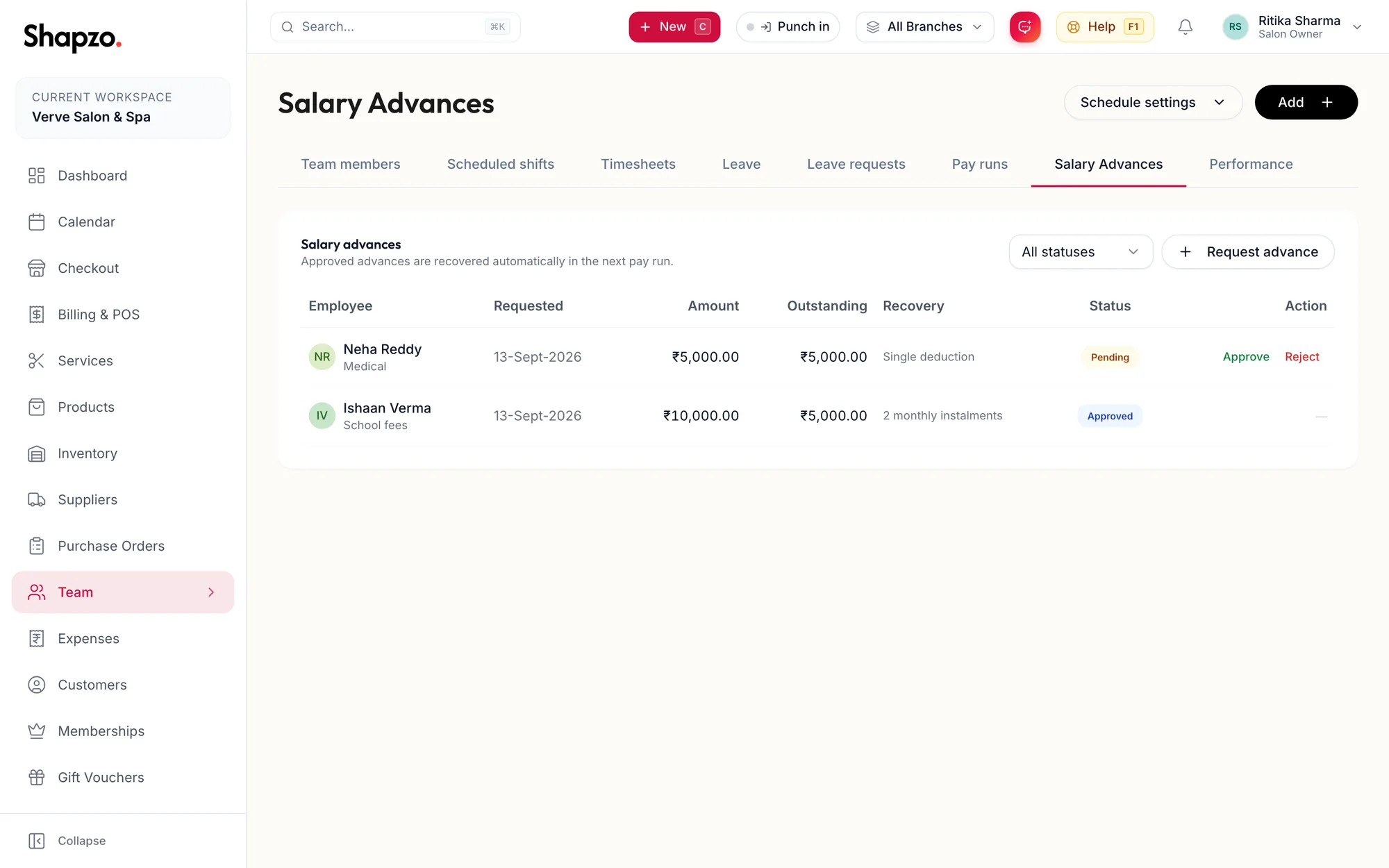
Open Team and Salary advances. The note reads Approved advances are recovered automatically in the next pay run. Filter by Pending, Approved, Recovered, Rejected or Cancelled.
Request an advance
On the web
-
Click Request advance.
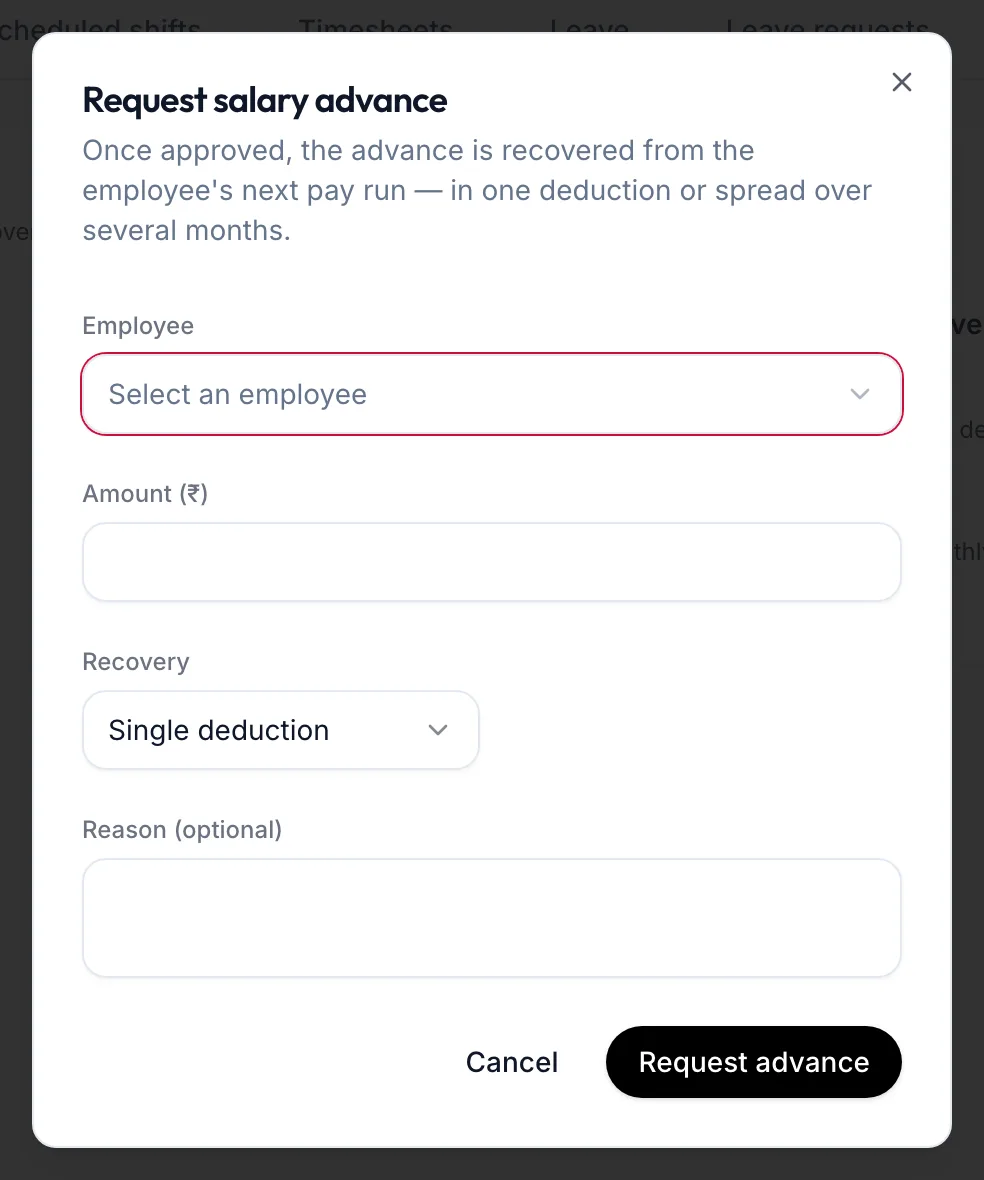
The Request salary advance dialog -
Choose the Employee (staff requesting for themselves do not see this field).
-
Enter the Amount (₹).
-
Choose the Recovery: Single deduction from the next salary, or Monthly instalments with Months (1–24).
-
Add a Reason (optional) and click Request advance. The toast reads Advance requested — pending approval.
In the app
-
Tap More, then Team, then the Salary Advances tab and the + button.
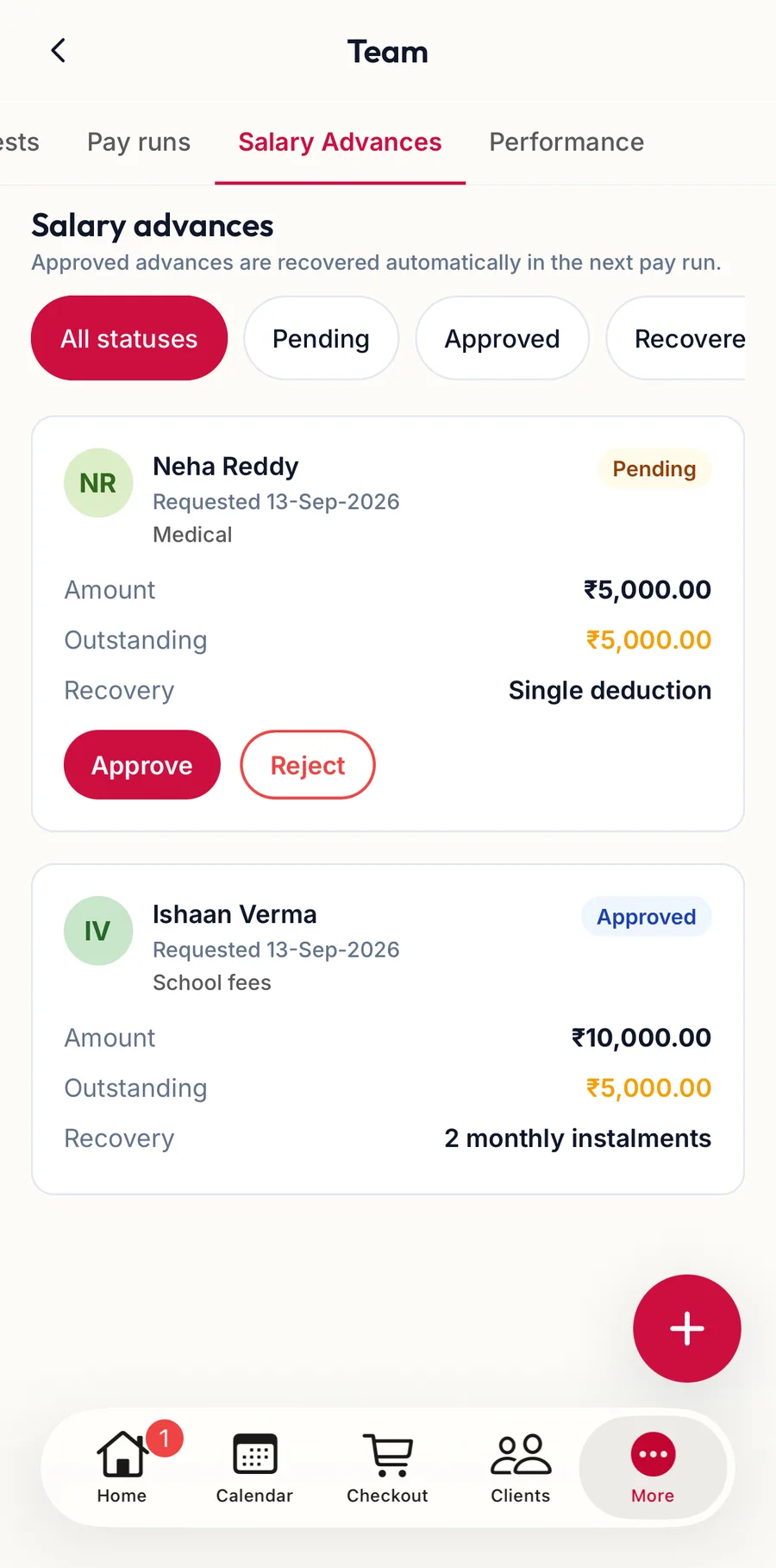
The Salary advances tab in the app -
Choose the Employee (staff requesting for themselves do not see this field), enter the Amount, choose the Recovery (Single deduction or Monthly instalments with Months (1–24)), add a Reason (optional) and tap Request advance.
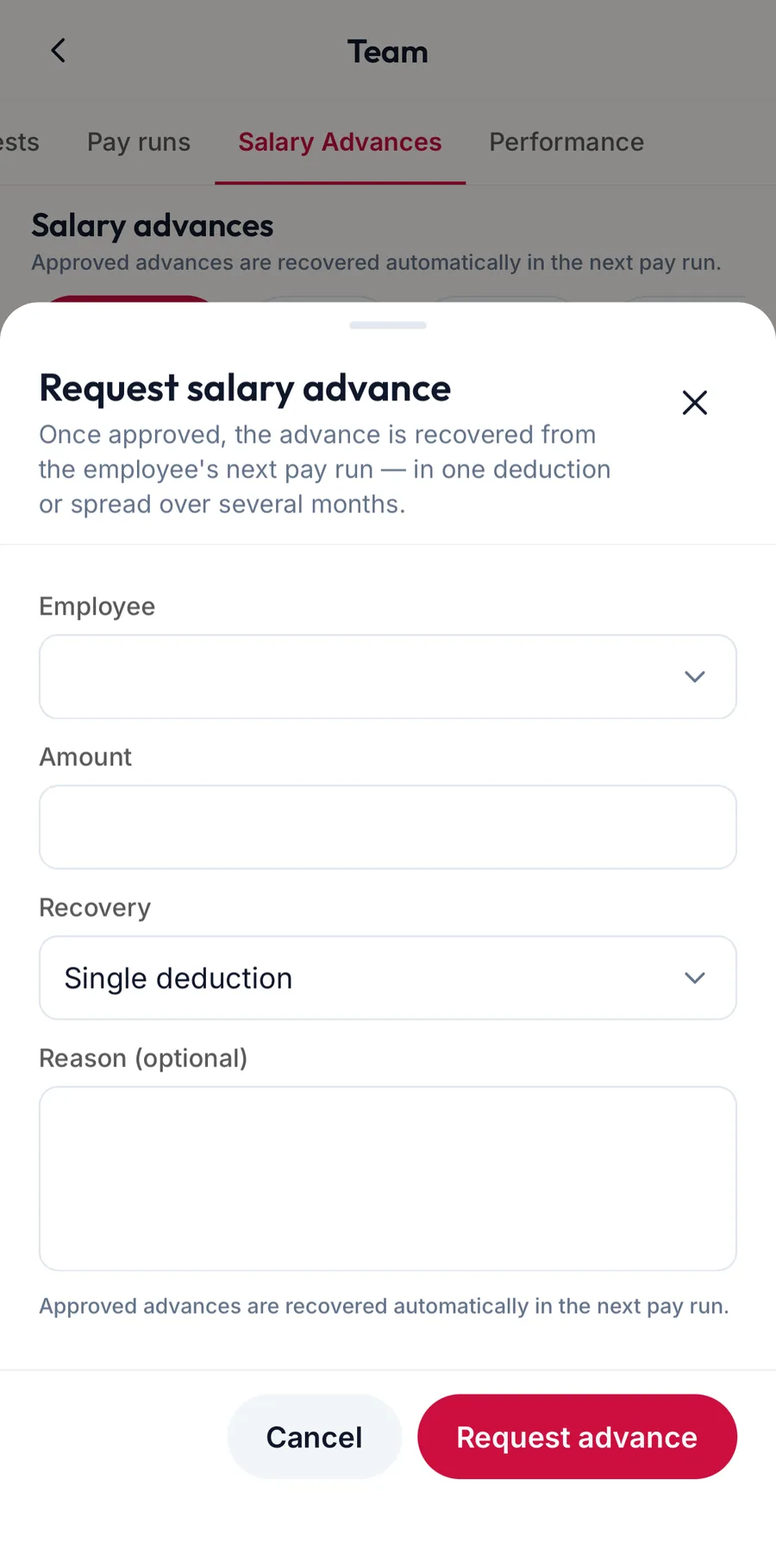
The Request salary advance sheet in the app
Approve or reject
On the web
With the advance-update permission, each pending row has Approve and Reject; both ask for confirmation. Staff can Withdraw their own pending request.
In the app
Each pending row has Approve and Reject; staff can Withdraw their own pending request.
Recovery
When a pay run is approved, the outstanding amount (or the instalment) is deducted from that member's line and the row's Outstanding goes down. Once fully recovered the status is Recovered. Cancelling a pay run returns what it recovered.
For staff
On the web
Under Team, My Advances (or My Account, Salary), a member sees their own advances and their Recovery progress.
In the app
Under More, My Salary, the Salary advances tab shows a member their own advances and the Outstanding amount.
Related articles
- How a pay run works · Pay runs
- My Salary: payslips, commission and advances · Your account