
Scheduled shifts and time off
See the week's roster, edit one day's shifts for a member, add a break or time off, and reset a day to the default pattern.
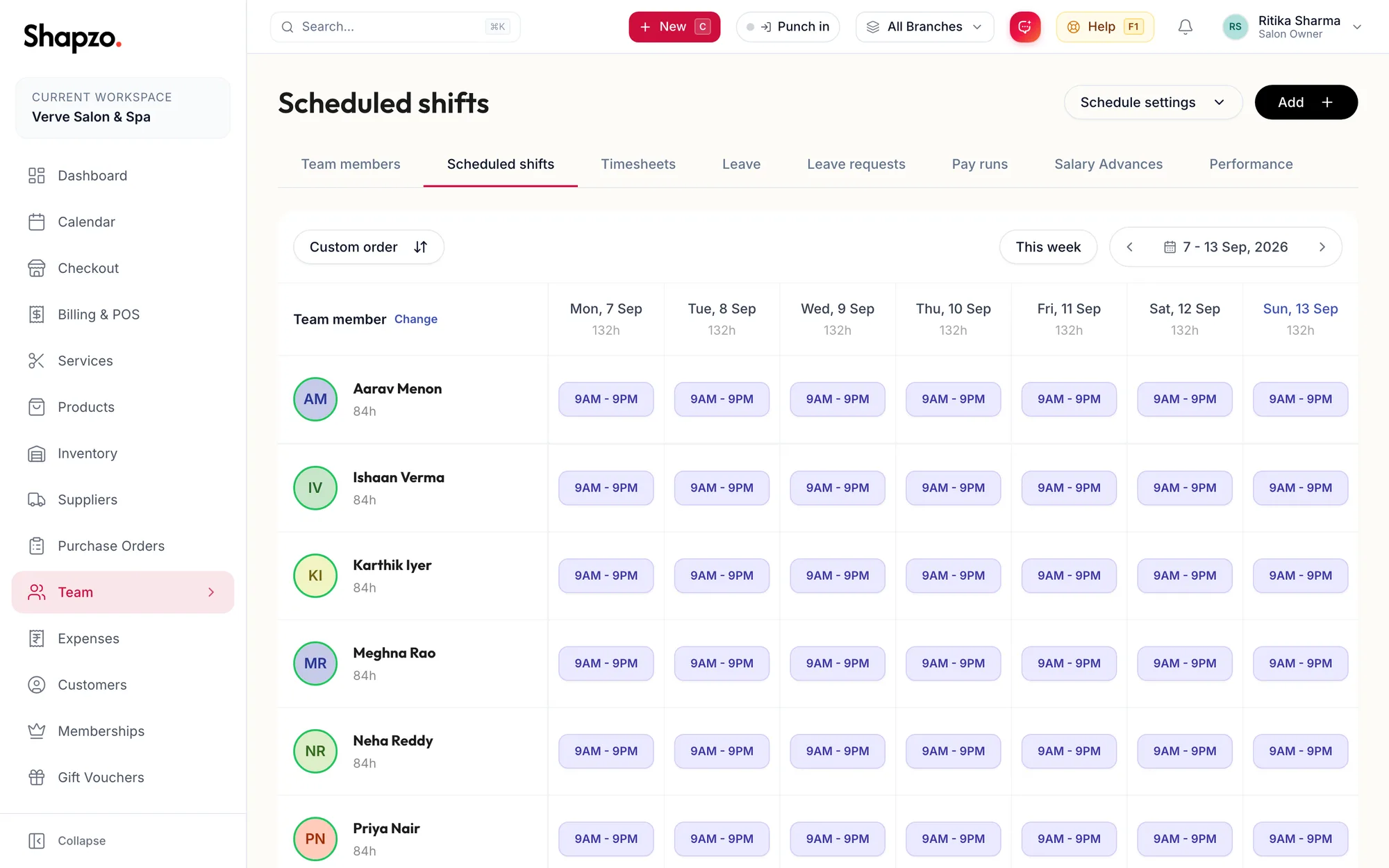
Open Team and Scheduled shifts. Each row is a member, each column a day of the week shown by the week picker (This week by default). Cells show shift pills, Off, Closed on closed days, and On leave · {{type}} for approved leave.
Sort by Shifts (most first), Hours (most first) and so on, and choose who to show with Change under Team member.
Edit one day
On the web
-
Click the cell.
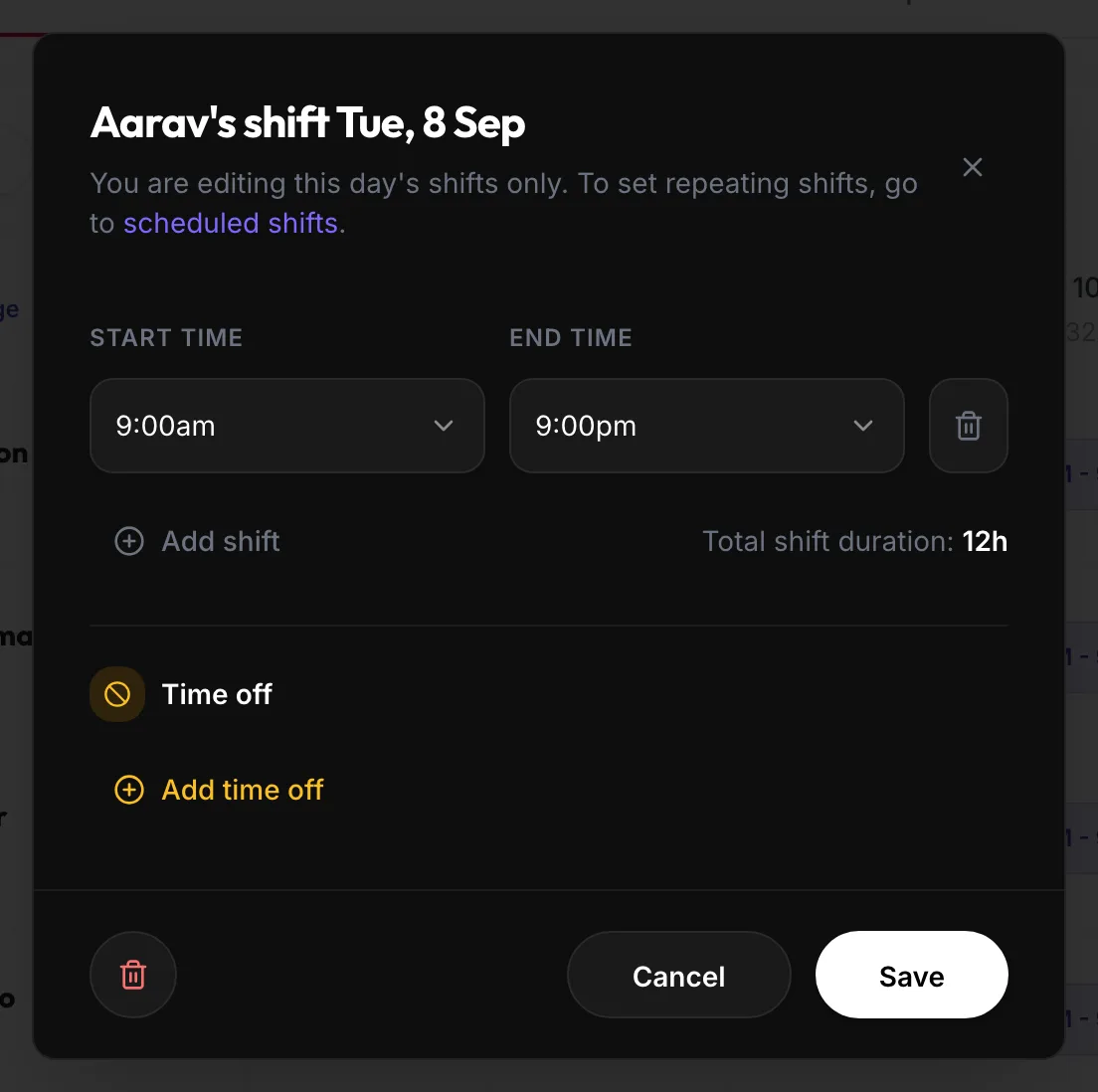
The Edit shift dialog -
The dialog notes You are editing this day's shifts only. To set repeating shifts, go to scheduled shifts. Set the Start time and End time; Add shift adds a split shift. Total shift duration: adds them up.
-
Under Time off, add a Reason (for example a break), Start and End, and click Add time off. Time off blocks bookings in that window.
-
Click Save. The portal confirms Shift updated.
Remove every shift and the dialog says No shifts added. This team member will be off on this day. Delete all shifts (reset to default) returns the day to the member's regular pattern; the toast reads Shift reset to default.
In the app
-
Tap More, then Team, then the Shifts tab. Each member is a row, each day a column; Previous week, This week and Next week move the week.
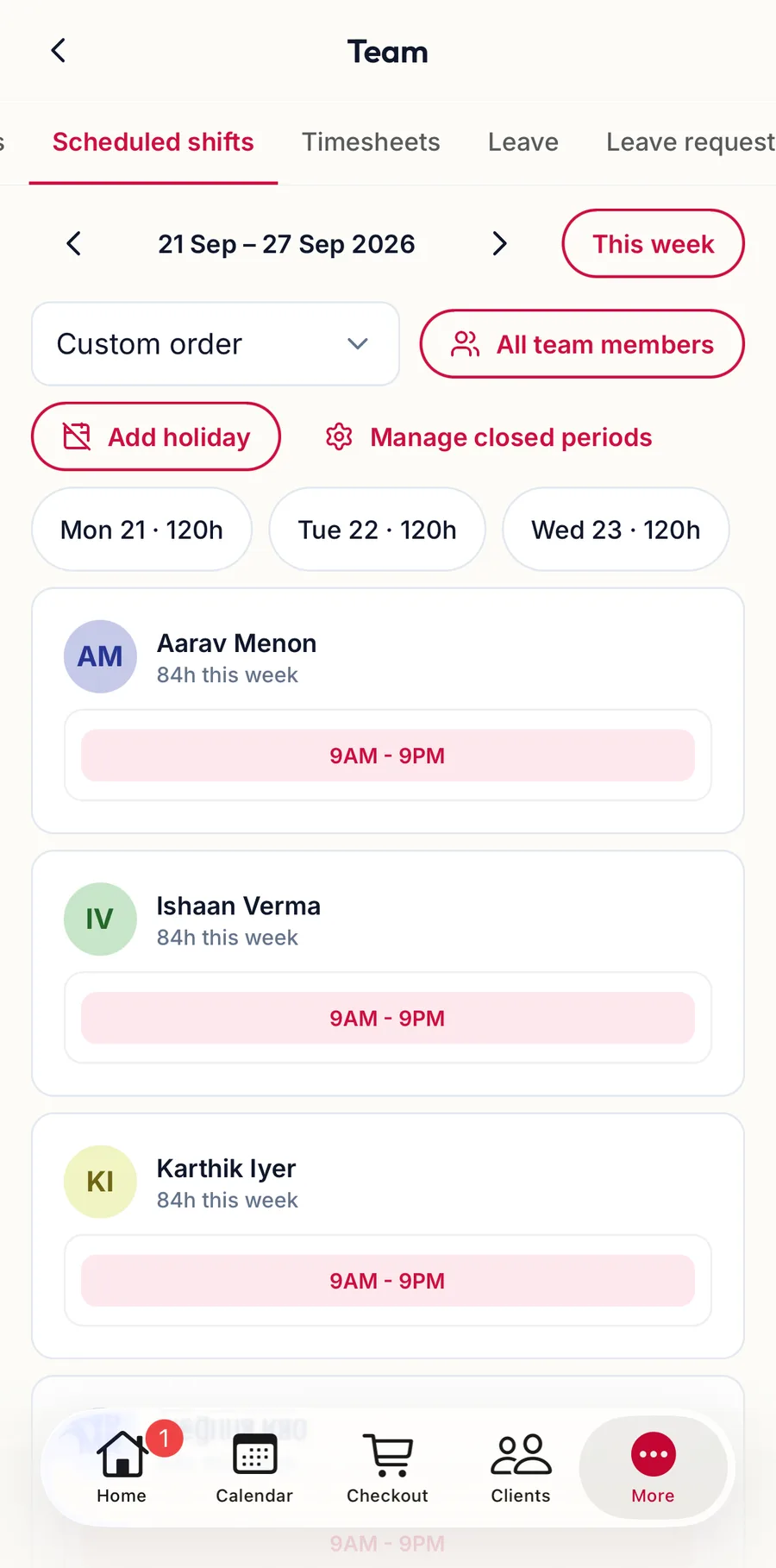
The Shifts tab in the app -
Tap a cell. Set the Start time and End time; Add shift adds a split, and Add time off blocks part of the day with a Reason.
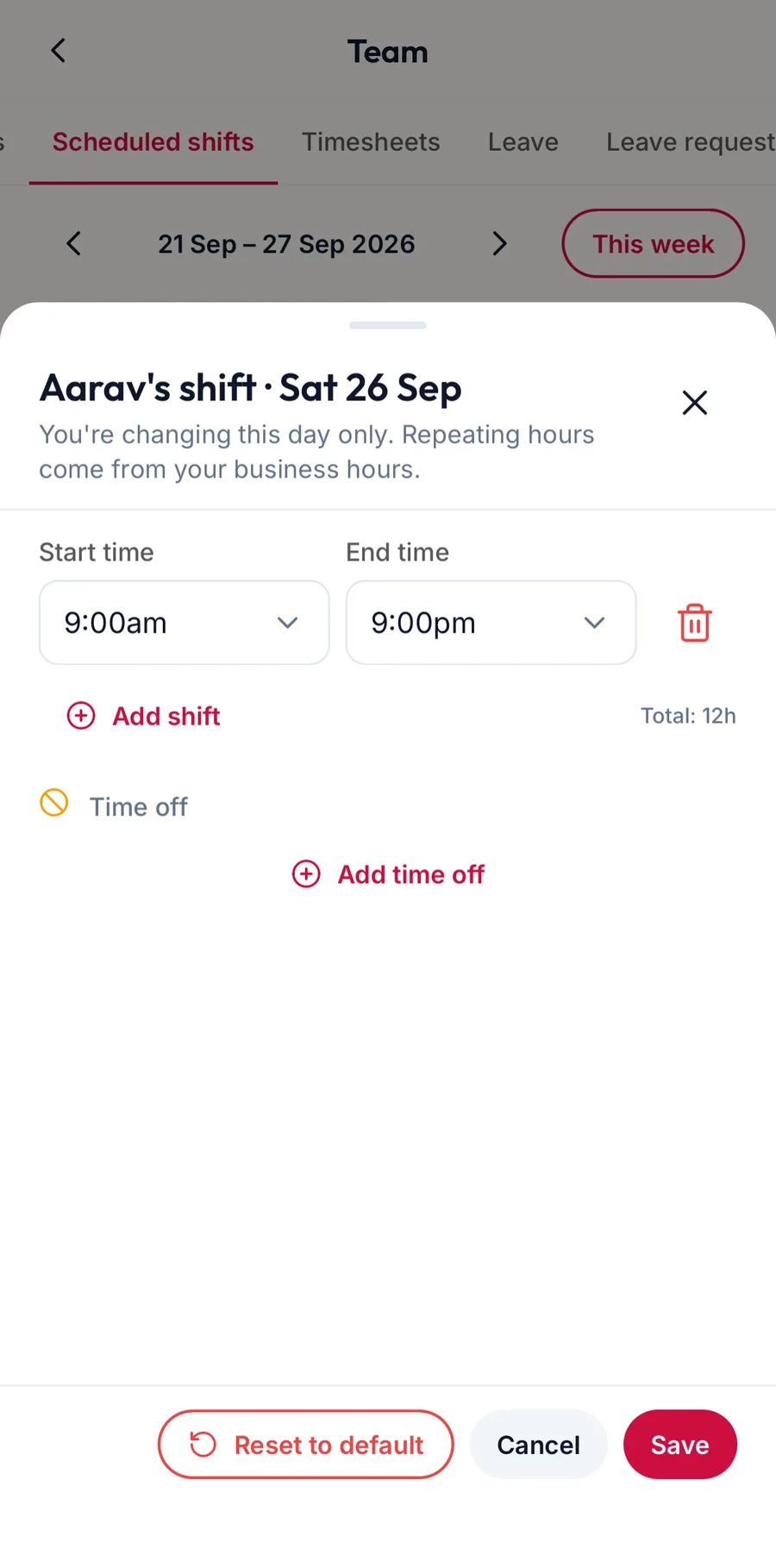
The shift editor in the app -
Tap Save. Delete all shifts (reset to default) returns the day to the member's regular pattern.
Why it matters
- The calendar only offers a member's working hours.
- Timesheets in Scheduled mode totals these hours, and Actual mode compares punches against them for lateness.
- Auto punch-out is timed from the scheduled end.