
Salary, bank and statutory details
Record salary type and base pay, bank or UPI details for payment, and the PF, ESI, PT and TDS settings pay runs use.
Fill in the details
On the web
-
Open the member and go to Salary & Pay.
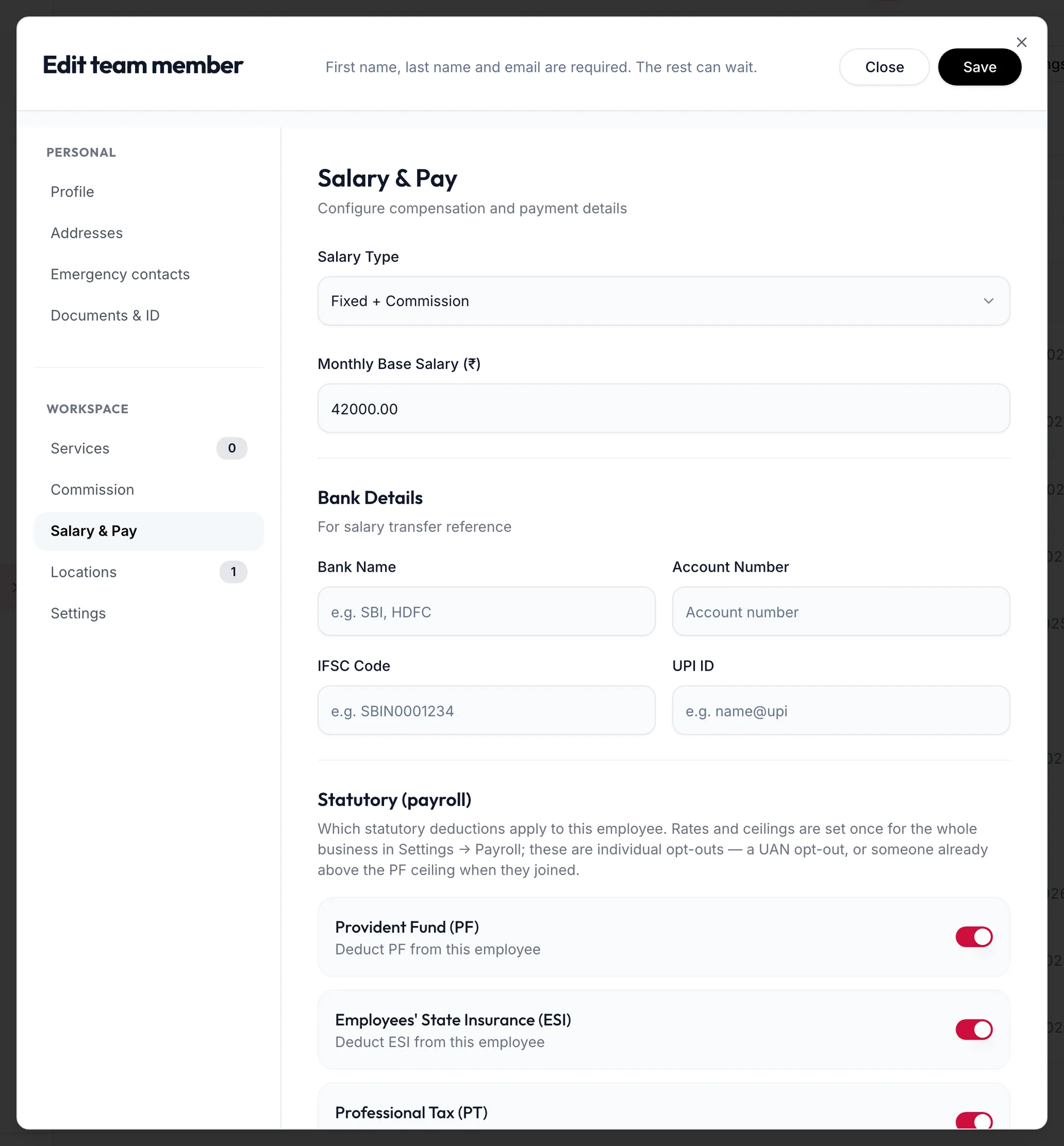
The Salary and Pay section of the team member form -
Choose the Salary Type: Fixed Salary, Commission Only or Fixed + Commission, and enter the Monthly Base Salary (₹).
-
Under Bank Details, add Bank Name, Account Number, IFSC Code and, if you pay by UPI, the UPI ID. These print on the payslip and in exports.
-
Under Statutory (payroll):
- Provident Fund (PF): tick Deduct PF from this employee and record the UAN.
- Employees' State Insurance (ESI): tick Deduct ESI from this employee and record the ESIC Number.
- Professional Tax (PT): tick Deduct professional tax from this employee.
- TDS Regime: None, Old regime or New regime. TDS itself is entered by hand on each pay run; this is for reference.
-
Click Save.
In the app
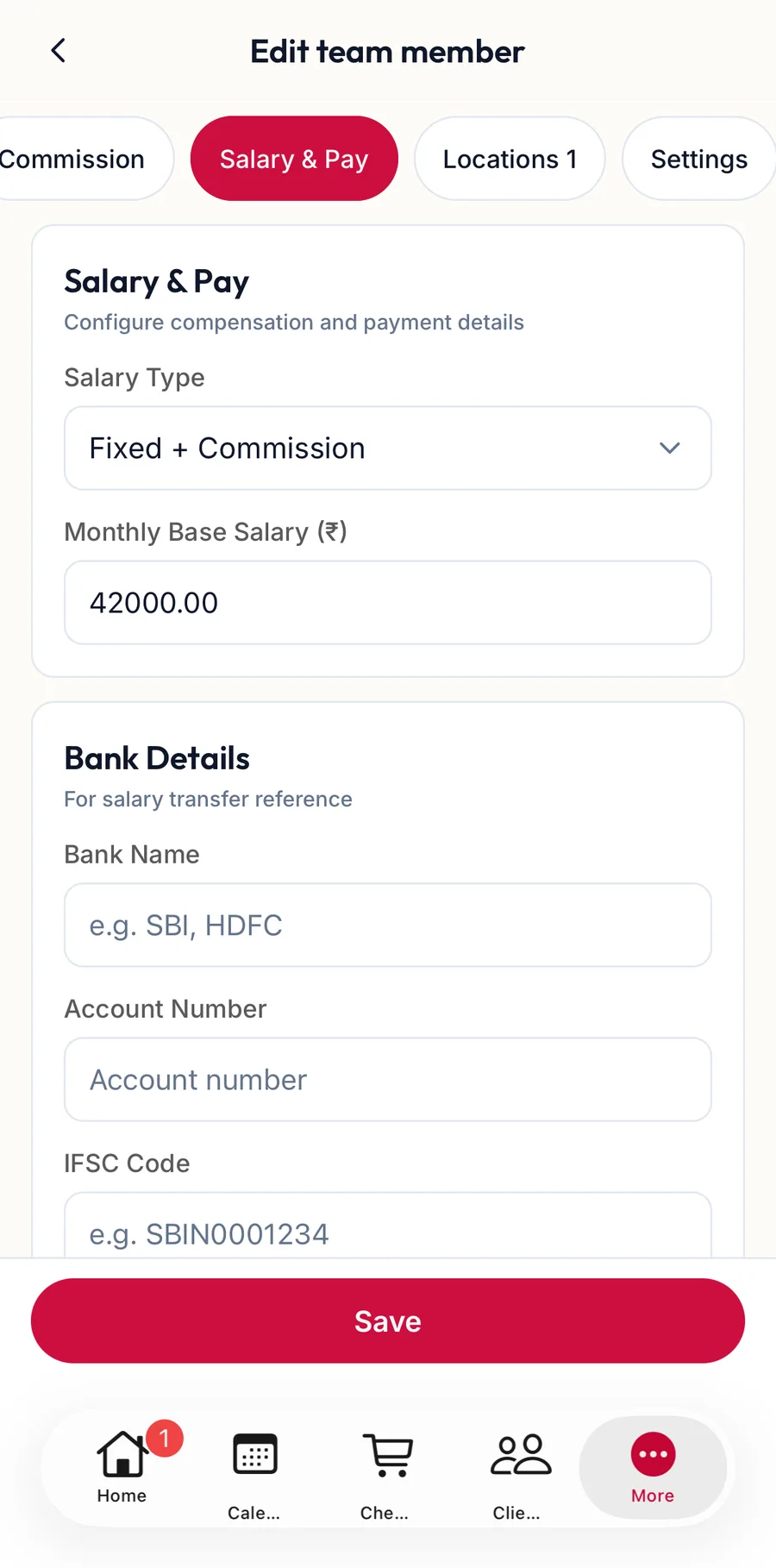
Open the member from the Staff tab and tap Salary & Pay in the row of sections at the top. The same fields follow: the salary type and base, the Bank Details (Bank Name, Account Number, IFSC and UPI), and the PF, ESI, PT and TDS switches. Tap Save.
How pay runs use it
The rates, ceilings and PT slabs come from the payroll settings; the ticks here decide whether they apply to this person. A pay run shows the exact rules it used under Statutory rules used. See How a pay run works.
Related articles
- Add a team member · Team
- How a pay run works · Pay runs
- Create a pay run · Pay runs