
Add a team member
Create a team member with their profile, then work through the nine sections of the form as you have the details.
Steps
On the web
-
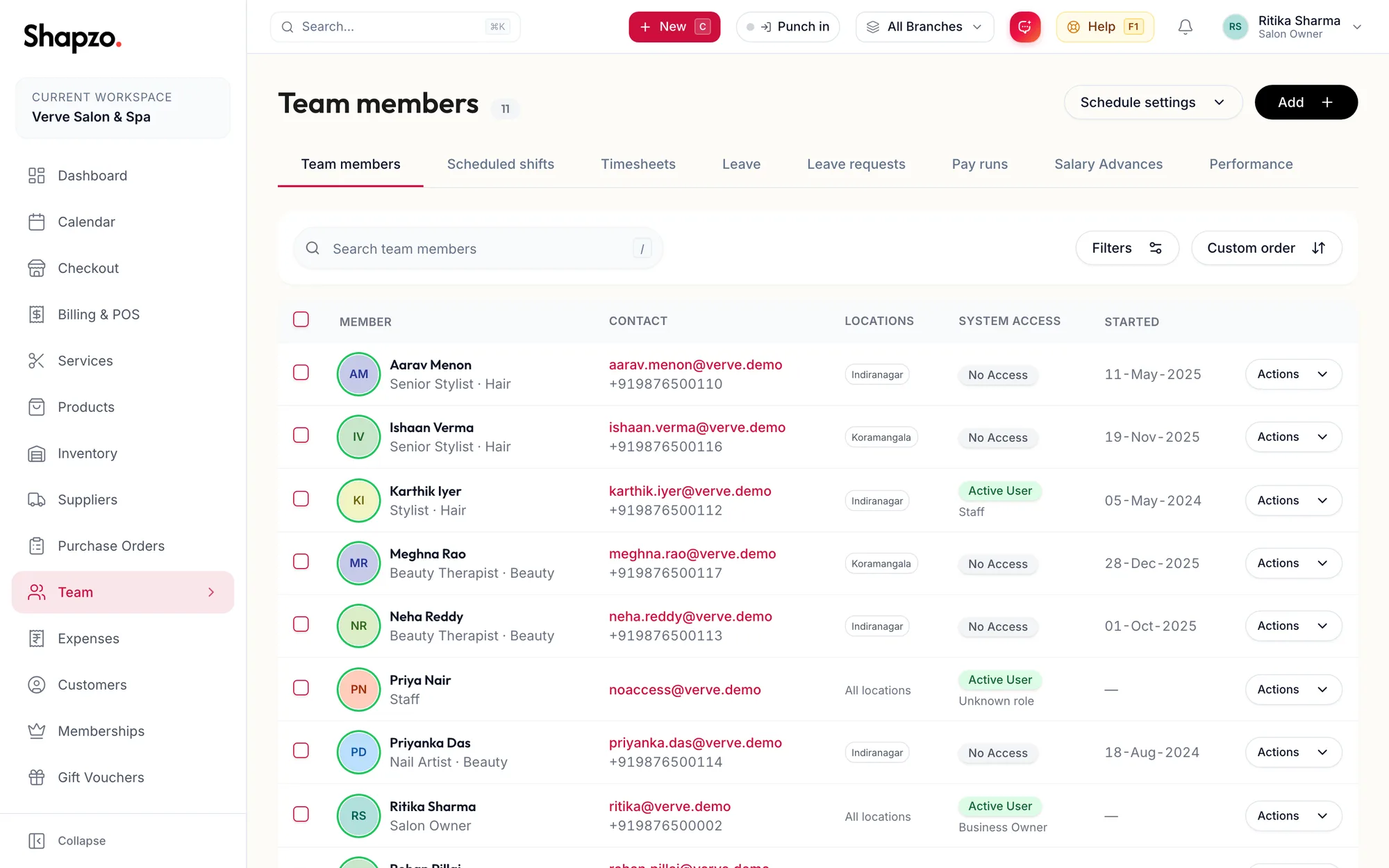
Open Team and, on Team members, click Add, or press n. From anywhere, the New menu offers Team member.
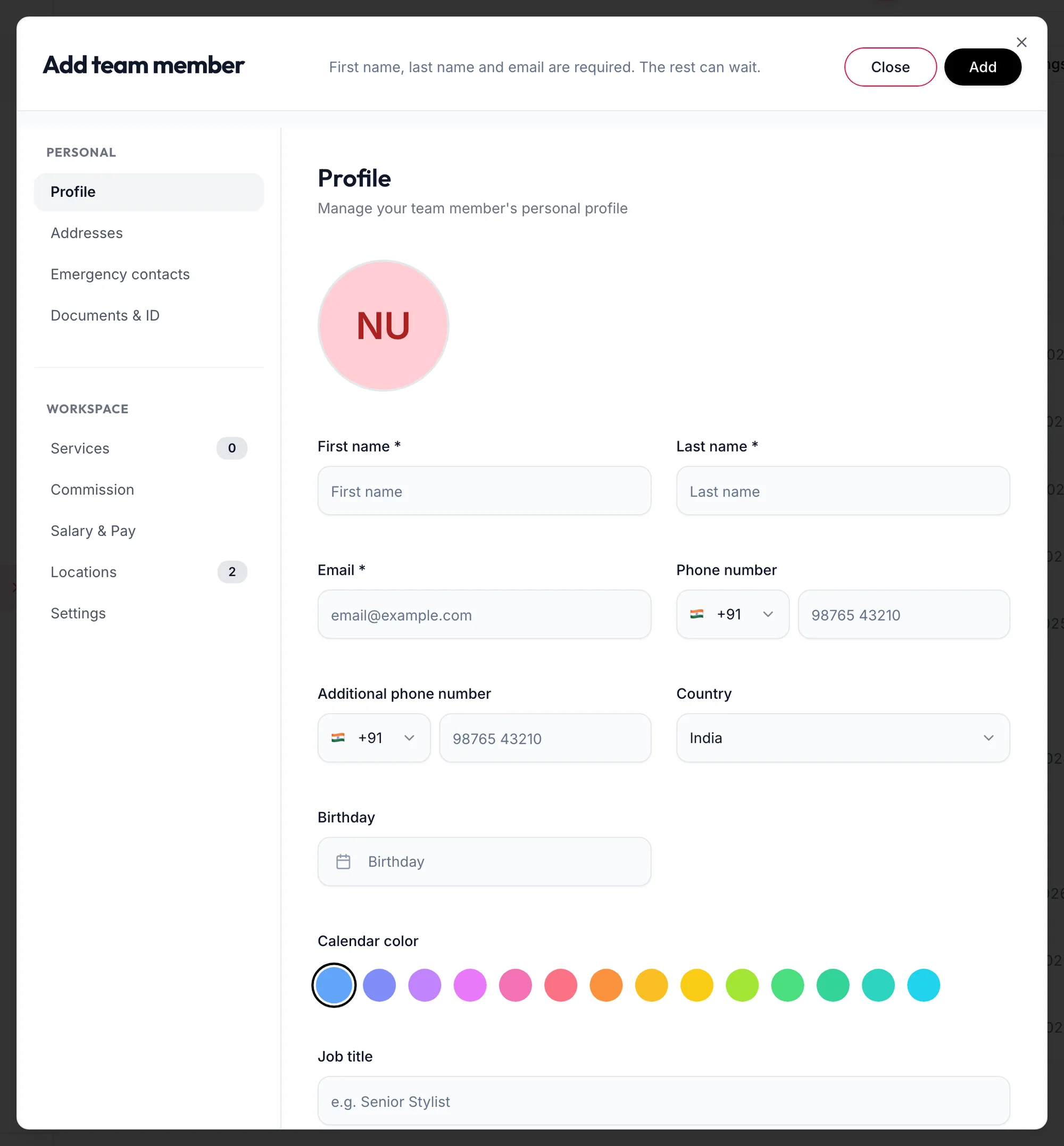
The Add team member form on Profile -
The form says First name, last name and email are required. The rest can wait. Fill those in under Profile and click Add. You can come back for everything else with Edit on the member's row.
In the app
-
Tap More, then Team. On the Staff tab, tap the + button.
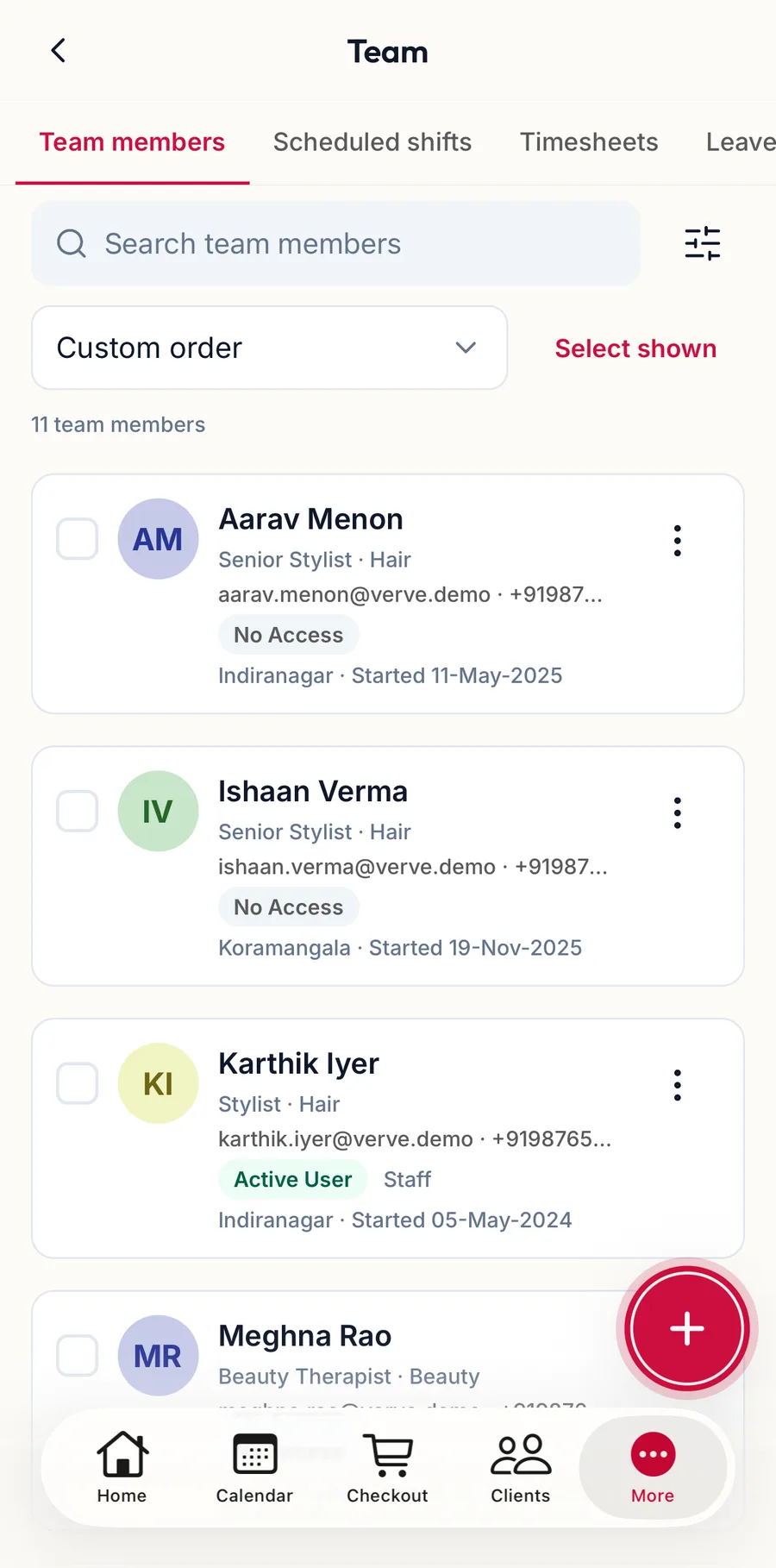
The Staff tab in the app with the add button highlighted -
Fill in the First name, Last name and Email under Profile and tap Add. The rest can wait.
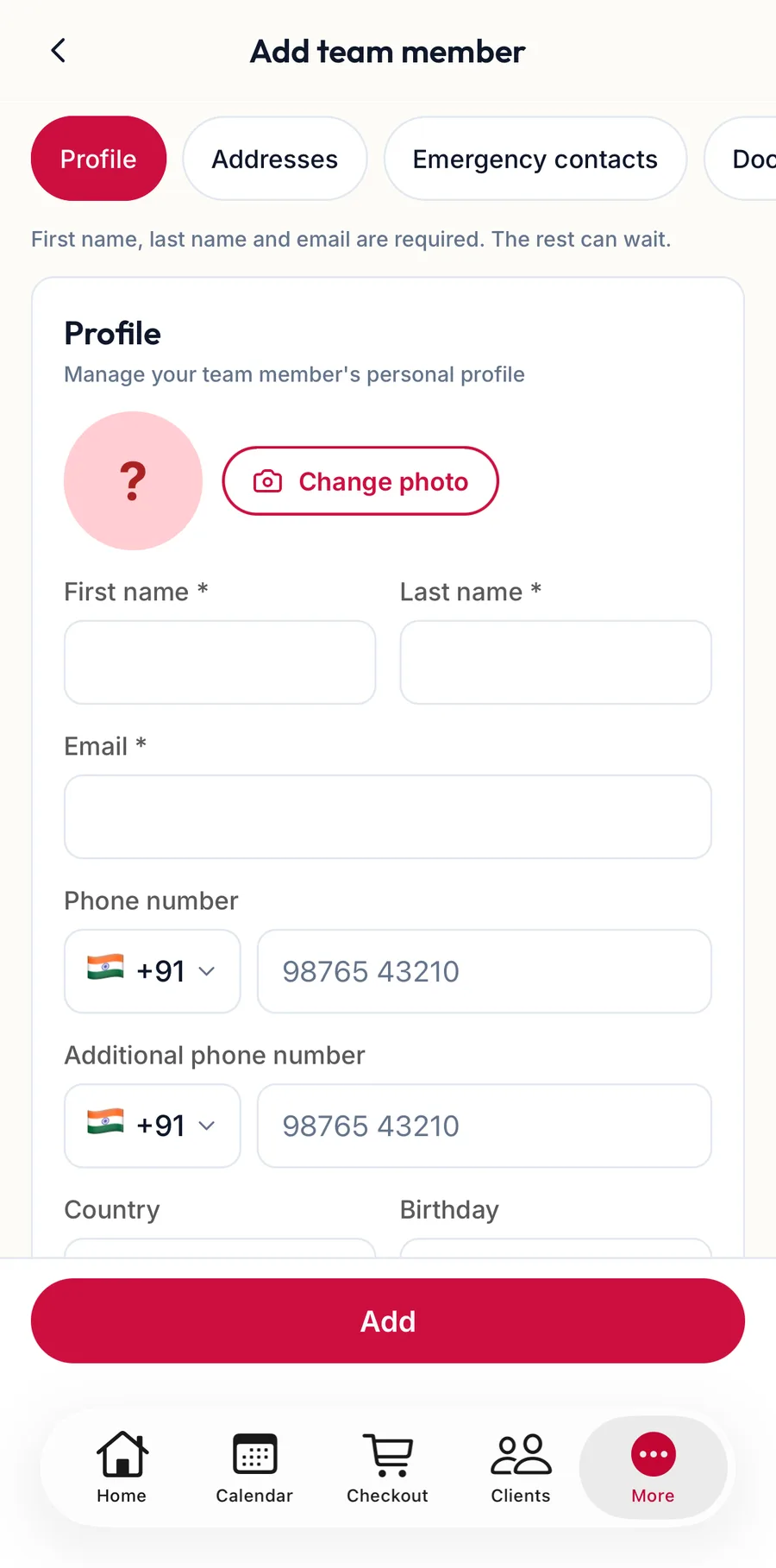
The Add team member form in the app
The same nine sections sit in the row of chips at the top; tap each in turn and tap Save when done.
The nine sections
Under Personal:
| Section | What goes there |
|---|---|
| Profile | Photo, First name, Last name, Email, Phone number, Country, Birthday, Calendar color (their colour on the calendar), Job title (shown to clients), Gender, Blood Group, Department, Designation, and Work details: Start date, End date, Employment type (Full-time, Part-time or Contractor), Team member ID for payroll systems, private Notes |
| Addresses | Add an address with Address name, street, City, State, Postcode |
| Emergency contacts | Add an emergency contact: Full name, Relationship, Email, Phone number |
| Documents & ID | Aadhaar Number, PAN Number, and Certifications with Certification name, Issued by, dates |
Under Workspace:
| Section | What goes there |
|---|---|
| Services | Which services they perform, with proficiency and custom pricing. See Services and proficiency per member |
| Commission | Their commission rules. See Commission profiles |
| Salary & Pay | Salary type and amount, bank details, PF, ESI, PT and TDS. See Salary, bank and statutory details |
| Locations | Works at: the branches they work at, or All locations |
| Settings | Allow calendar bookings and their login. See System access, roles and invitations |
Click Save when done. Leaving with changes prompts Unsaved changes with Discard or Save.
The list
On the web
Each row shows the member, contact, Locations, System access (Active User, Invitation Pending or No Access) and start date, with Actions for Edit, Resend invitation and Archive. Use Filters for Locations, Type (Bookable / Non-bookable), System access and Status.
Tick several rows for the bulk bar: Archive, Resend, Export CSV, and under More actions, Change role, Assign locations and Restore.
In the app
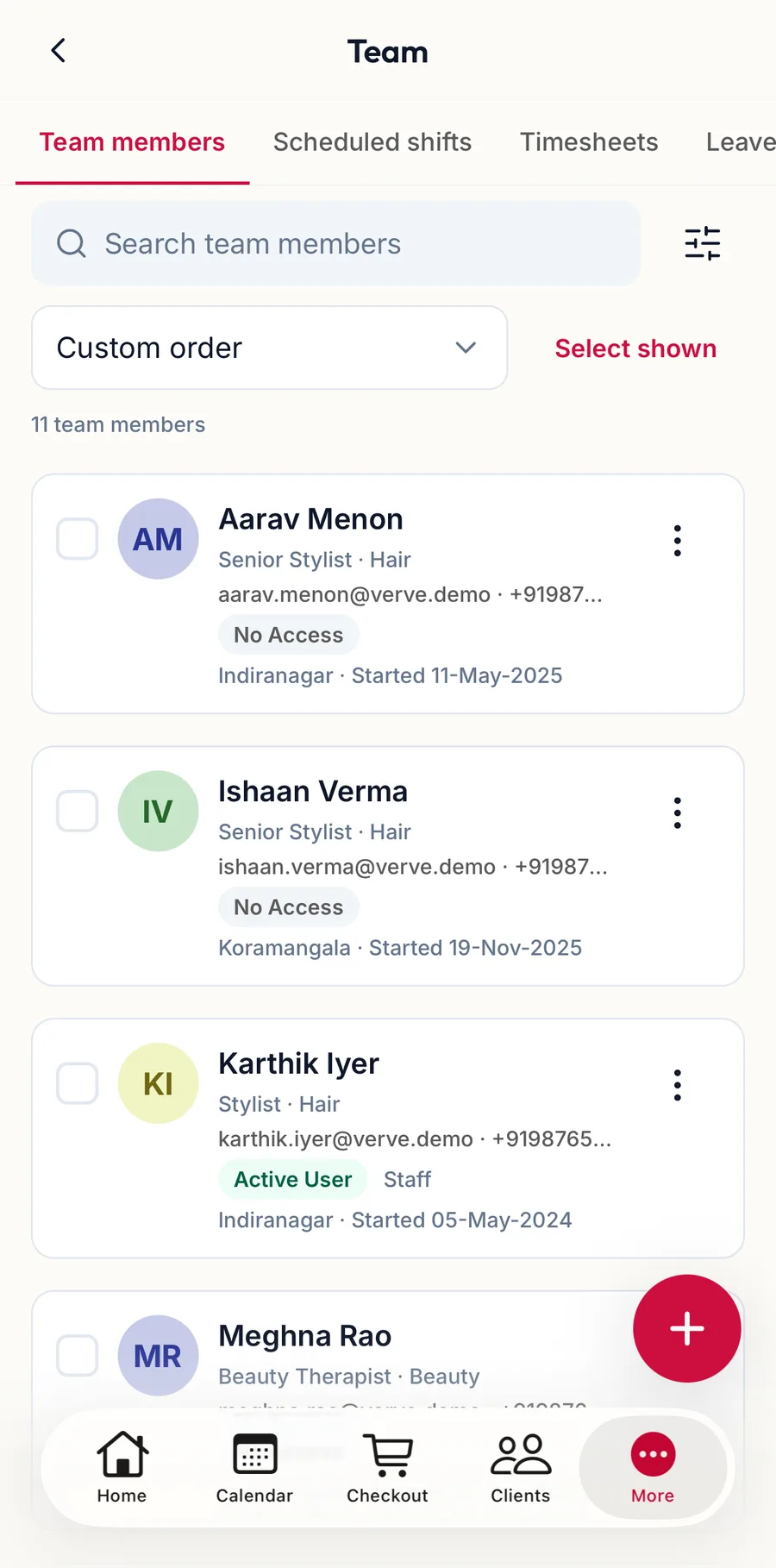
Each row shows the member with their locations and access badge. Tap the row to open the record; Actions on the row offers Edit, Resend invitation and Archive. Filters narrows by Status, Type, System access and Locations.
Related articles
- System access, roles and invitations · Team
- Services and proficiency per member · Team
- Add your team and invite them · Getting started