
System access, roles and invitations
Give a team member a login by choosing their role and sending an invitation, resend it if it was lost, and understand the access badges.
A team member does not need a login to be booked. They need one to punch in, see their payslips, request leave, or work in the portal.
Invite someone
On the web
-
Open the member and go to Settings.
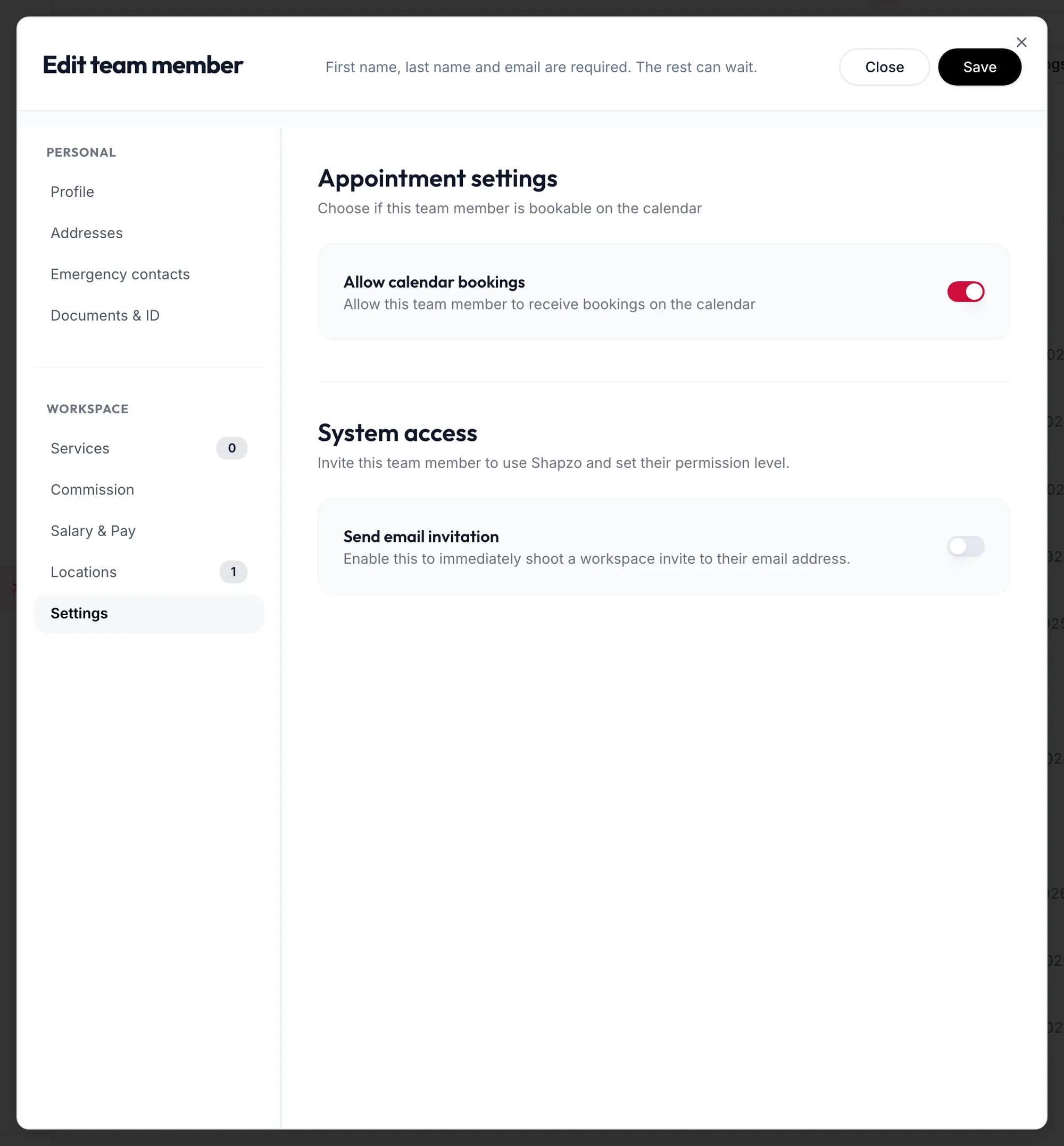
The Settings section of the team member form -
Under System access, switch on Send email invitation.
-
Under Workspace Role Permissions, Select a role. The role decides what they can see and do; see How permissions work.
-
Click Save.
The invitation email carries a link to set a password. Until it is used the row shows Invitation Pending; after that, Active User.
In the app
-
Open the member from the Staff tab and tap Settings in the row of sections at the top.
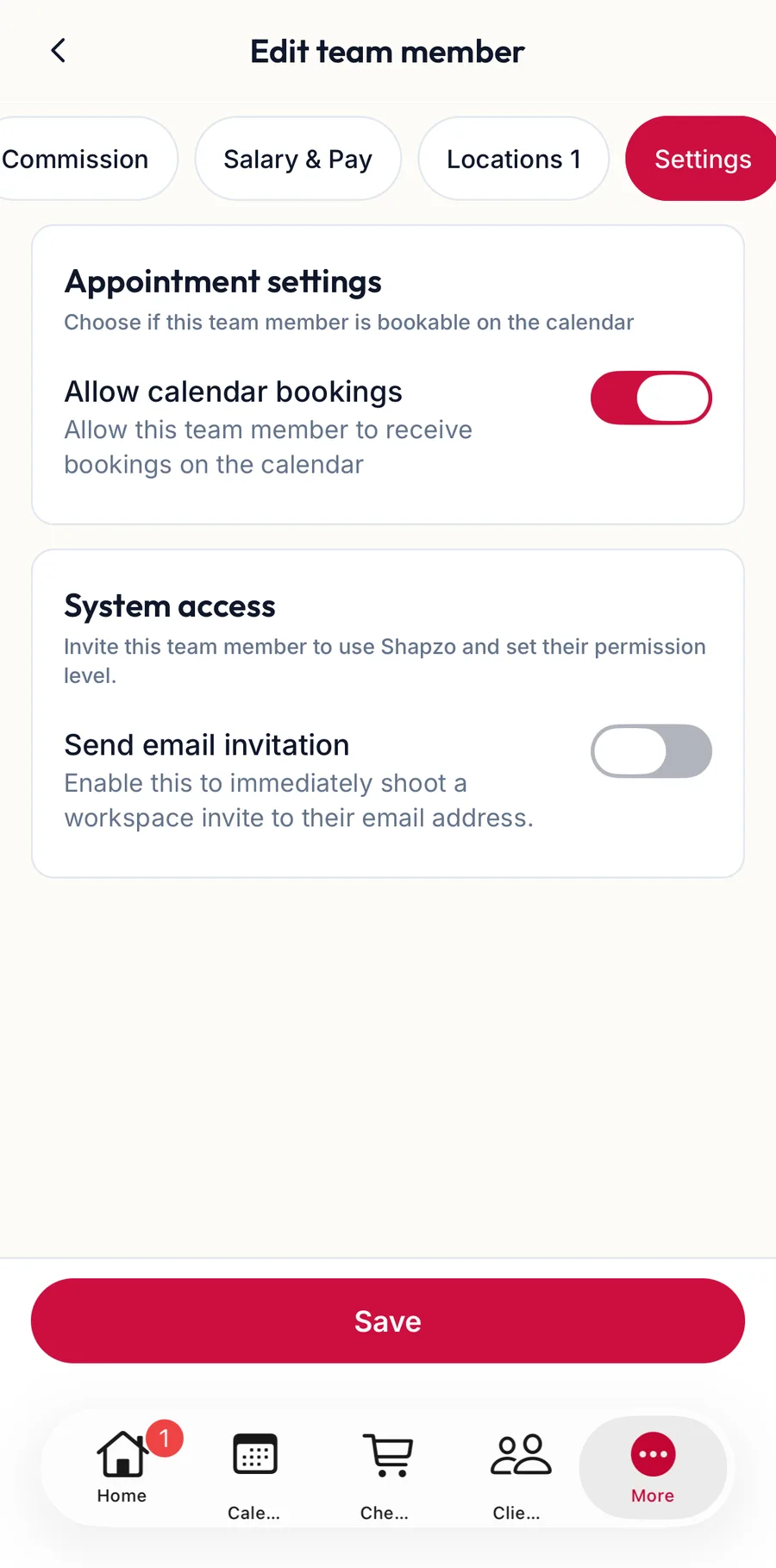
The Settings section of the team member form in the app -
Switch on the invitation, choose the role and tap Save. Resend invitation sits in the same section.
Resend a lost invitation
On the row's Actions choose Resend invitation, or in Settings click Resend invitation. The portal confirms Invitation resent successfully to {{email}}.
Change a role later
Open the member, change the role under Workspace Role Permissions and save. To change many at once, tick the rows and use More actions, Change role. The dialog notes Anyone without a login yet will be sent a workspace invitation.
The badges
| Badge | Meaning |
|---|---|
| Active User | Has set a password and can sign in |
| Invitation Pending | Invited, has not yet set a password |
| No Access | No invitation sent; bookable only |
| Archived | Archived; cannot sign in or be booked |
Calendar bookings
Also under Settings, Allow calendar bookings decides whether the member gets a column on the calendar. Switch it off for a receptionist or an owner who does not take clients.
Related articles
- Add a team member · Team
- How permissions work: resource, action and scope · Roles, permissions & audit
- Roles: create, clone, edit, delete · Roles, permissions & audit