
Roles: create, clone, edit, delete
Make a role for a job your team has, starting from an existing role's permissions, and retire roles nobody holds.
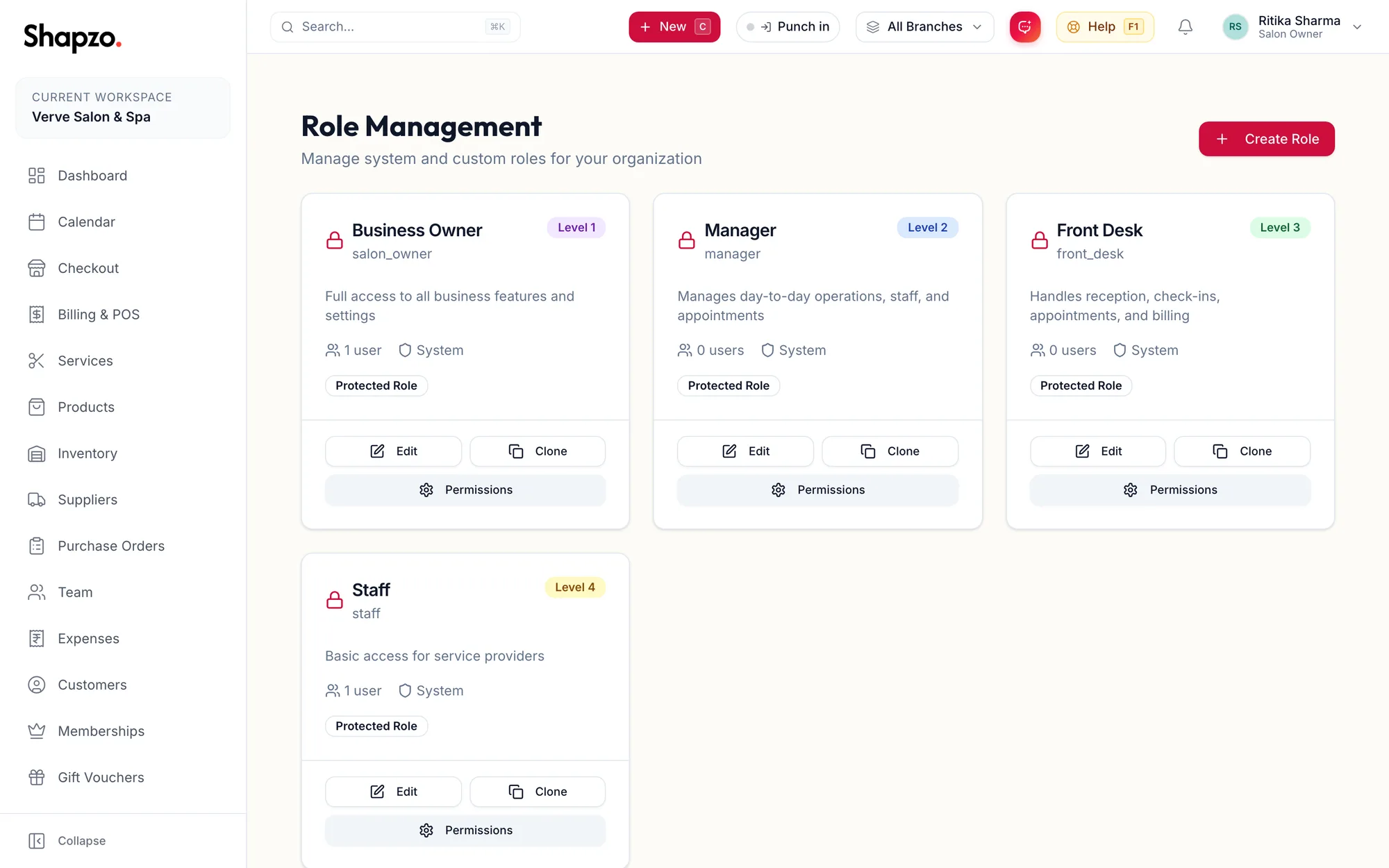
Open Roles. The sub-heading reads Manage system and custom roles for your organization. Each card shows the role's display and internal names, a Level {{n}} badge, its description, how many people hold it, System or Custom, and Protected Role on the built-in ones. The buttons are Edit, Clone and Permissions, which opens the matrix for that role.
Create a role
On the web
-
Click Create Role, or press n. From anywhere, the New menu offers Role. The dialog is titled Create Custom Role.
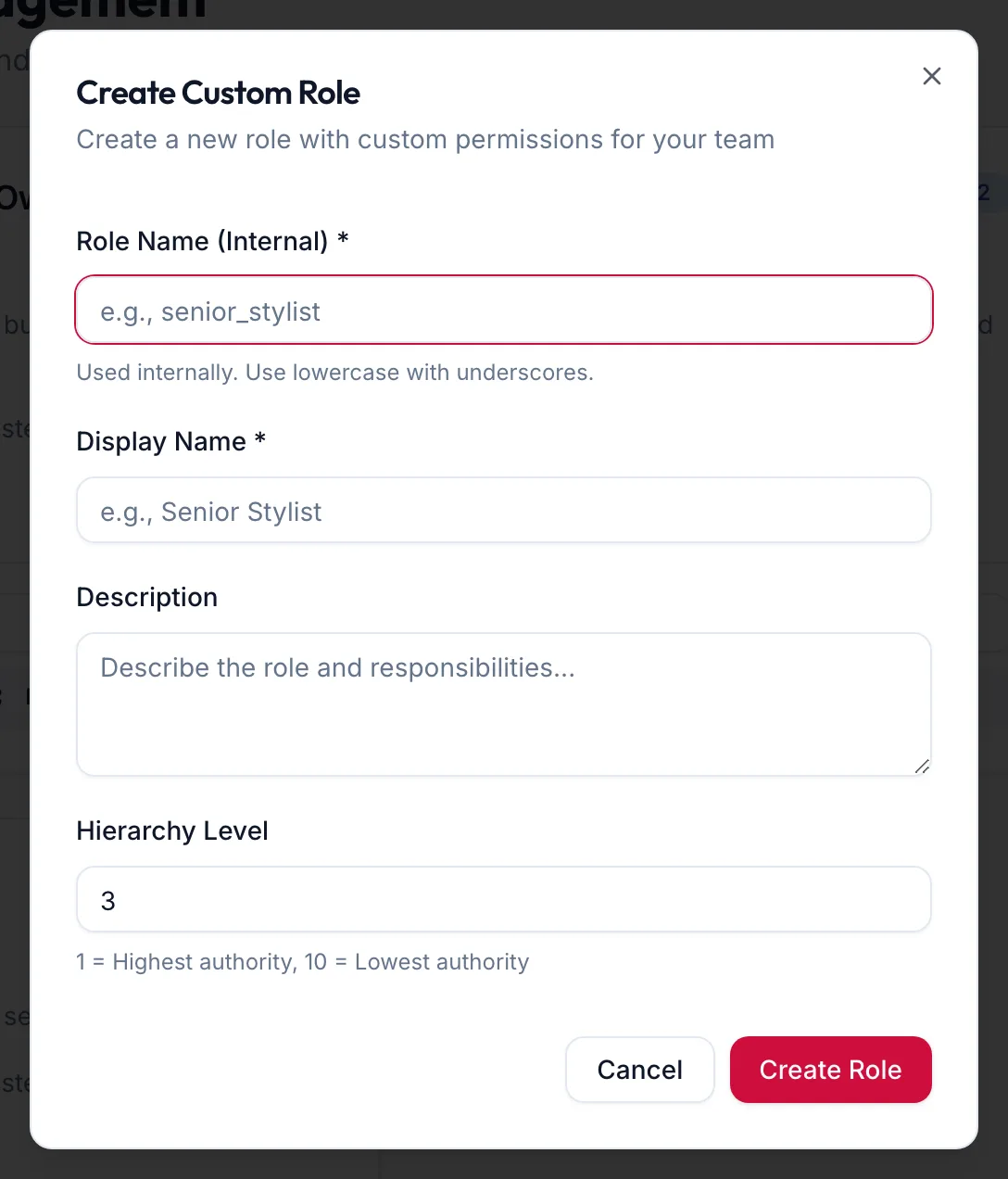
The Create Custom Role dialog -
Enter the Role Name (Internal), lowercase with underscores, for example senior_stylist. It is Used internally. Use lowercase with underscores.
-
Enter the Display Name people will see, for example Senior Stylist, and a Description.
-
Set the Hierarchy Level: 1 = Highest authority, 10 = Lowest authority. A role can only manage roles below it.
-
Under Copy permissions from, pick the role closest to what you want. The new role starts with the same permissions.
-
Click Create Role.
Then adjust its permissions; see Change what a role can do.
In the app
-
Tap More, then Roles, then the + button.
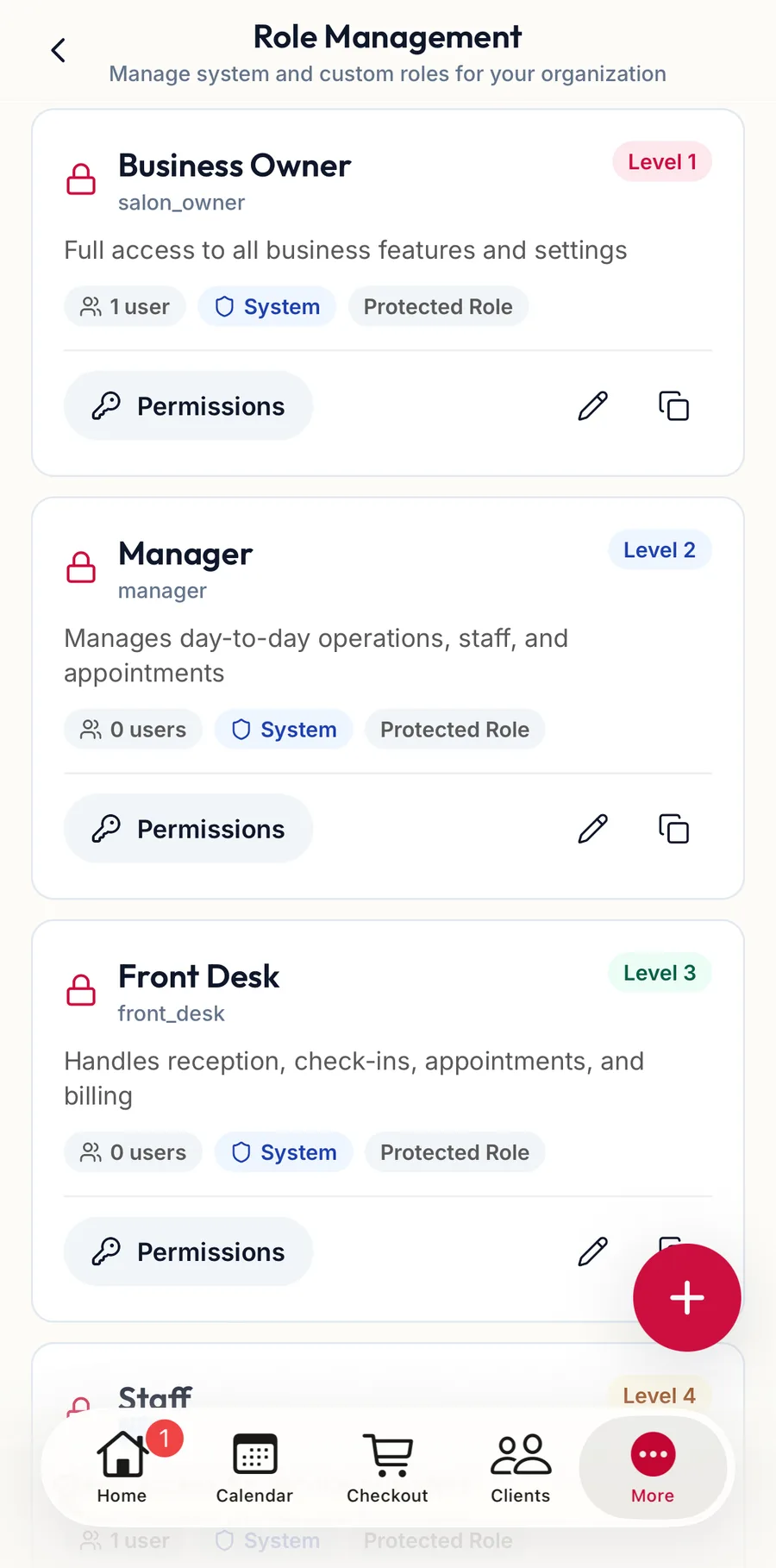
The Role Management screen in the app -
Enter the Role Name (Internal), the Display Name, a Description and the Hierarchy Level.
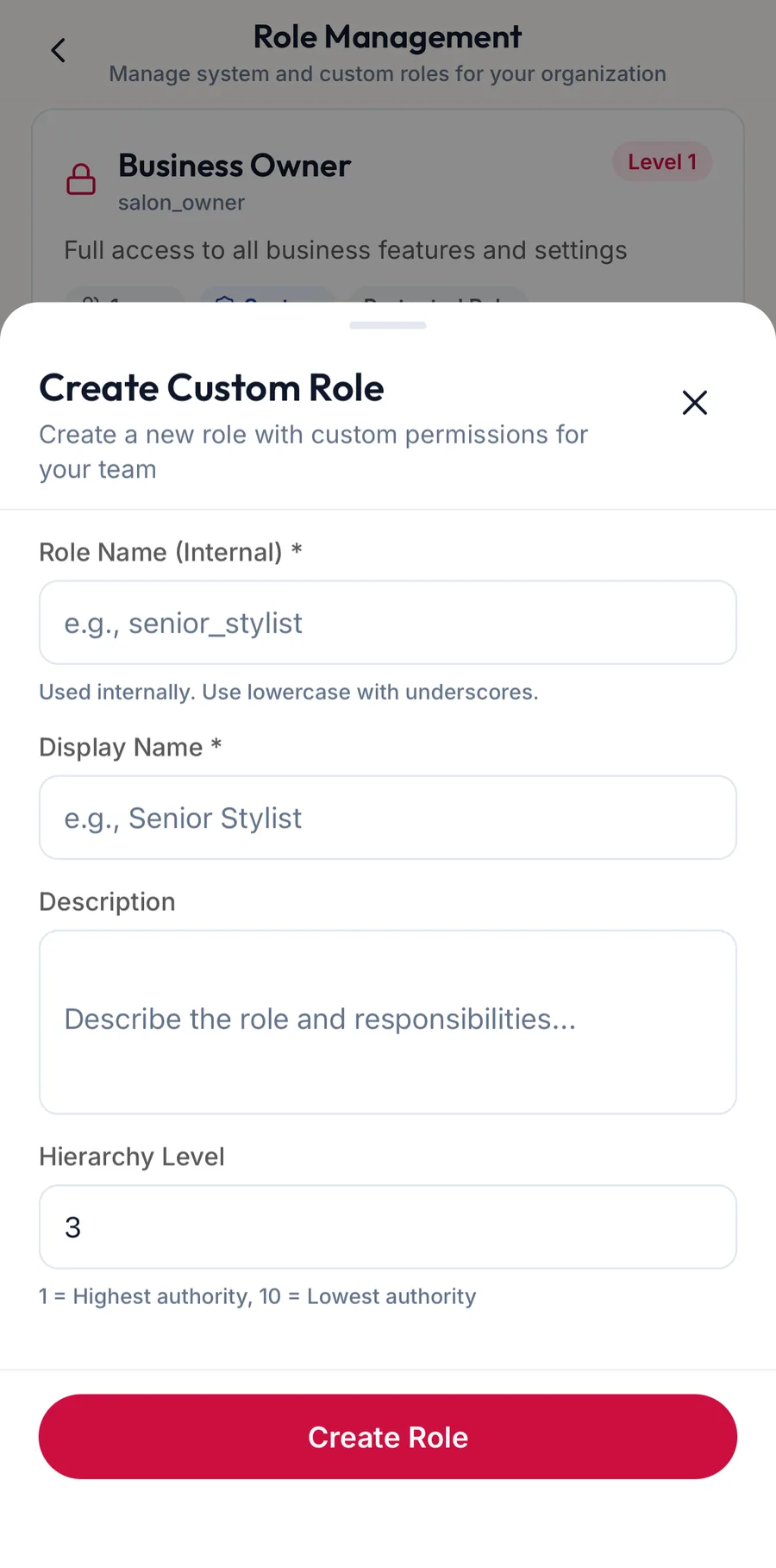
The Create Custom Role sheet in the app -
Tap Create Role, then set its permissions under Permissions.
Clone
On the web
Clone on a card opens Clone {{name}}: Creates a new role with the same permissions. You can change the names before saving. The name defaults to {{name}} (Copy).
In the app
Tap Actions on a card, then Clone.
Edit
On the web
Edit changes the display name, description and level. For system roles, System roles can only have their display name and description updated.
In the app
Tap Actions on a card, then Edit.
Delete
On the web
Delete is offered on custom roles only; system roles cannot be removed. Delete Role asks Are you sure you want to delete "{{name}}"?. A role in use cannot go: Warning: This role has {{count}} users assigned. You cannot delete it until all users are reassigned. Move those people to another role under Team first.
In the app
Tap Actions on a card, then Delete; custom roles only.
Related articles
- How permissions work: resource, action and scope · Roles, permissions & audit
- Change what a role can do · Roles, permissions & audit
- System access, roles and invitations · Team