
Holidays and closed periods
Add public holidays so the roster, leave and pay runs know about them, and open the closed-periods settings for longer shutdowns.
Add a holiday
On the web
-
On Team, click Schedule settings, then Add holiday.
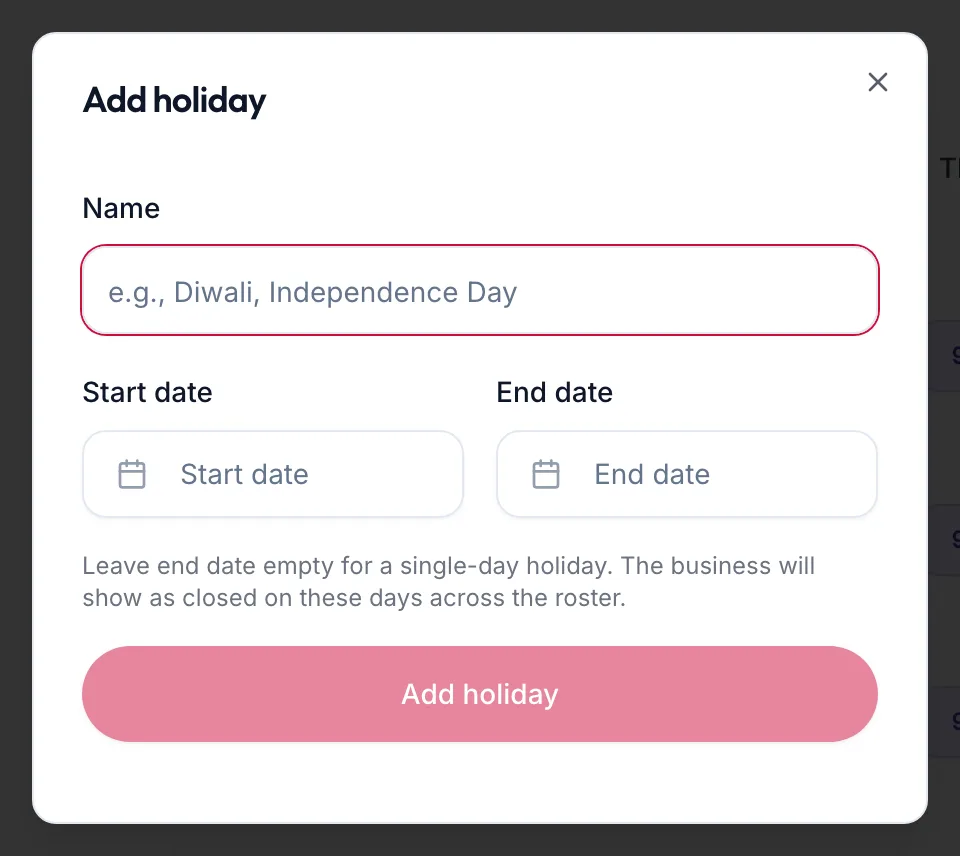
The Add holiday dialog -
Enter the Name (for example Diwali), the Start date and End date.
-
Click Add holiday. The portal confirms Holiday added.
Holidays appear as Closed on the roster and are not counted as working days in leave or pay runs.
In the app
-
On the Shifts tab, tap Add holiday.
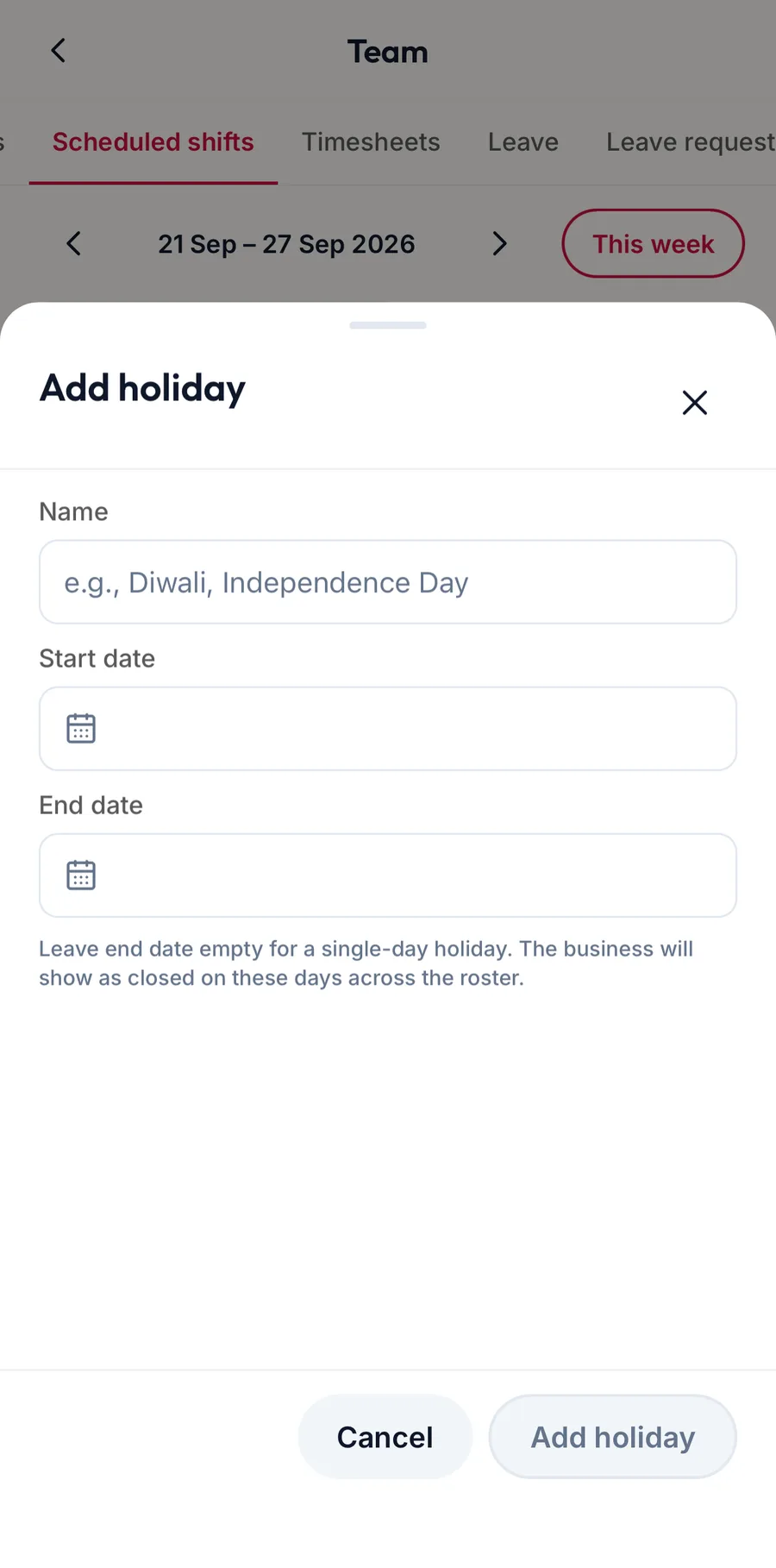
The Add holiday sheet in the app -
Enter the Name, the Start date and End date, and tap Add holiday.
Closed periods
On the web
For a renovation or an annual shutdown, choose Schedule settings, then Manage closed periods. It opens Settings, Scheduling, where closed periods block the calendar for every branch or one branch; see Blocked time and closed days.
In the app
Manage closed periods on the same tab opens the scheduling settings.
Related articles
- Scheduled shifts and time off · Team
- Blocked time and closed days on the calendar · Calendar
- Scheduling: time and calendar · Settings