
The punch clock: widget, late banner, auto punch-out and snooze
How team members punch in and out, take breaks, and what the late banner, automatic punch-out and snooze links do.
The punch clock lives in the top bar of every page. It works for any signed-in user who is linked to a team member.
Punch in and out
On the web
-
Click the Punch in button in the top bar. The card shows today's Scheduled {{start}} – {{end}} (or No shift scheduled today).
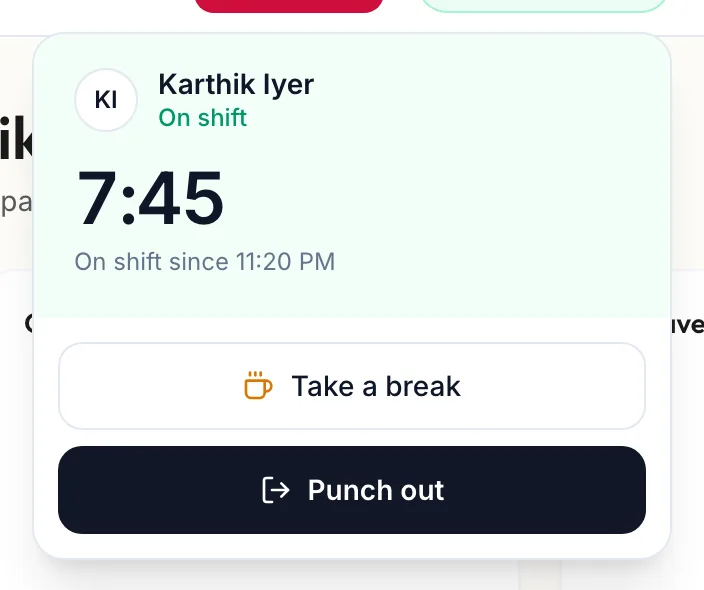
The punch clock card -
Click Punch in. The button becomes a timer reading On shift.
-
For a break, click Take a break, Select a break type and Start. The card shows On break; click End break & resume when back. A break has to end before you can punch out.
-
At the end of the day, click Punch out.
In the app
-
Tap More, then Punch. The screen shows Today's shift with the scheduled hours (or No shift scheduled today).
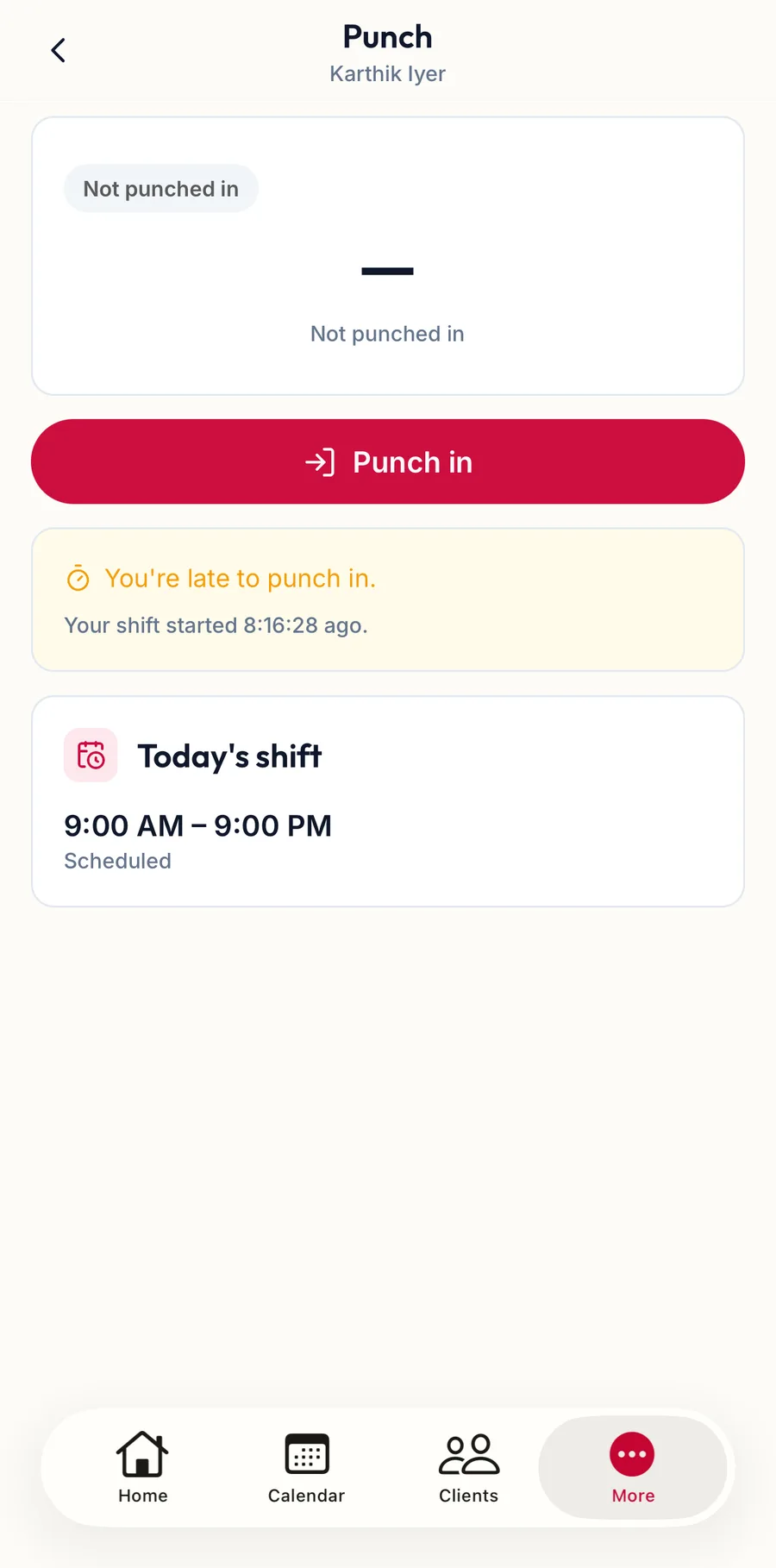
The Punch screen in the app before punching in -
Tap Punch in. The card at the top reads On shift with the Time on the clock.
-
For a break, tap a break type under Take a break. The card reads On break; tap End break & resume when back. A break has to end before you can punch out.
-
At the end of the day, tap Punch out.
Today's breaks and Your last 7 days sit underneath. The late banner and the automatic punch-out work the same way as on the web, and the banner also shows on Home and the Calendar.
The late banner
If you are past your scheduled start and have not punched in, a banner reads You're late to punch in. with a Punch in button. The minutes are recorded as late on the timesheet.
Automatic punch-out
Forgetting to punch out would inflate the hours, so an open shift is closed automatically after the scheduled end plus a grace period. Before that:
- The card shows Auto punch-out at {{time}} with a Snooze button for those staying late.
- A banner reads Your shift is ending. with Auto punch-out in and Snooze: options.
- The reminder email carries a link to a page titled Snooze auto punch-out, so it can be snoozed from a phone without signing in.
Snoozing is not offered close to midnight; open shifts are always closed then, and the entry is marked as automatically punched out.
Managers
Timesheets, On shift now shows everyone in, and lets a manager snooze someone's auto-out. The punch clock, its grace period and break types are set under Settings, Scheduling; see Scheduling: time and calendar.