
Approve, reject or cancel leave
Work through pending leave requests, reject with a reason the requester will see, and cancel approved leave to restore the balance.
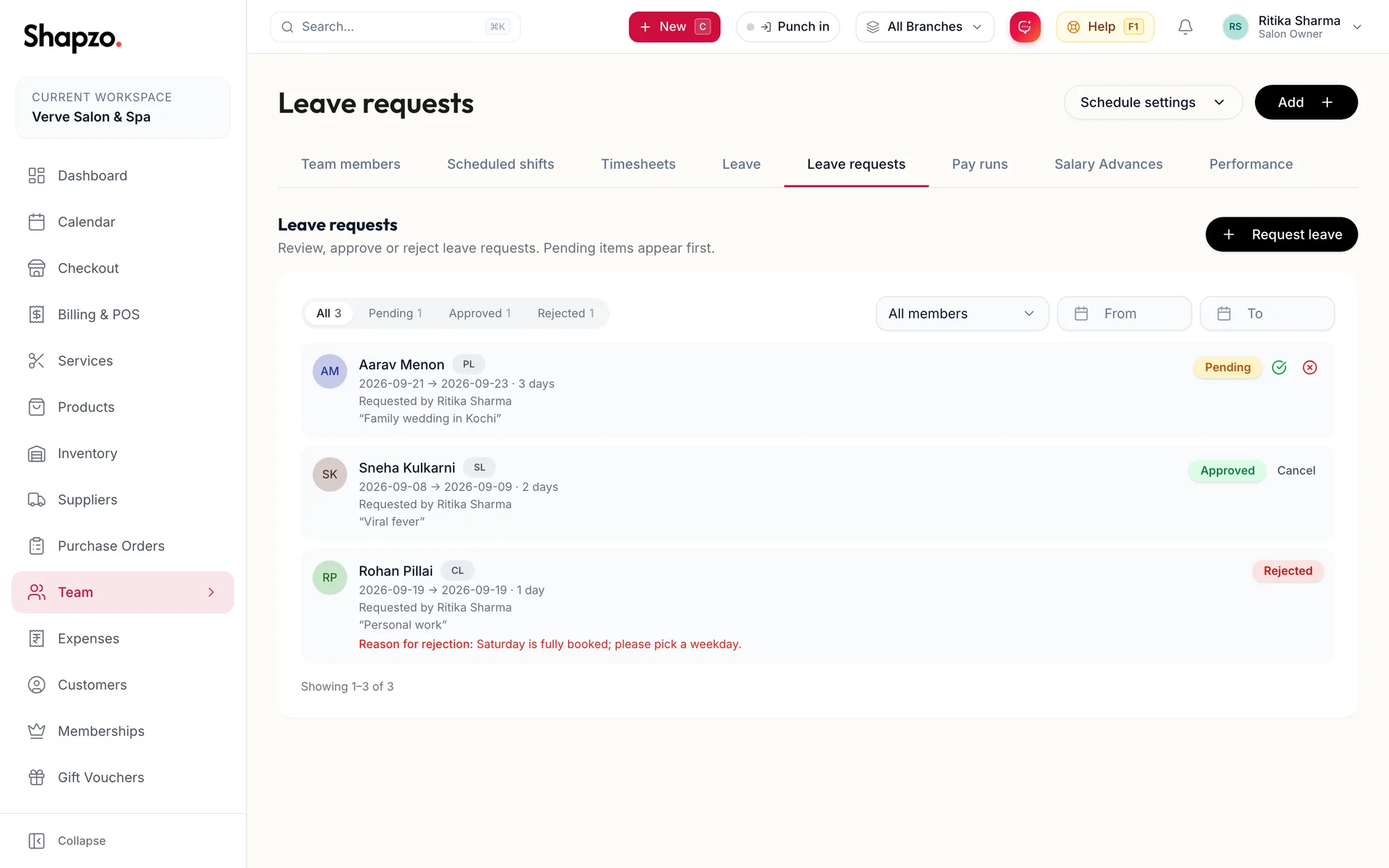
Open Team and Leave requests. Pending items appear first. Filter with the All, Pending, Approved and Rejected chips, by member, and by From and To dates.
Each row reads {{start}} → {{end}} · {{count}} days, the type, Requested by {{name}} and the reason.
Approve
On the web
Click the tick on a pending row. The portal confirms Leave approved, the balance is deducted, and the days are blocked on the calendar and the roster.
In the app
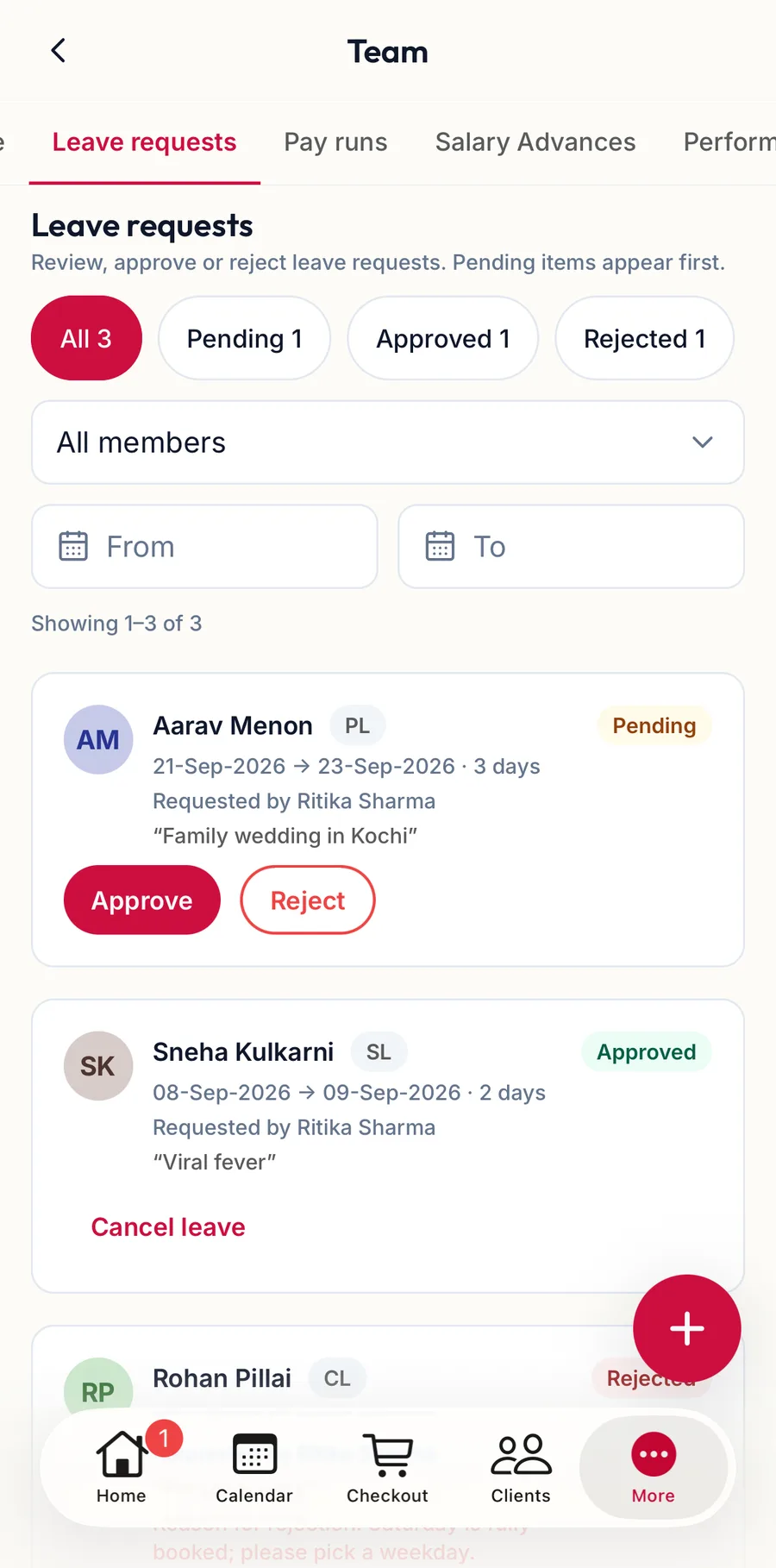
Tap More, then Team, then the Leave requests tab. Filter by status and member; tap Approve on a pending row.
Reject
On the web
-
Click the cross on a pending row.
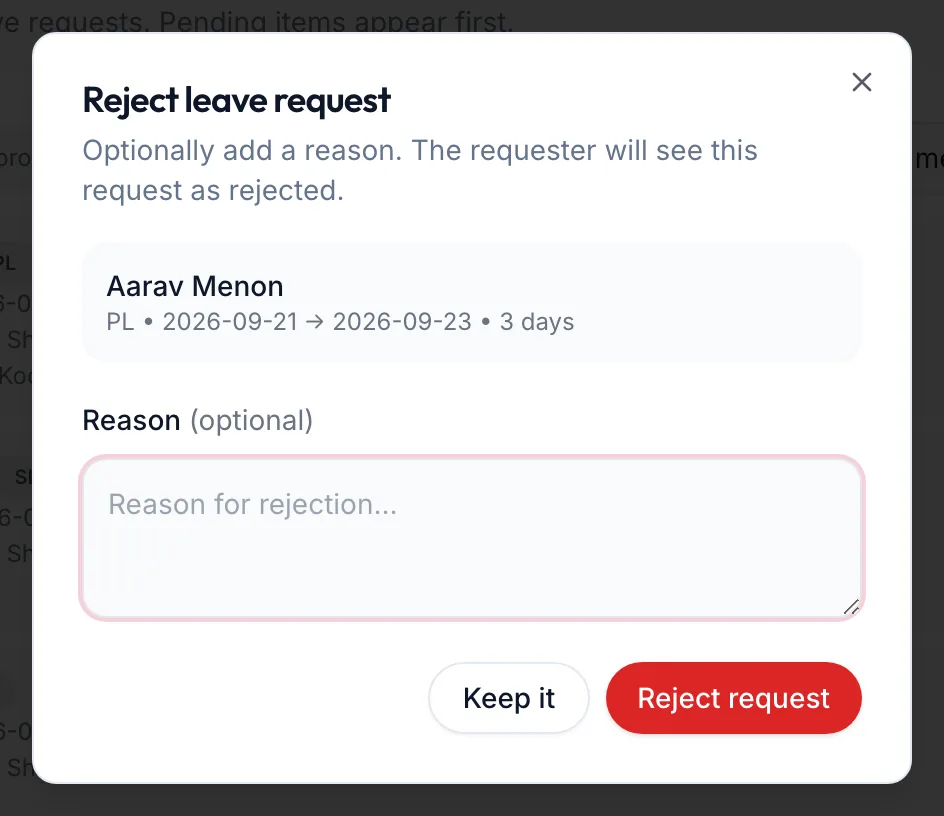
The Reject leave request dialog -
Add a Reason (optional). The dialog notes The requester will see this request as rejected.
-
Click Reject request. The row shows Reason for rejection: and the toast reads Leave rejected.
In the app
Tap Reject on a pending row, add a Reason (optional) and tap Reject request.
Cancel approved leave
On the web
Click Cancel on an approved row. The dialog Cancel approved leave explains The deducted balance will be restored and the calendar blocks for these days removed. Click Cancel leave; the toast reads Leave cancelled.
In the app
Tap Cancel leave on an approved row and confirm.
Related articles
- Leave balances and requests · Team
- Scheduled shifts and time off · Team