
Add a product
Create a retail or backbar product with its category, brand, prices, tax, identifiers and stock settings.
Steps
On the web
-
Open Products and click Add Product, or press n.
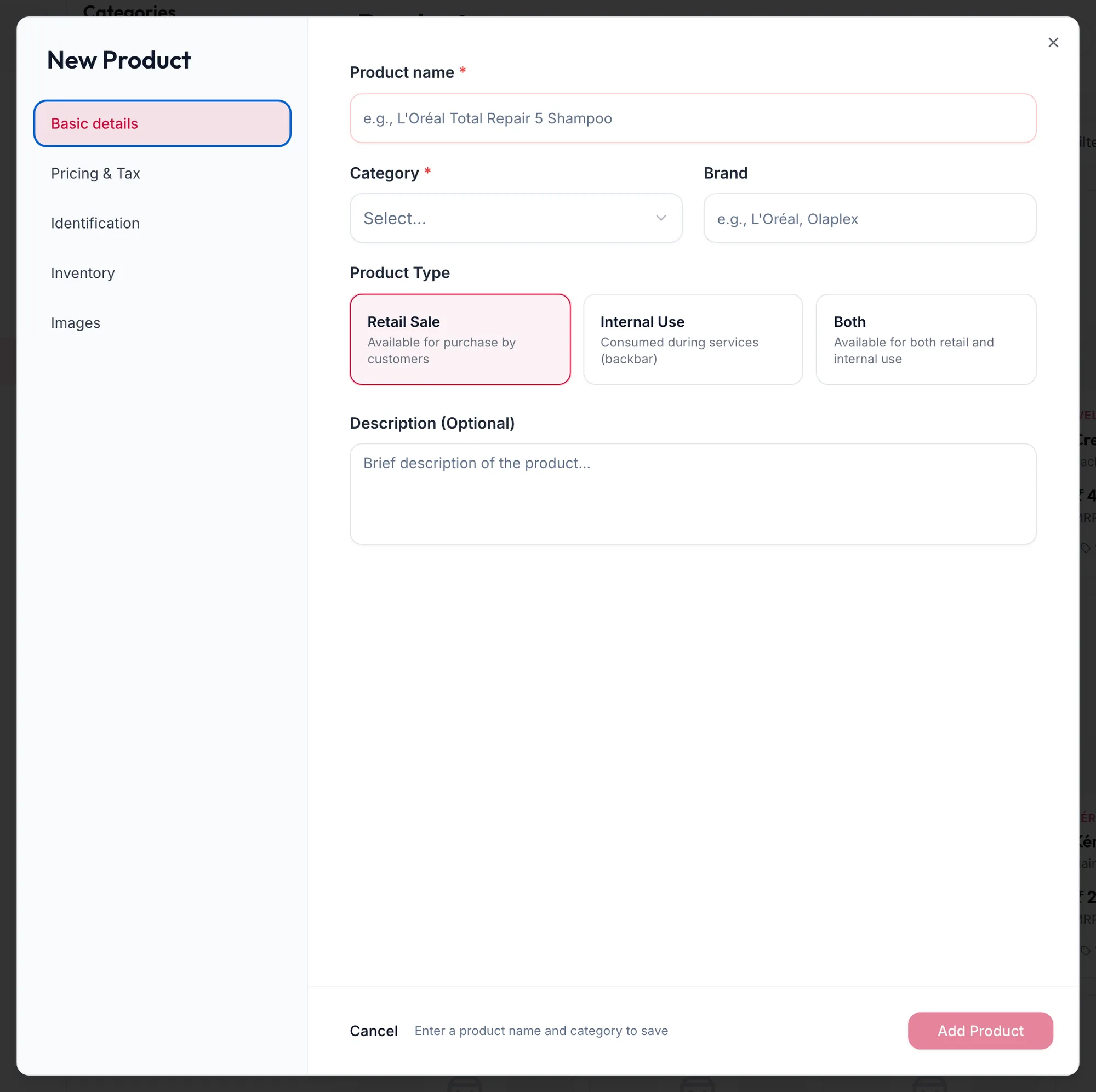
The New Product form on Basic details -
Under Basic details, enter the Product name, choose a Category (or Add New Category), a Brand, and the Product Type: Retail Sale, Internal Use or Both. Add a Description (Optional) if it helps staff.
-
Under Pricing & Tax, set the Selling Price, and if you know them the Cost Price, MRP and a Special Price for a promotion. Choose the Tax rate and the HSN Code; see Product types, units, HSN and GST.
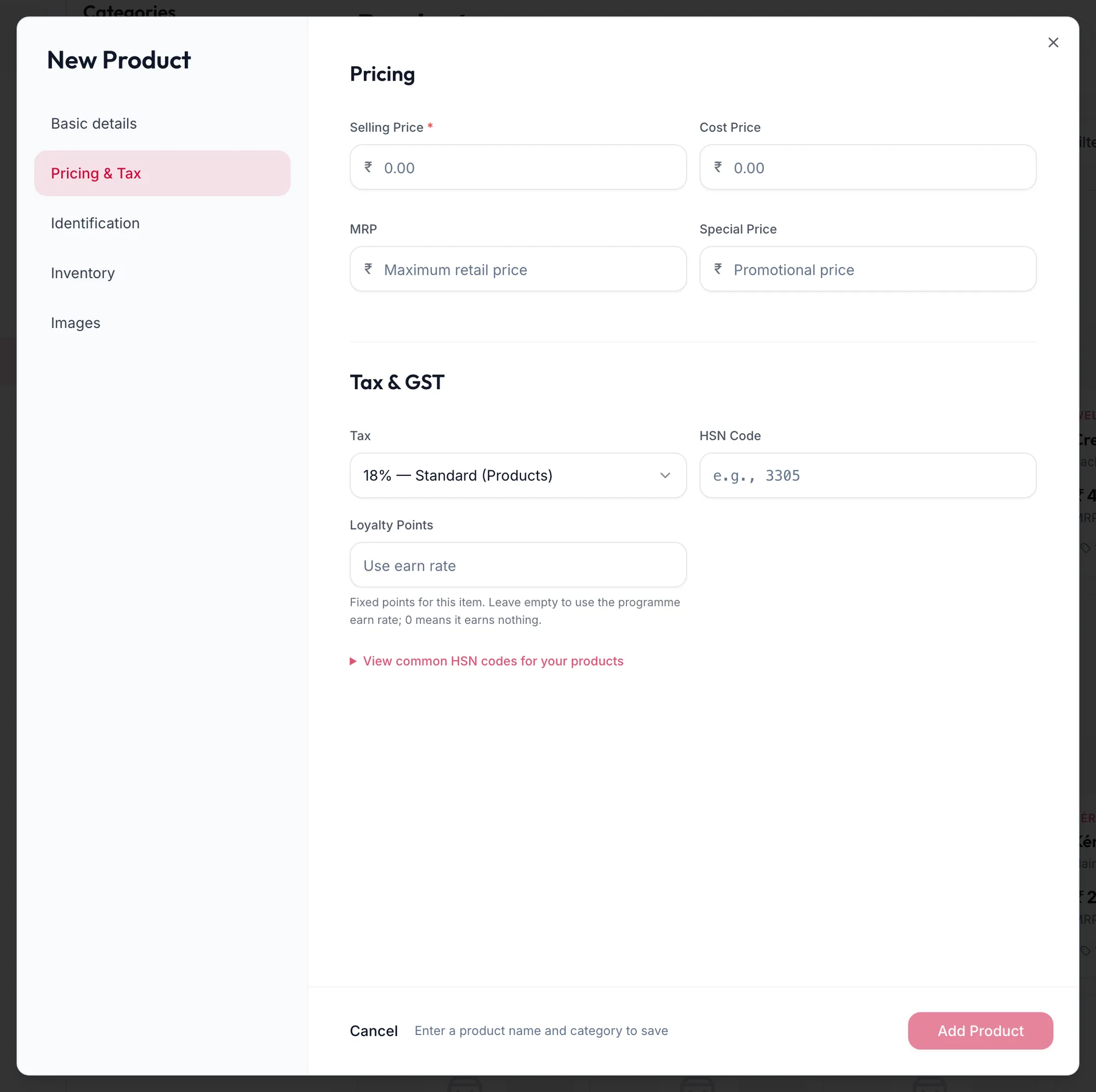
The Pricing and Tax section of the product form -
Under Identification, give it a SKU (Stock Keeping Unit) (click Auto to generate one) and scan the Barcode (EAN / UPC) from the packaging so it can be found at checkout by scanner. Set the Unit and Size / Weight.
-
Under Inventory, switch on Track Stock and set the Reorder Point at which the product counts as low stock. Max Stock and Min Order Qty help the purchase order auto-fill. Choose a Default Supplier with their Supplier SKU and Supplier Price.
-
Under Images, drop photos; the first is the cover.
-
Click Add Product, or press ⌘S / Ctrl S.
The product is in the catalogue with zero stock. Add stock by receiving a purchase order or with Adjust Stock under Inventory.
In the app
-
Tap More, then Products, then the + button.
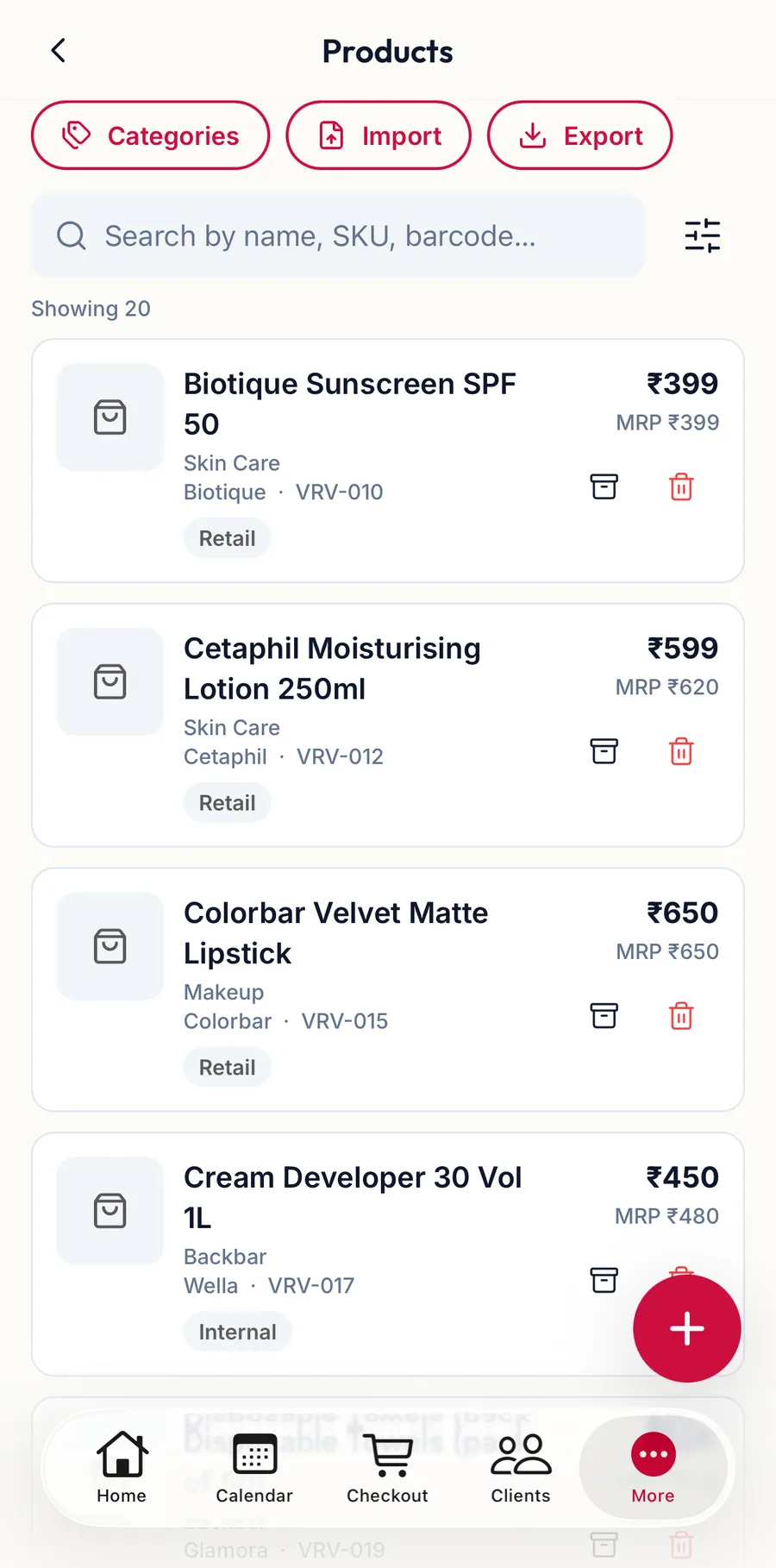
The Products screen in the app -
Under Basic details, enter the Product name, choose a Category (or Add New Category), a Brand and the Product Type.
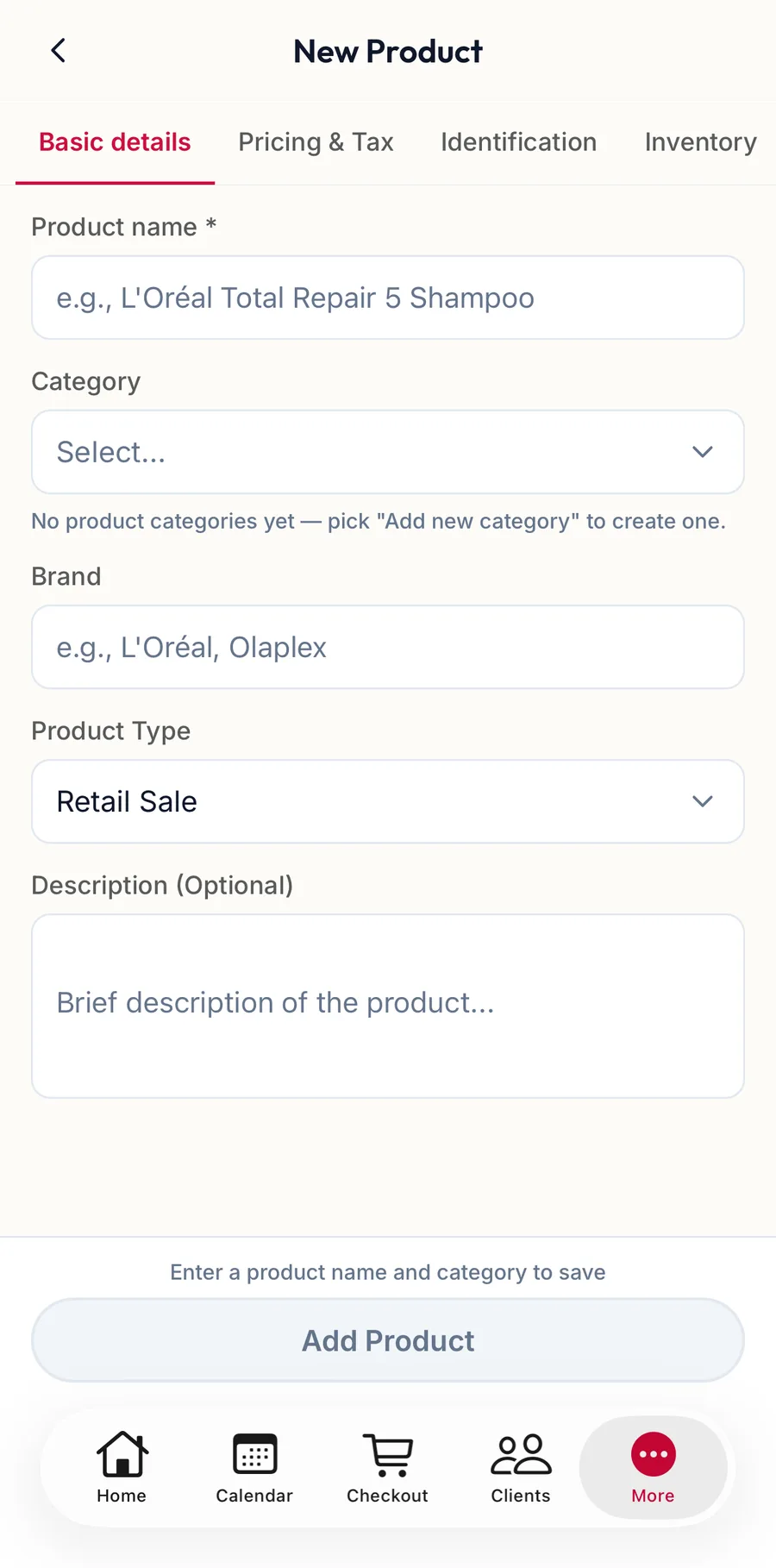
The New Product form in the app -
Tap Pricing & Tax: set the Selling Price, and if you know them the Cost Price, MRP and a Special Price. Choose the tax and the HSN Code.
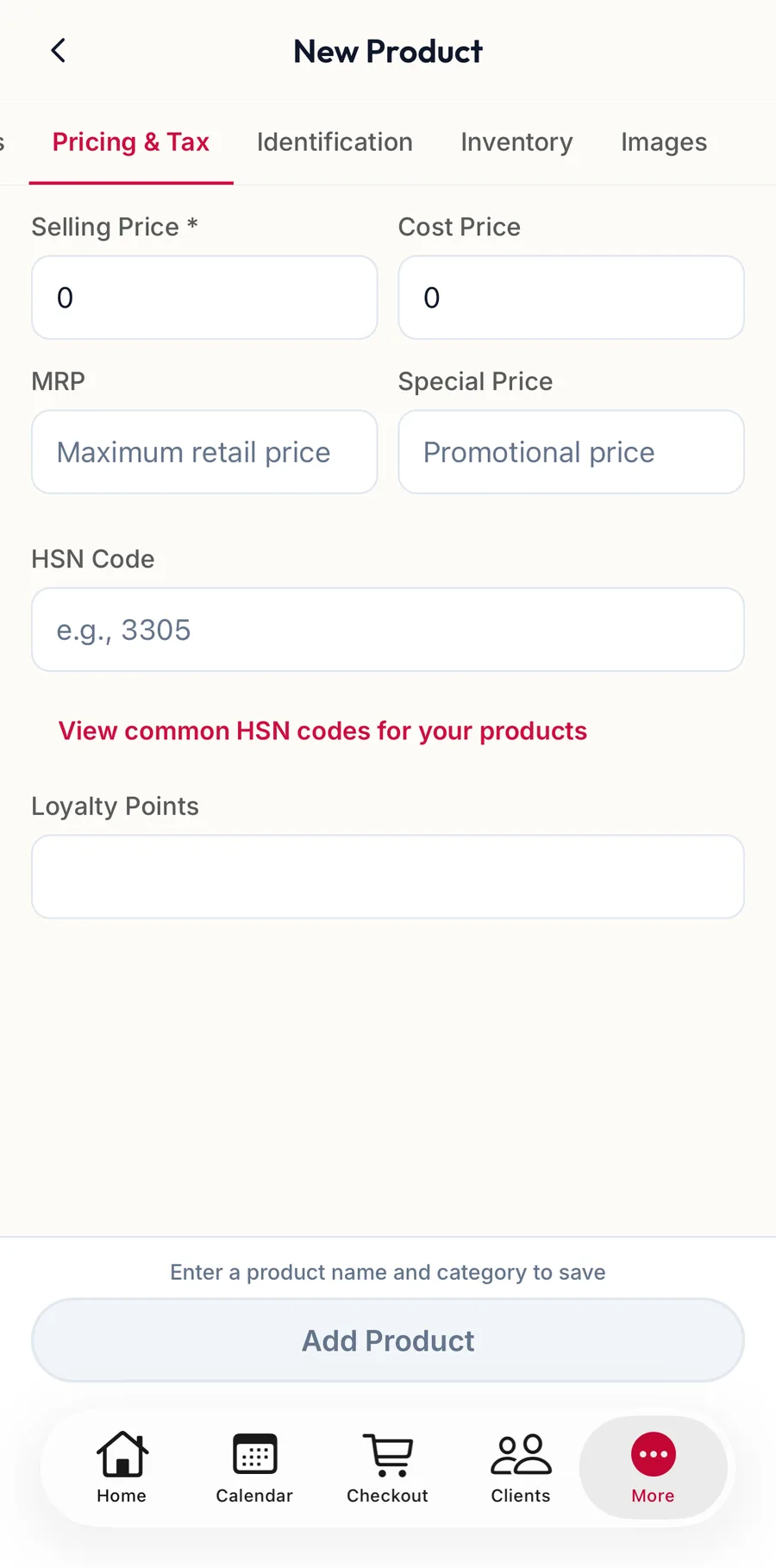
The Pricing and Tax section of the product form in the app -
Tap Identification for the SKU (Stock Keeping Unit) (Auto generates one) and the Barcode (EAN / UPC).
-
Tap Inventory: switch on Track Stock and set the Reorder Point, Max Stock, Min Order Qty and the Default Supplier.
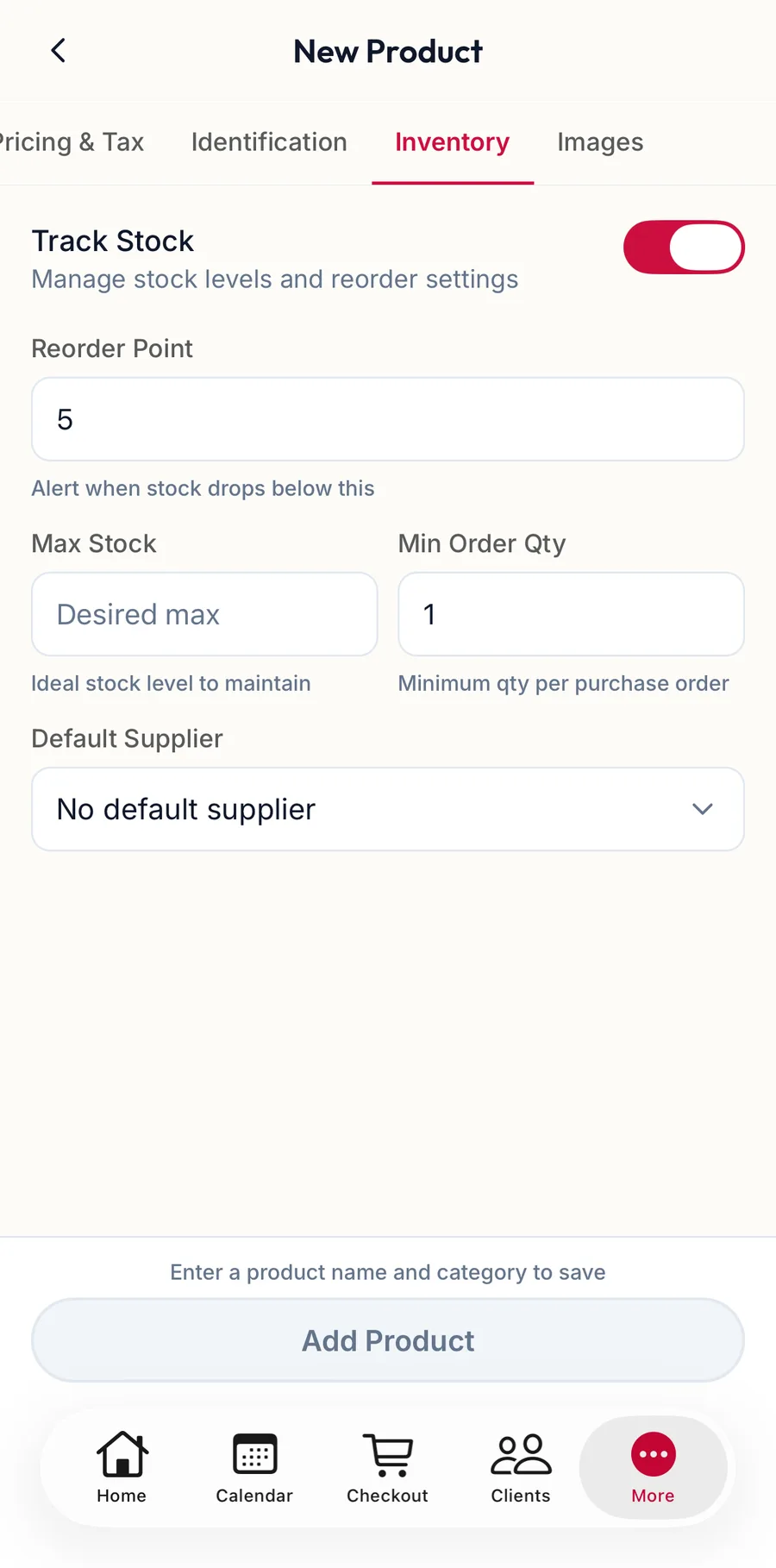
The Inventory section of the product form in the app -
Under Images, tap Upload images to add photos from the phone.
-
Tap Add Product.
The app confirms with Product saved.
Rules the form enforces
- SKU and Barcode must be unique across your products; the form names the product that already uses one.
- Selling price cannot exceed MRP and MRP cannot be ₹0. Leave MRP blank if the product has none.
- A Special Price or Cost Price above the selling price saves, with a warning.
Related articles
- Product types, units, HSN and GST · Products & stock
- Inventory: stock levels, low stock and out of stock · Products & stock
- Import products · Products & stock