
Receive, cancel and print purchase orders
Book delivered stock into the branch, in full or in parts, print an order for the supplier, and cancel or delete one that will not happen.
Receive a delivery
On the web
- Open the order's Row actions menu and choose Receive Items. It is available once the order is Ordered or Partially Received.
- For each line the dialog shows Ordered, Already received and Remaining. Enter what arrived. Leave a line at zero if it did not.
- Click Confirm Receipt.
Stock rises at the order's branch with a Purchase Received movement per line. The order becomes Received when every line is complete, otherwise Partially Received, and you can receive again when the rest arrives.
In the app
-
Tap More, then Purchase Orders, and open the order.
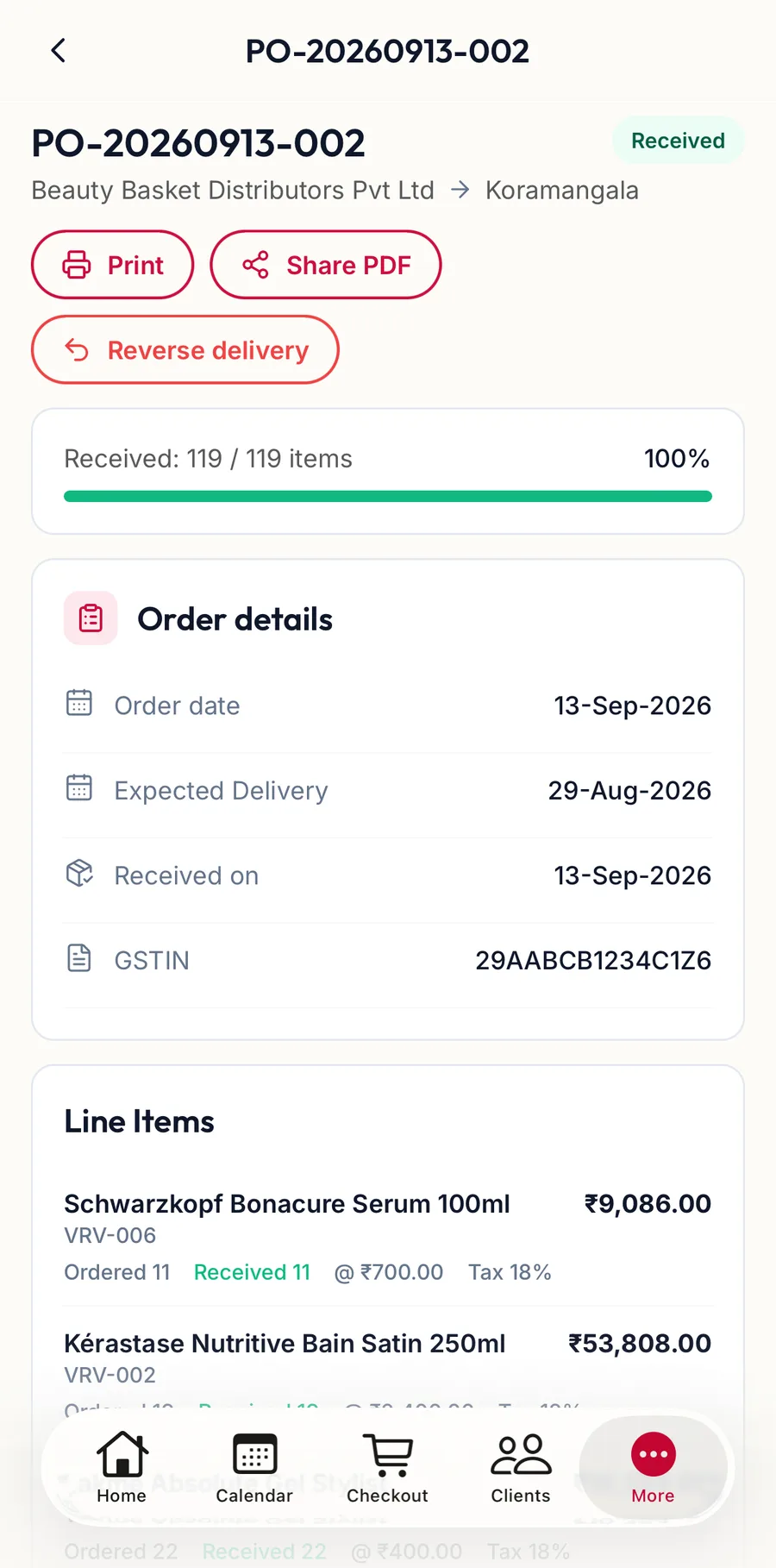
A purchase order open in the app -
Tap Receive Items. It is offered once the order is Ordered or Partially Received.
-
Enter what arrived per line with the plus and minus, or Receive all, and tap the button that reads Receive with the count.
Print an order
On the web
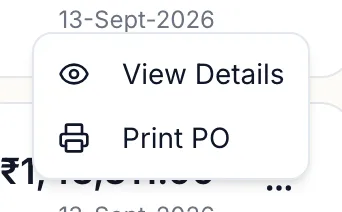
Choose Print PO. The sheet lists the supplier, Ship To (Branch), GSTIN, each line with its tax, the totals and your notes, with spaces for Authorized Signature and Supplier Acknowledgment. Allow pop-ups if nothing opens.
In the app
Open the order and tap Print, or Share PDF to send it to the supplier from the phone.
View details
View Details opens the order read-only, with Ordered and Received per line and a Print button.
Cancel or delete
On the web
- Cancel is offered on any order not yet fully received. The dialog asks Cancel this purchase order? and the status becomes Cancelled. Stock already received stays received.
- Delete is only offered for a Draft, and removes it entirely.
In the app
Open the order: Cancel is offered on any order not yet fully received, Delete only on a draft. Reverse delivery undoes a receipt that was booked in by mistake.
Related articles
- Create a purchase order · Products & stock
- Movement history · Products & stock