
Create a purchase order
Order stock from a supplier for a branch, line by line or auto-filled from everything below its reorder point.
Steps
On the web
-
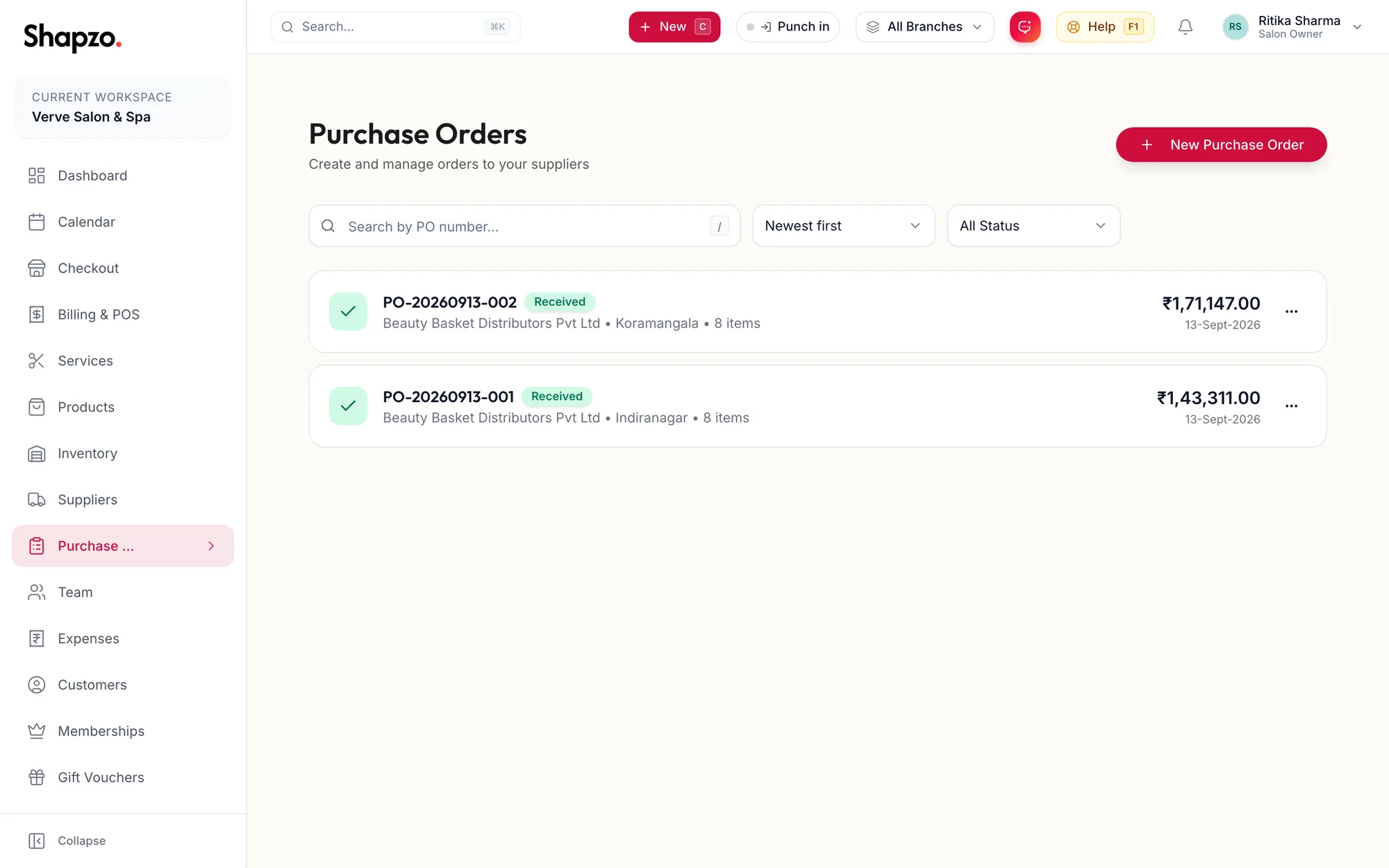
Open Purchase Orders and click New Purchase Order, or press n.
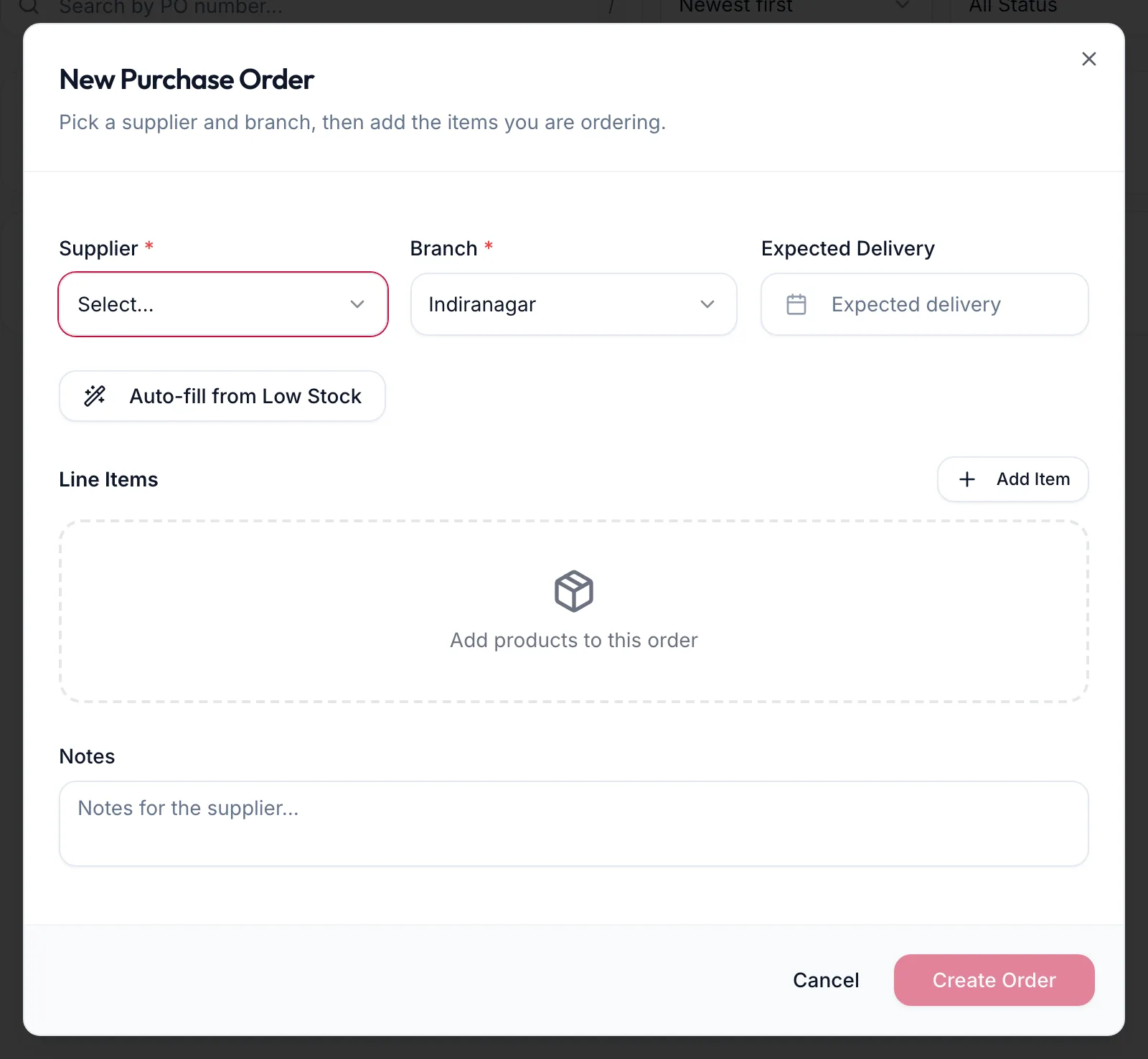
The New Purchase Order dialog -
Choose the Supplier and the Branch the stock is for, and an Expected Delivery date.
-
Add lines: click Add Item, pick the Product, and set the Qty and Unit Cost. The Line Total, Subtotal, Tax and Total update as you go.
-
Or click Auto-fill from Low Stock: every product at this branch that is at or below its reorder point is added with a suggested quantity.
-
Add Notes for the supplier and click Create Order.
The order is created in Draft with its own number.
In the app
-
Tap More, then Purchase Orders, then the + button.
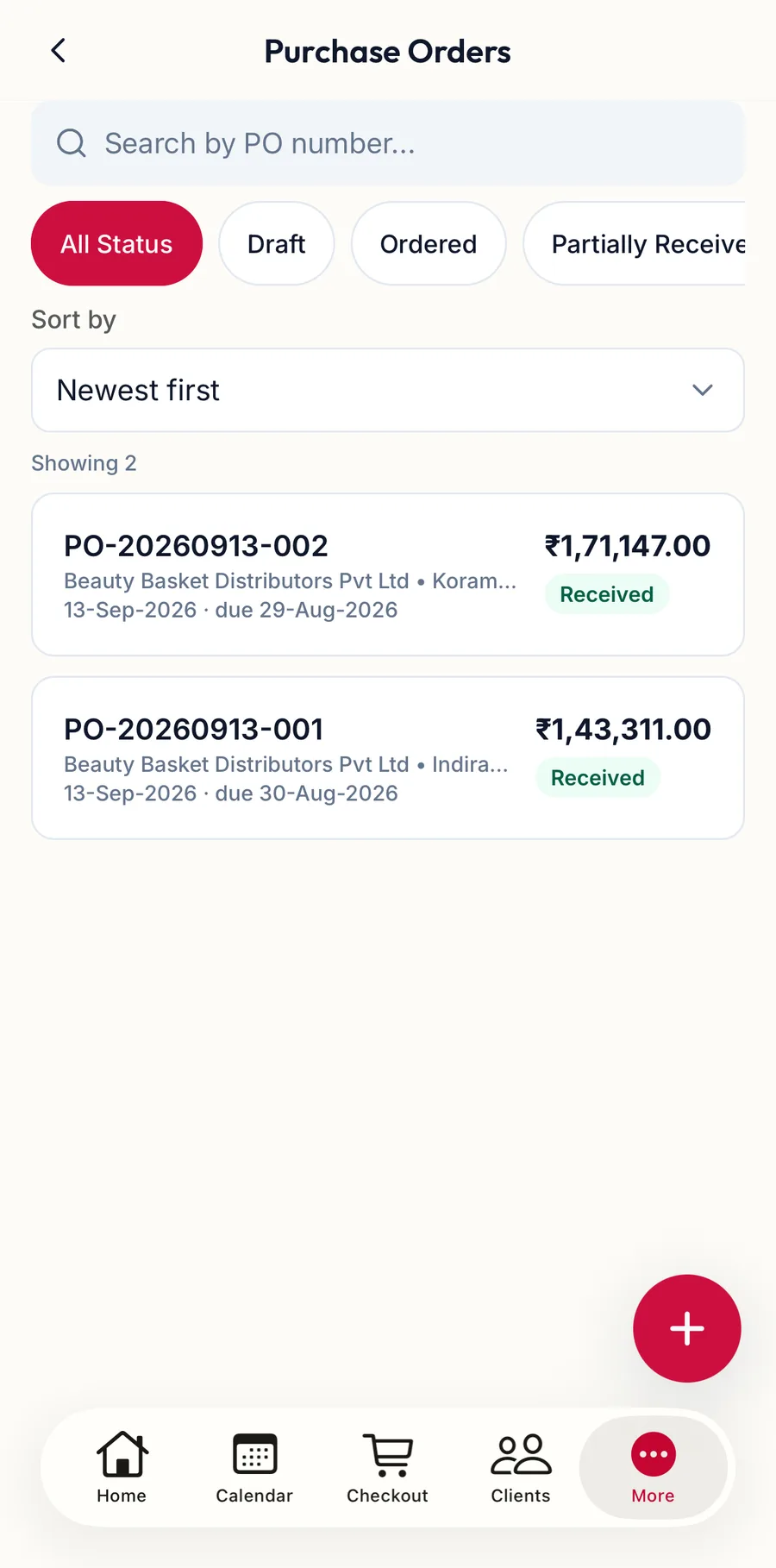
The Purchase Orders screen in the app -
Choose the Supplier, the Branch the stock is for, and an Expected Delivery date.
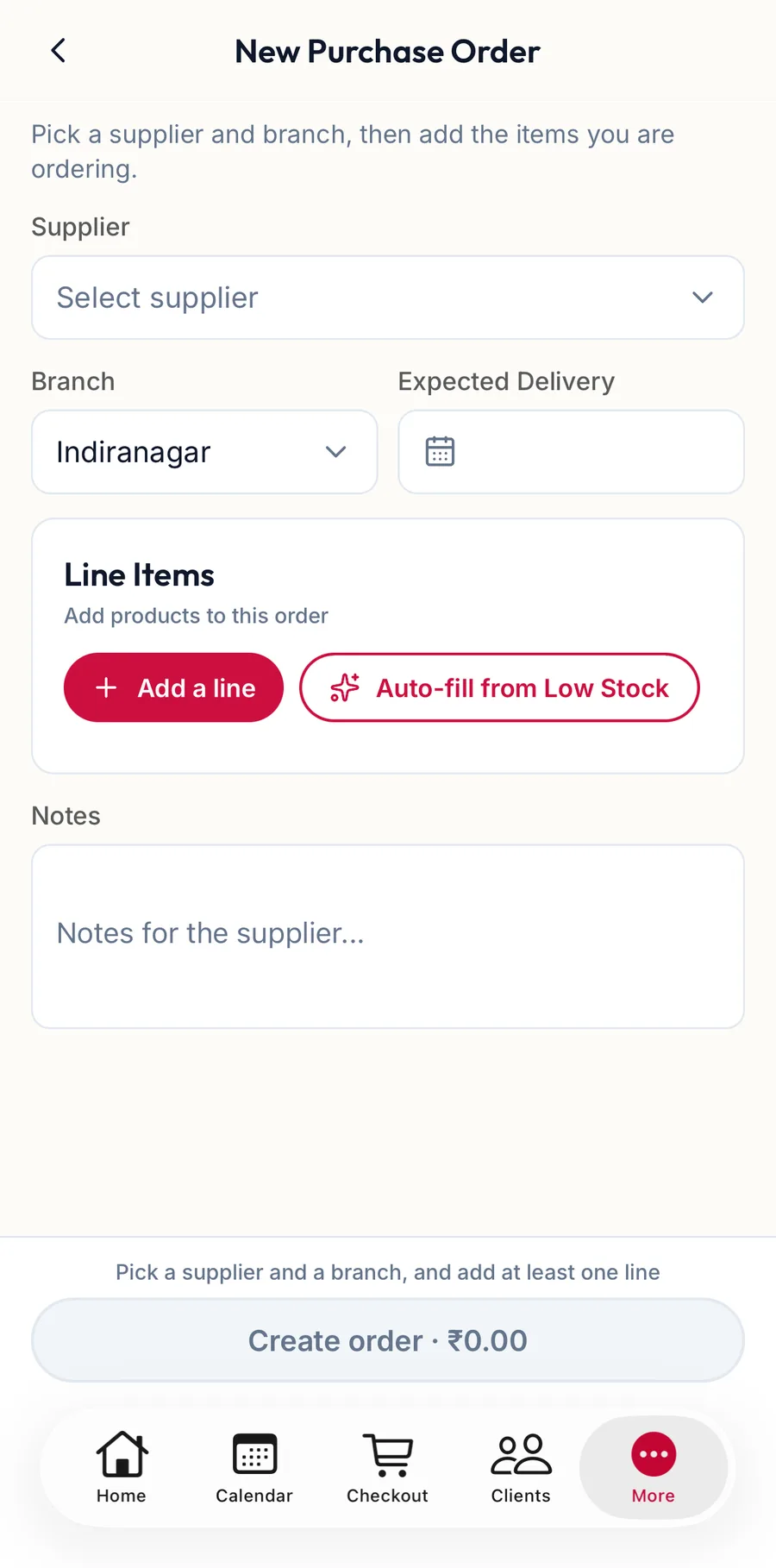
The New Purchase Order form in the app -
Tap Add a line, pick the product and set the Qty and Unit cost. The Subtotal, Tax and Total update as you go.
-
Or tap Auto-fill from Low Stock to add every product at or below its reorder point.
-
Add Notes and tap the button that reads Create order with the total.
Statuses
Draft while you are still editing. Mark as Ordered when it has been sent to the supplier; from then on the lines cannot be edited. Partially Received when some lines have arrived, Received when all have, Cancelled if called off.
Related articles
- Receive, cancel and print purchase orders · Products & stock
- Suppliers · Products & stock
- Inventory: stock levels, low stock and out of stock · Products & stock