
Inventory: stock levels, low stock and out of stock
See what each branch holds, which products are below their reorder point, and what the stock is worth.
Stock is kept per branch. Choose the branch at the top of Inventory; the page follows the branch selector in the top bar too.
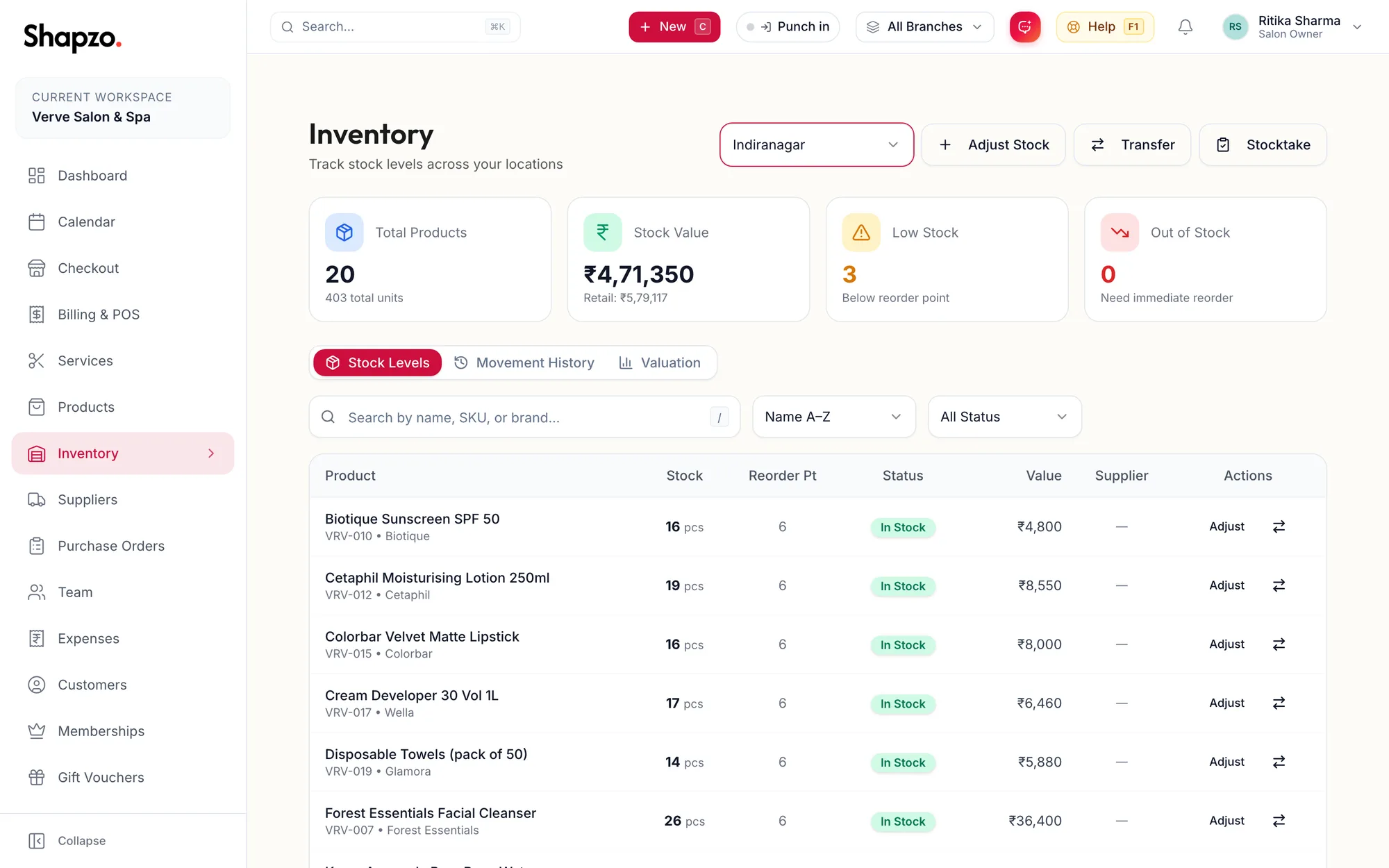
The cards
Total Products with the total units, Stock Value at cost with the retail value underneath, Low Stock and Out of Stock. Click the last two to filter the list.
Stock Levels
On the web
The table lists each product with its Stock, Reorder Pt, a Status of In Stock, Low Stock (at or below the reorder point) or Out of Stock, its Value, Supplier, and actions to Adjust or transfer. Search by name, SKU or brand and filter by status.
In the app
Tap More, then Inventory, and choose the Branch. The cards along the top count Total Products, Stock Value, Low Stock and Out of Stock; the list below shows each product's stock, reorder point and status, with Adjust on each row.
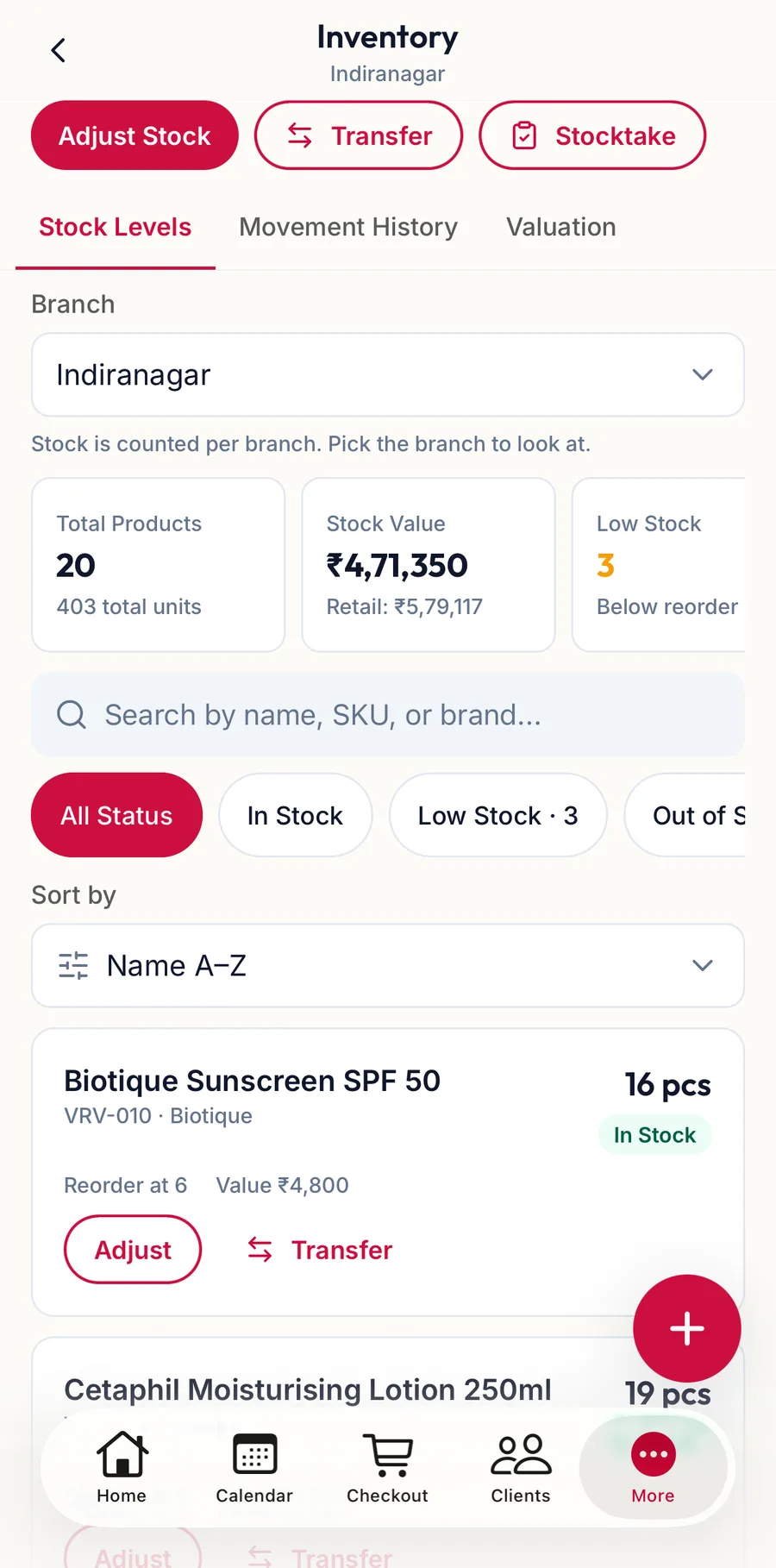
The row of buttons at the top offers Adjust Stock, Transfer and Stocktake. The tabs switch to Movement History and Valuation.
How stock moves
| What happens | Effect |
|---|---|
| A retail product is sold at checkout | Stock goes down at the invoice's branch |
| A purchase order is received | Stock goes up at the order's branch |
| A refund returns a product | Stock goes back up |
| Adjust Stock | Up or down, with a reason |
| Transfer | Down at one branch, up at another |
| Stocktake | Set to the counted figure |
Every movement is listed under Movement History; see Movement history.
Related articles
- Adjust stock · Products & stock
- Physical stocktake · Products & stock
- Create a purchase order · Products & stock