
Suppliers
Keep your vendors on file with contact, GST and payment terms, link products to them, and raise purchase orders against them.
Add a supplier
On the web
-
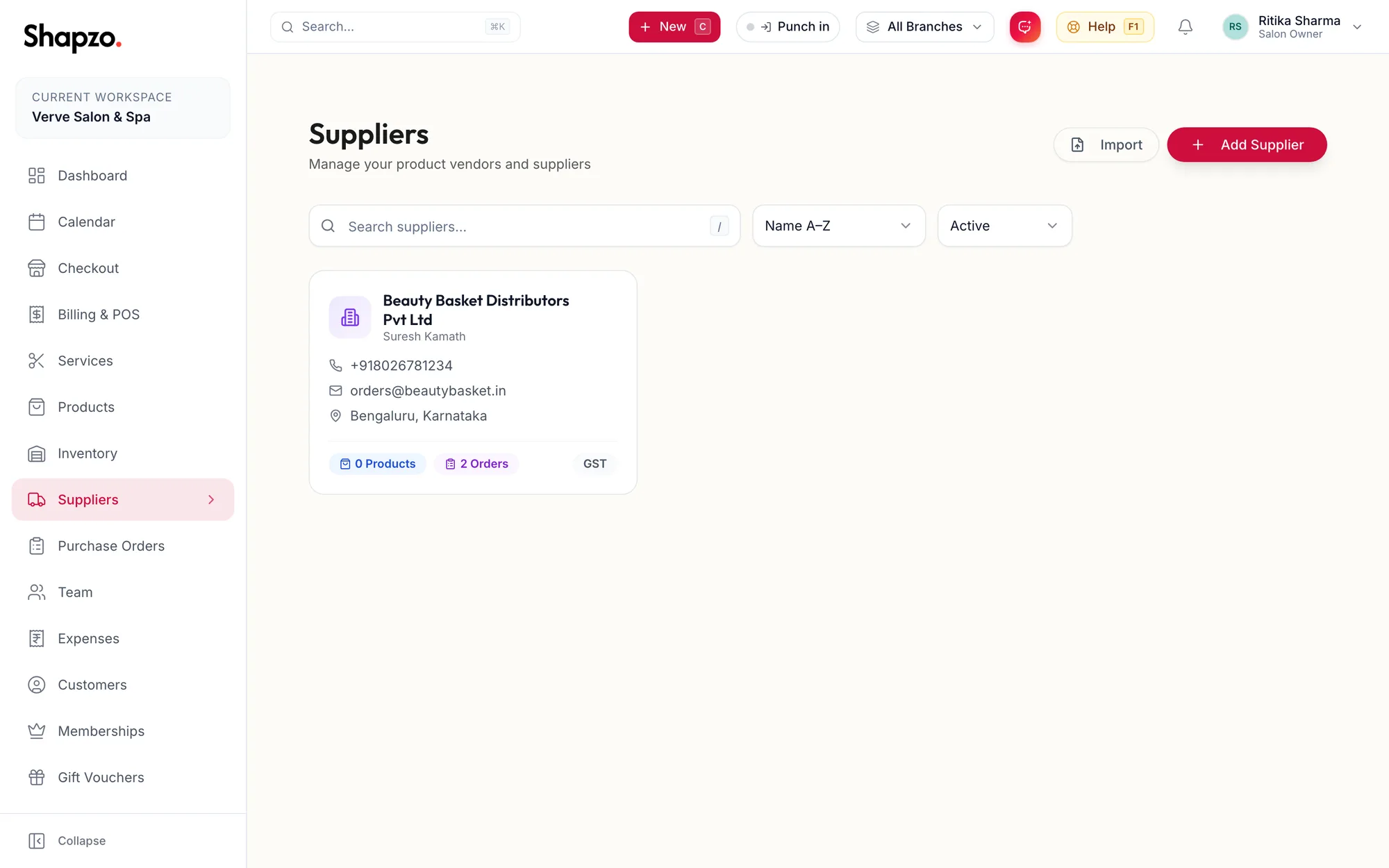
Open Suppliers and click Add Supplier, or press n.
The New Supplier dialog -
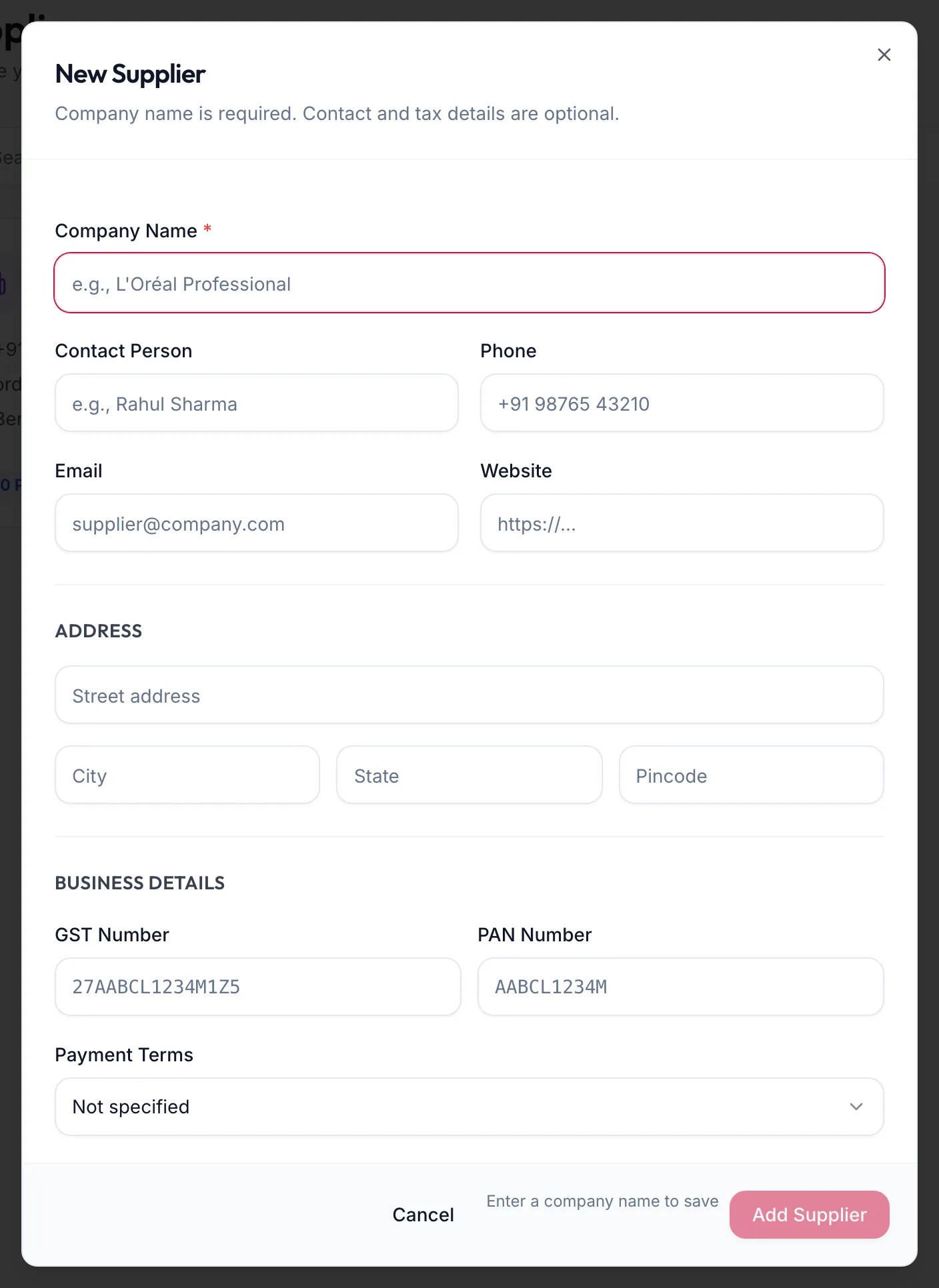
Enter the Company Name (required), Contact Person, Phone, Email and Website.
-
Fill in the Address.
-
Under Business Details, add the GST Number and PAN Number, and the Payment Terms: Cash on Delivery, Advance Payment, or Net 15 days to Net 60 days.
-
Add Notes and click Add Supplier.
Suppliers can also be imported from a template with Import.
In the app
-
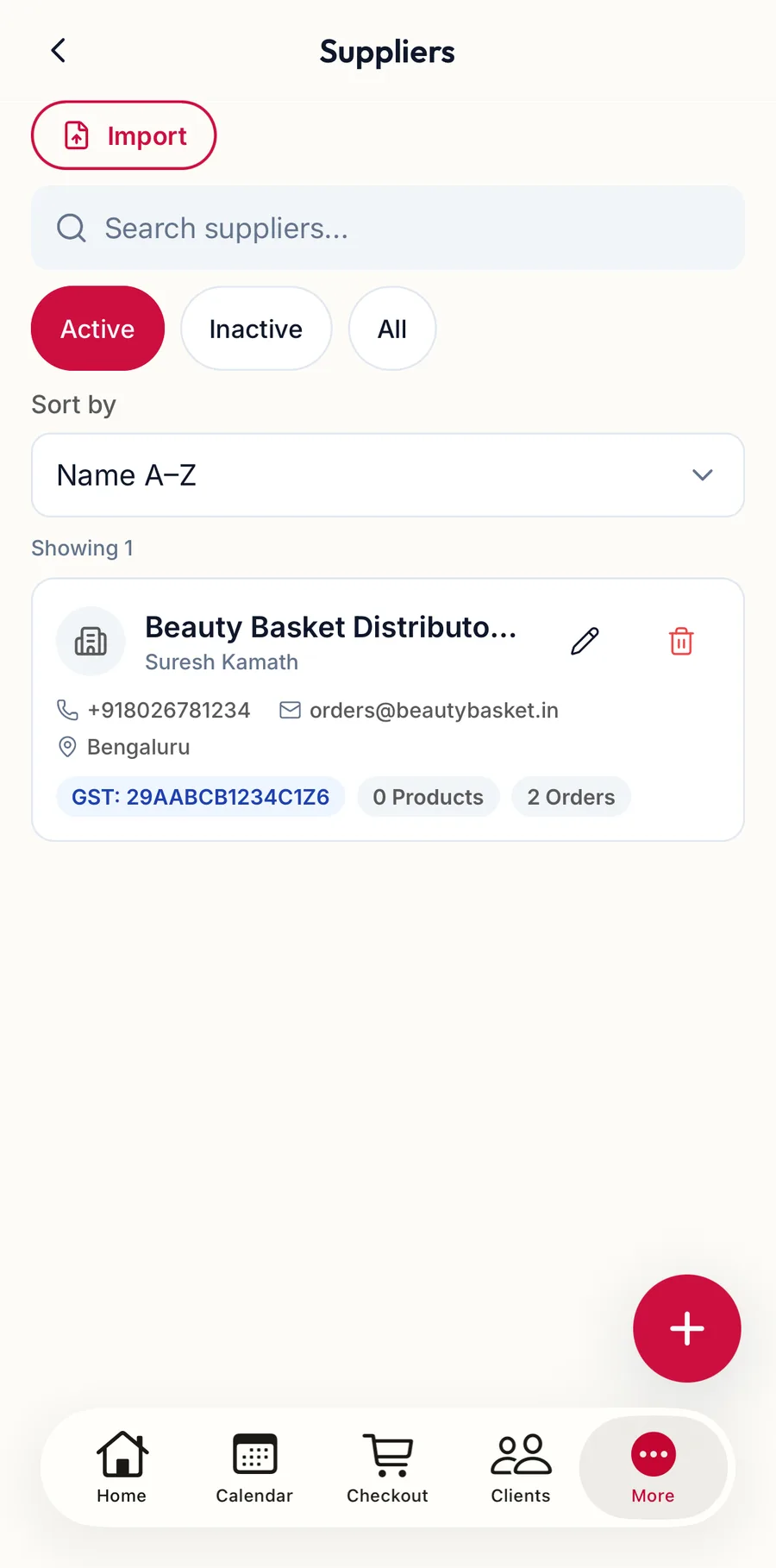
Tap More, then Suppliers, then the + button.
The Suppliers screen in the app -
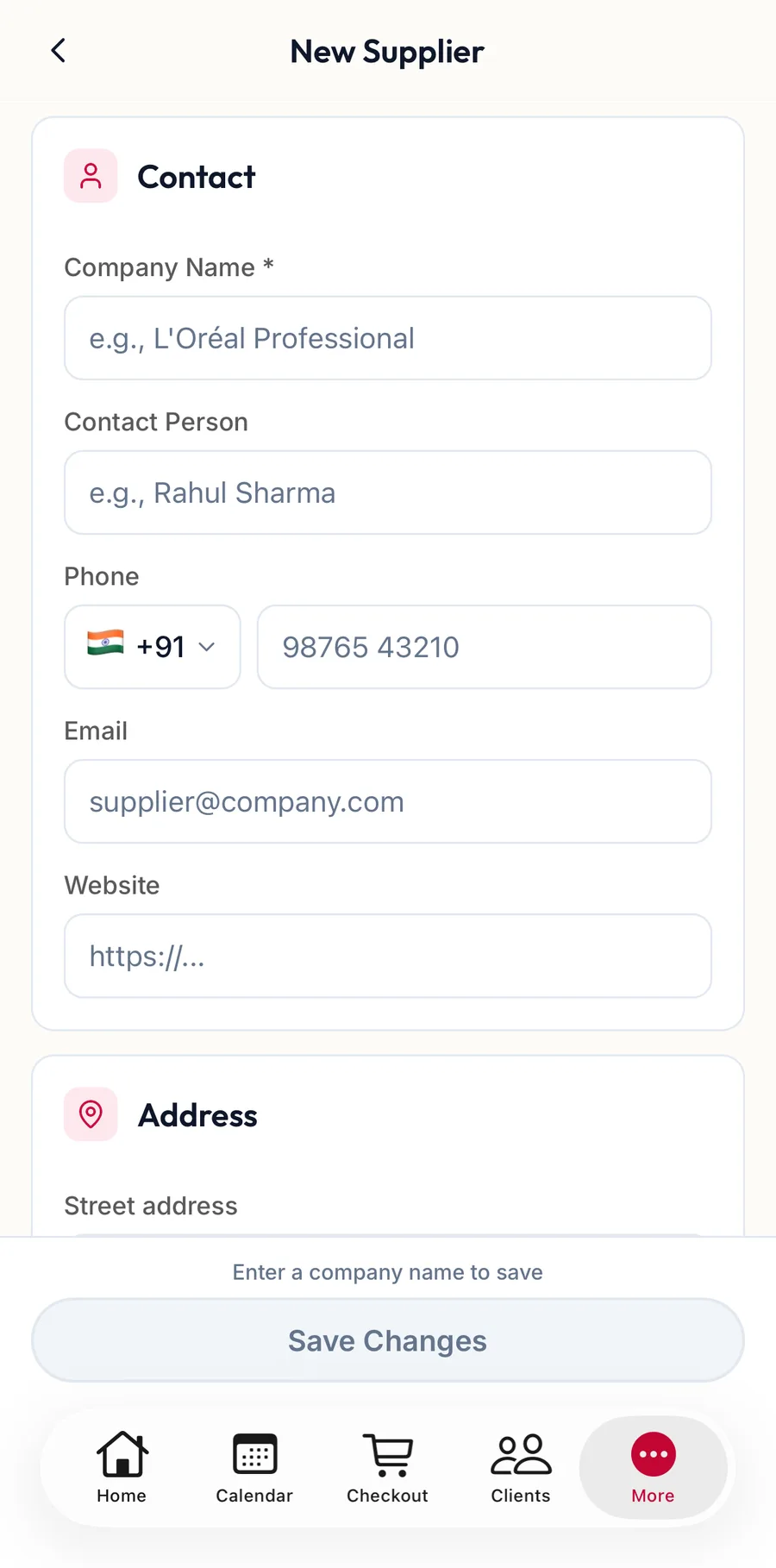
Enter the Company Name (required), Contact Person, Phone, Email and Website, the Address, and under Business Details the GST Number, PAN Number and Payment Terms.
The New Supplier form in the app -
Add Notes and tap Save Changes.
Linking products
On a product's form, under Inventory, choose the Default Supplier and record the Supplier SKU and Supplier Price. The supplier's card then shows {{count}} Products, and purchase orders for them default to this supplier.
Each card
On the web
Badges for {{count}} Products, {{count}} Orders and GST where a number is on file. The Row actions menu offers View Details, Edit and Delete. A supplier still linked to products or orders cannot be deleted; the dialog says so. Mark them Inactive instead.
In the app
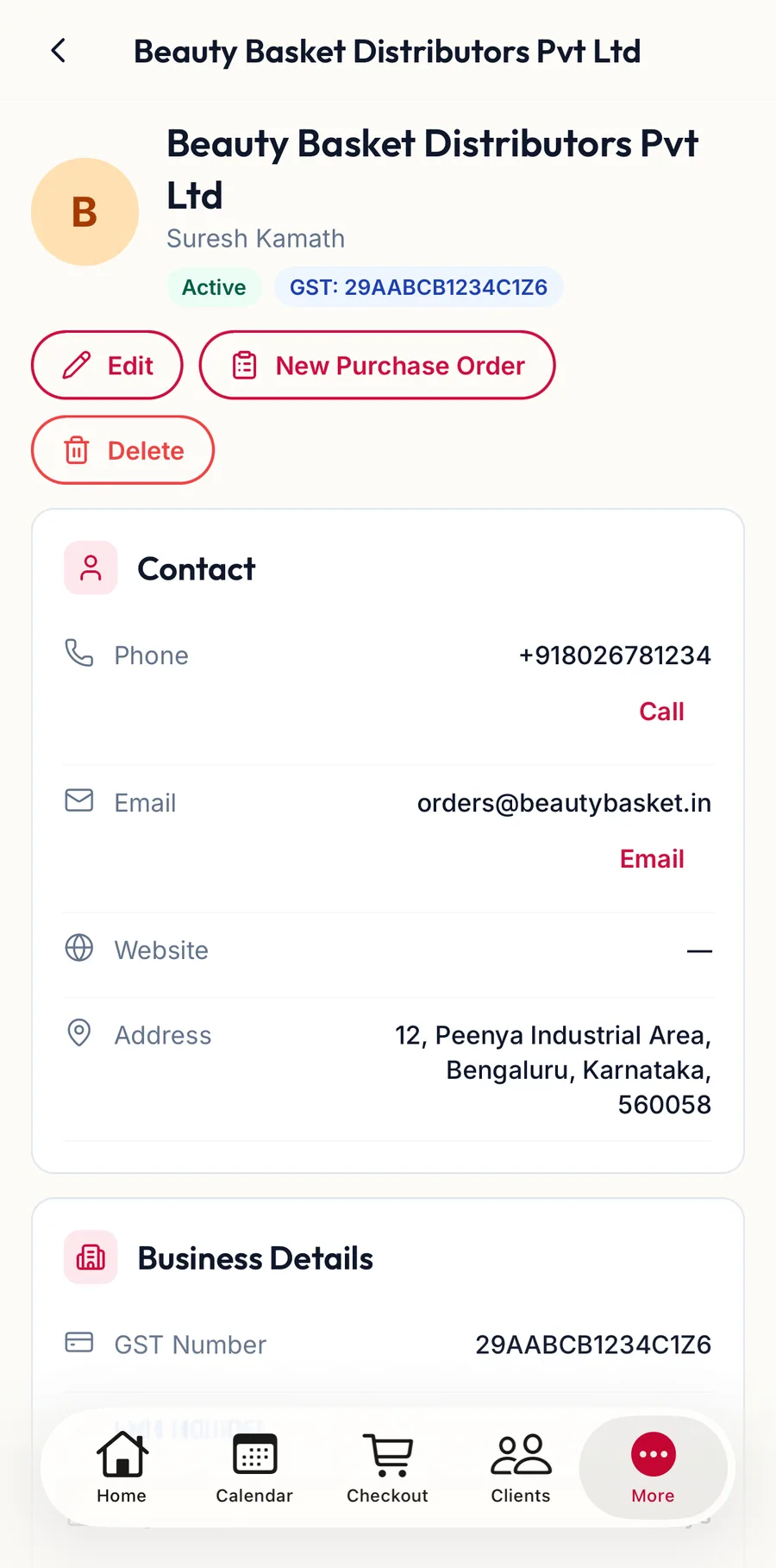
Tap a supplier for its details, with Call and Email buttons, the Linked Products ({{count}}) and a New Purchase Order shortcut.
Related articles
- Create a purchase order · Products & stock
- Add a product · Products & stock