
Import products
Load products from the Excel template, or let the AI importer read a supplier brochure.
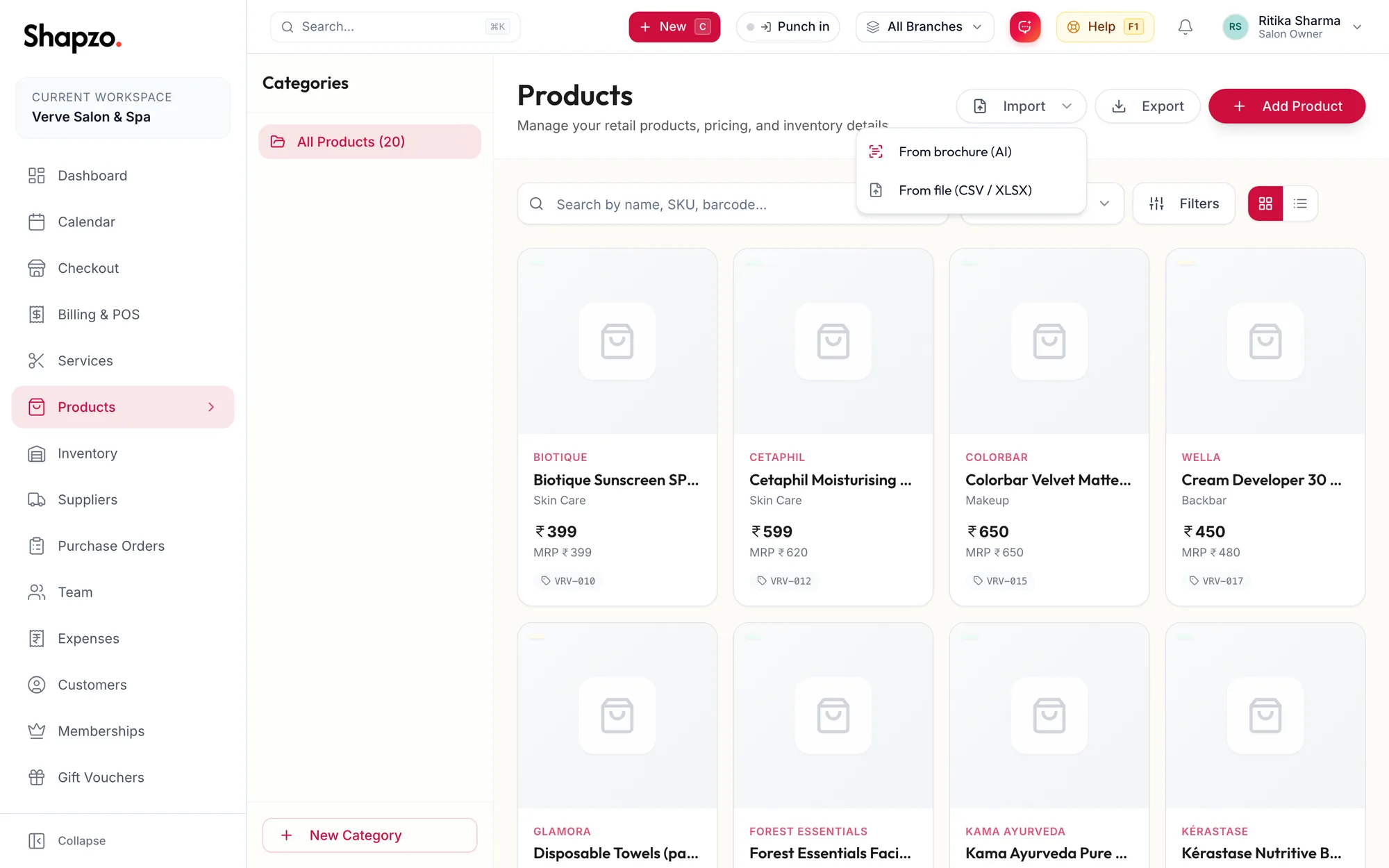
From a spreadsheet
On the web
- On Products, click Import, then From file (CSV / XLSX).
- Download the template, fill in one row per product (name and category are required; unit and category are dropdowns), and upload it.
- Check the result: Imported, Already Existed and Invalid Rows.
In the app
-
On Products, tap Import in the row of buttons at the top.
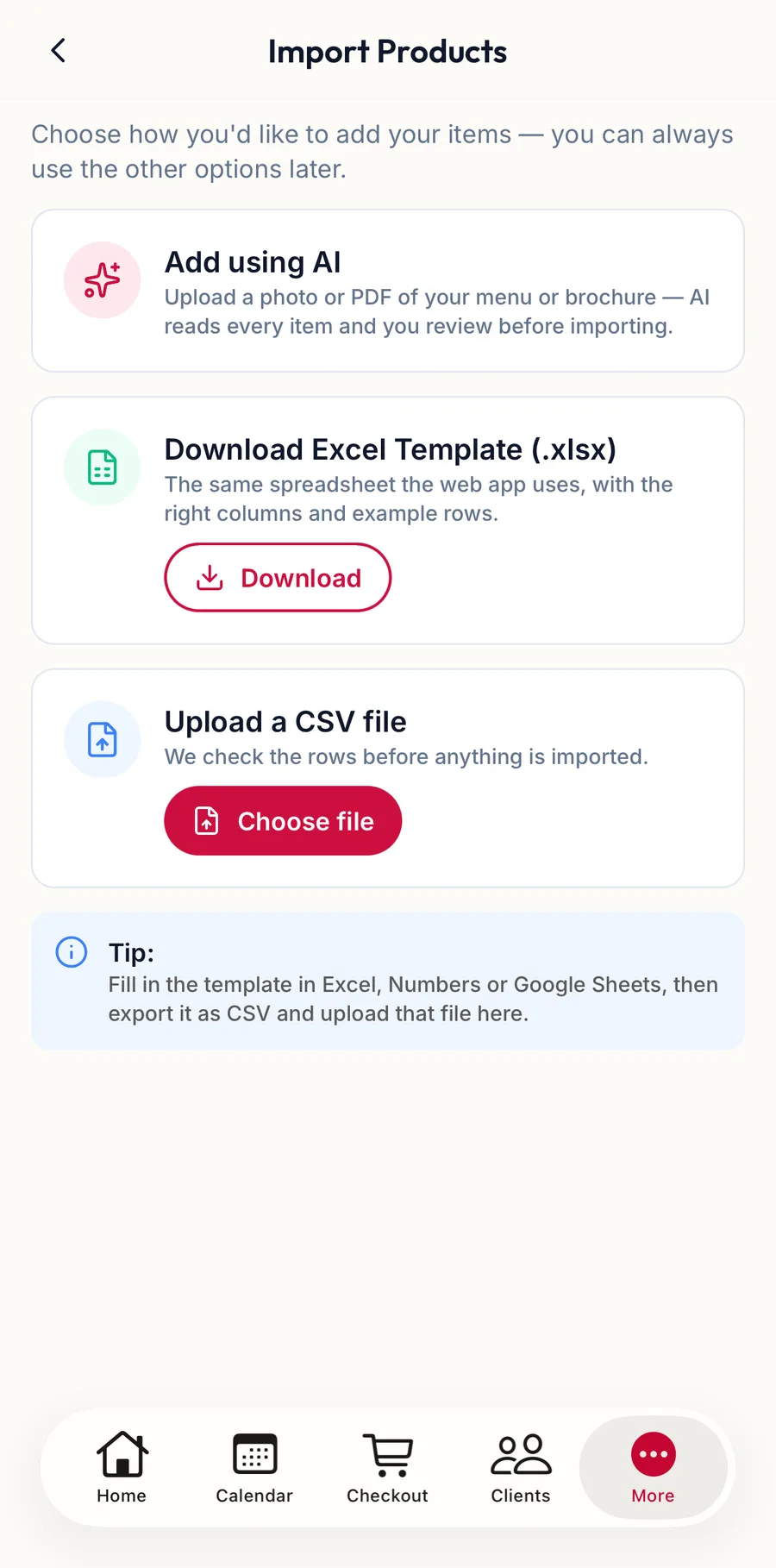
The product import screen in the app -
Download Excel Template (.xlsx) saves the template; fill it in on a computer, then tap Choose file and pick it.
-
Check Rows ready to import and tap Import {{count}}.
From a brochure
On the web
- Click Import, then From brochure (AI).
- Upload photos or the PDF of the supplier's catalogue and click Extract items.
- Review the rows, correct prices or names, untick what you do not stock, and import.
Products imported either way start with zero stock. Set the Reorder Point and receive stock afterwards.
In the app
On the same screen tap Add using AI, then Take a photo, From photos or PDF or file, and Extract items. Review the rows and tap Import {{count}}.
Related articles
- Add a product · Products & stock
- Import a menu from a photo or PDF (AI) · Services & packages