
Physical stocktake
Count the shelf, enter the real figures, and let the portal correct every difference in one go.
Steps
On the web
-
Open Inventory, choose the branch, and set any search or filter so the list shows the products you are counting (the whole branch by default).
-
Click Stocktake.
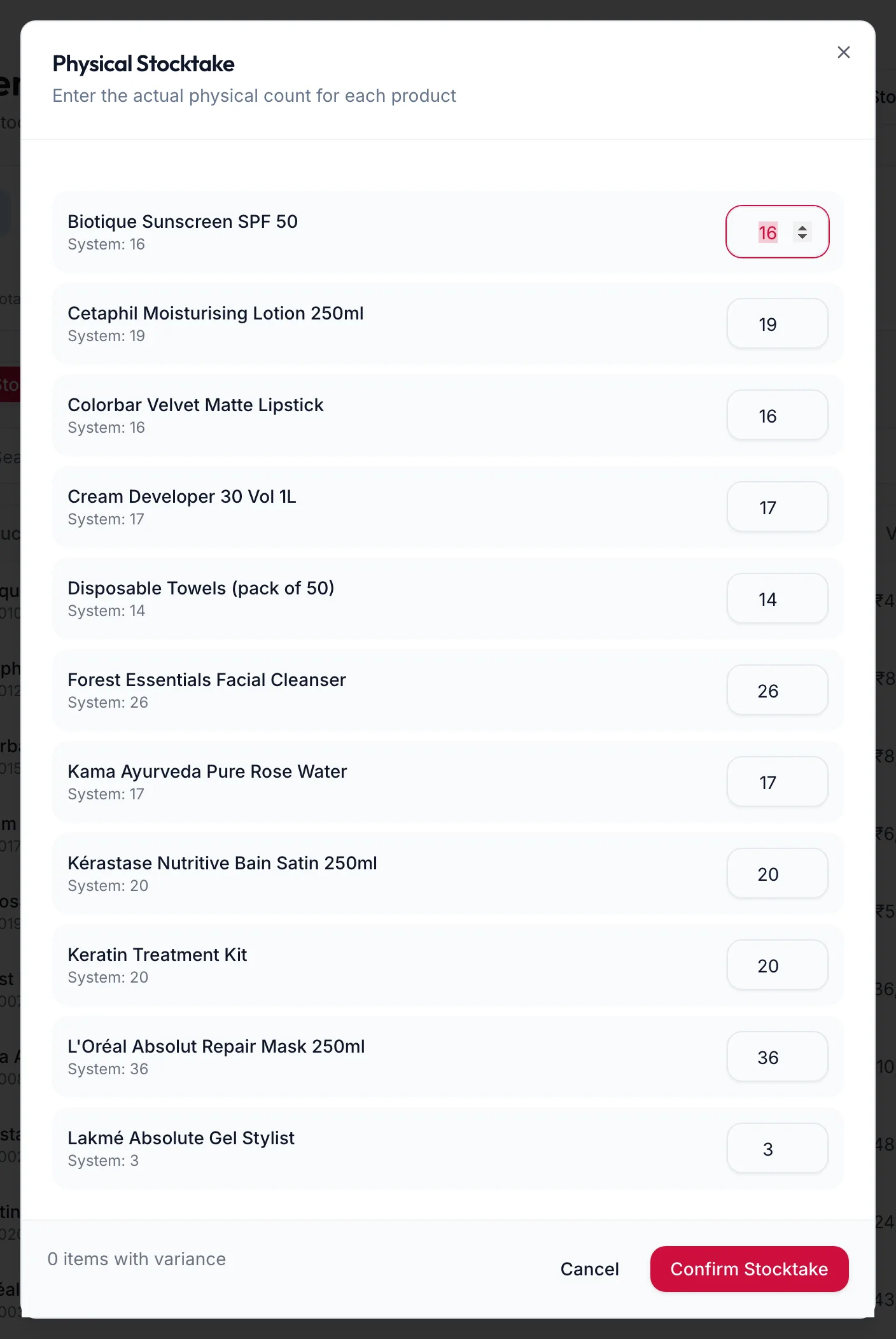
The Physical Stocktake dialog -
For each product the dialog shows System: {{count}}. Enter the number actually on the shelf. A badge shows the variance as you go.
-
The footer counts {{count}} items with variance. Click Confirm Stocktake.
Each product with a difference gets a Stocktake movement for the difference, and the portal confirms Stocktake applied to {{count}} product(s). If every count matched it says No changes detected.
In the app
-
Tap More, then Inventory, choose the branch, then tap Stocktake in the row of buttons at the top.
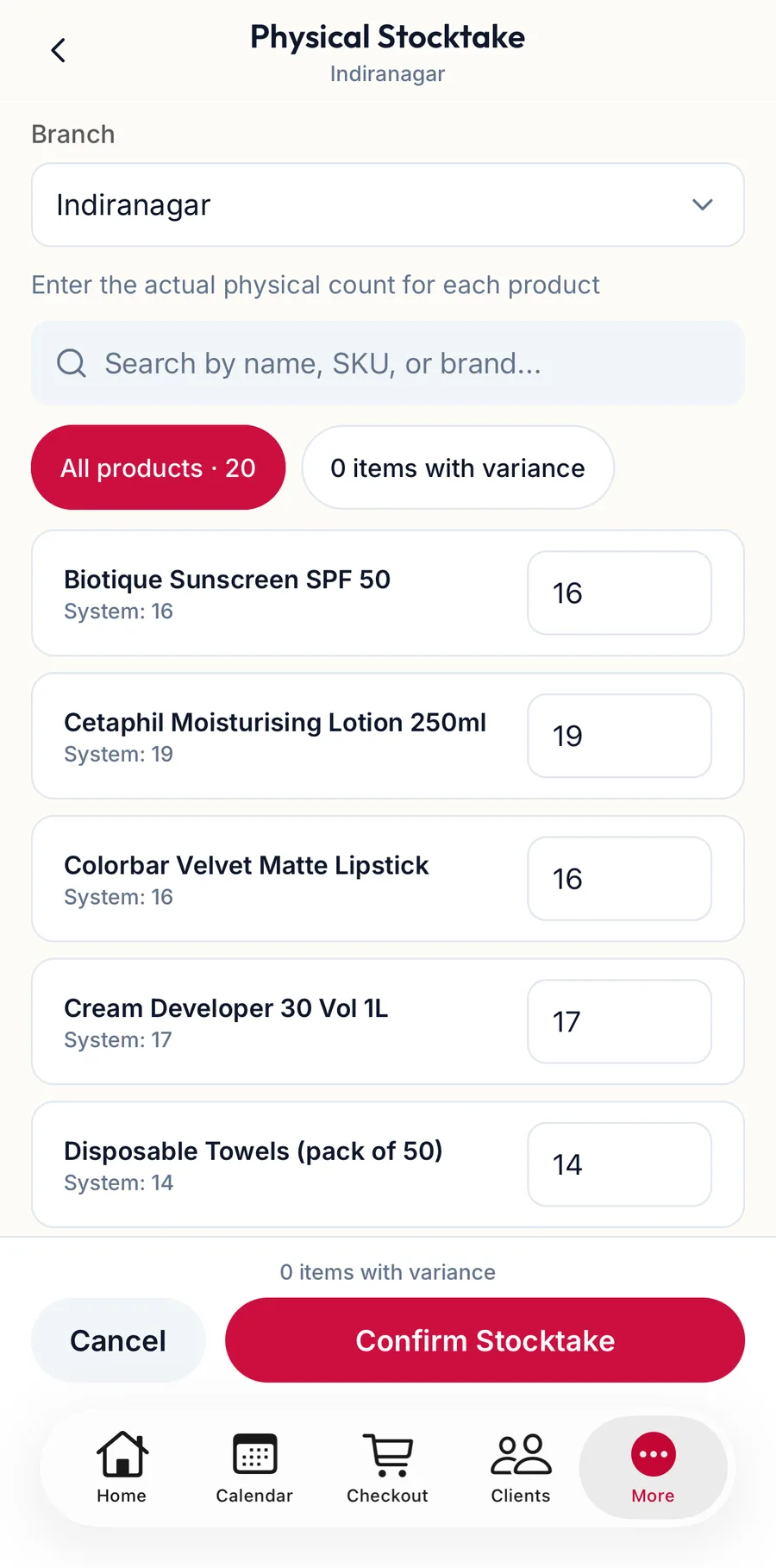
The Physical Stocktake screen in the app -
For each product the row shows System: {{count}}. Enter the number actually on the shelf; the search box finds a product quickly, and the switch limits the list to items with a variance.
-
The footer counts the items with variance. Tap Confirm Stocktake.
Counting from the phone while walking the shelves is the point of this screen.
Related articles
- Adjust stock · Products & stock
- Inventory: stock levels, low stock and out of stock · Products & stock
- Movement history · Products & stock