
Transfer stock between branches
Move units from one branch to another in a single step that records both sides.
Steps
On the web
-
Open Inventory and choose the branch the stock is leaving.
-
Click Transfer, or the transfer icon on the product's row.
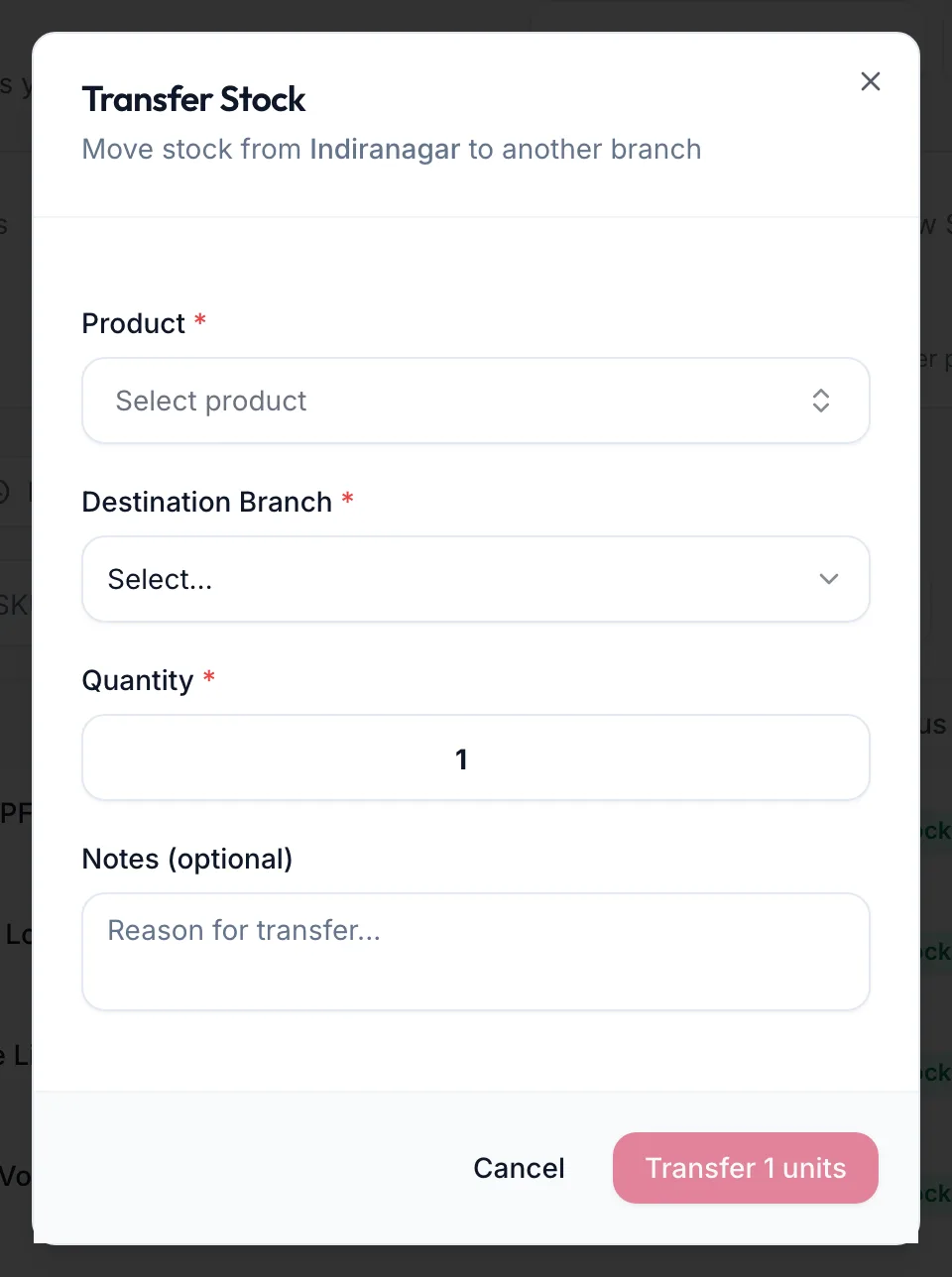
The Transfer Stock dialog -
Pick the Product, the Destination Branch and the Quantity. Add Notes (optional) such as the reason.
-
Click Transfer {{count}} units.
The portal confirms with Transferred {{count}} to {{branch}}. The source branch shows a Transfer Out movement and the destination a Transfer In, both with the same note.
In the app
-
Tap More, then Inventory, and choose the branch the stock is leaving.
-
Tap Transfer in the row of buttons at the top.
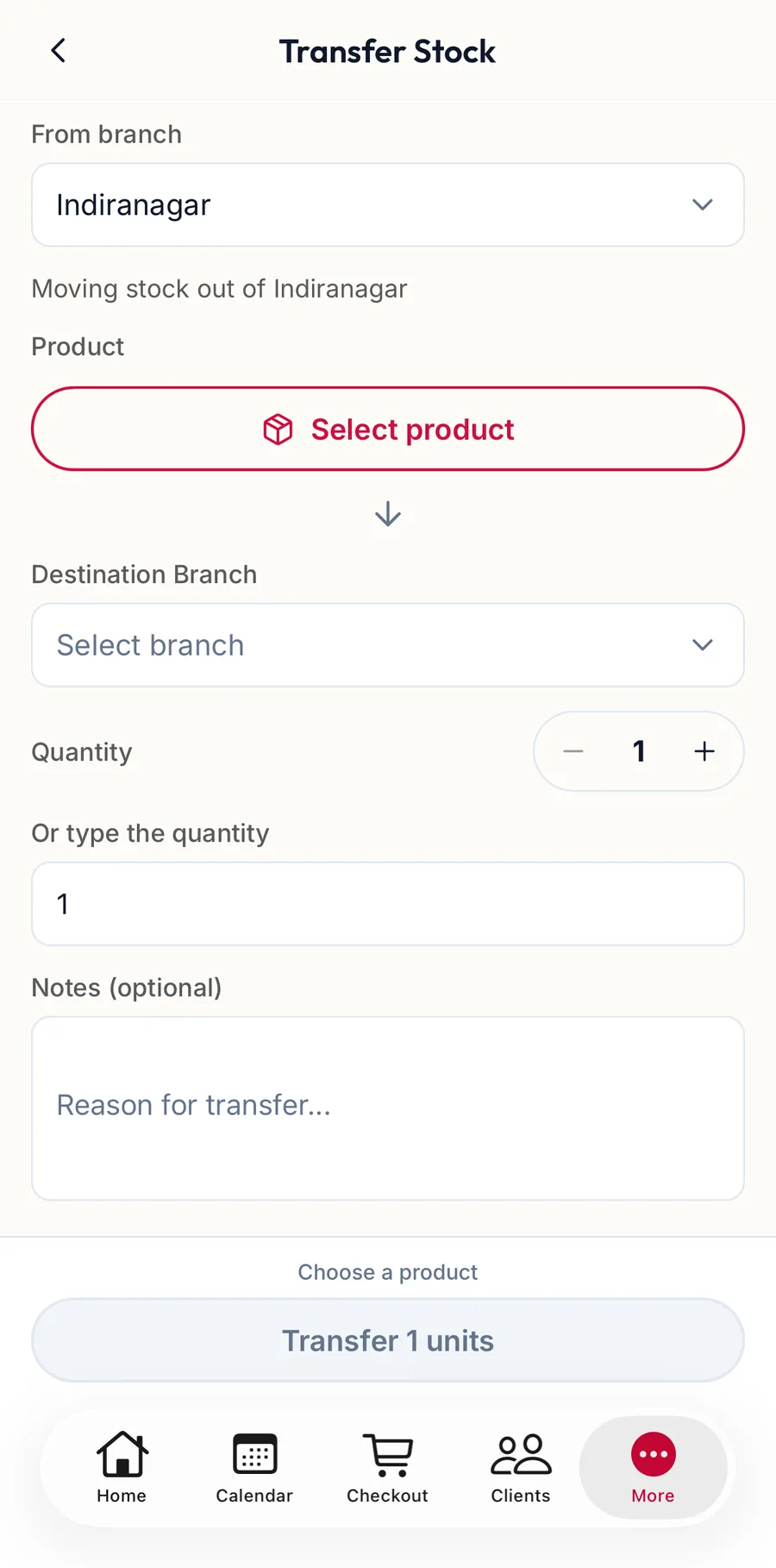
The Transfer Stock screen in the app -
Pick the Product, the Destination Branch and the Quantity. Add Notes (optional).
-
Tap Transfer {{count}} units.
Related articles
- Inventory: stock levels, low stock and out of stock · Products & stock
- Movement history · Products & stock