
Adjust stock
Add or remove units for a product at a branch, with a reason that stays on the audit trail.
Use an adjustment for anything that is not a sale or a purchase order: a delivery without an order, breakage, a bottle used on the floor, a correction.
Steps
On the web
-
Open Inventory, choose the branch, and click Adjust Stock, or click Adjust on the product's row. From anywhere, the New menu offers Stock adjustment.
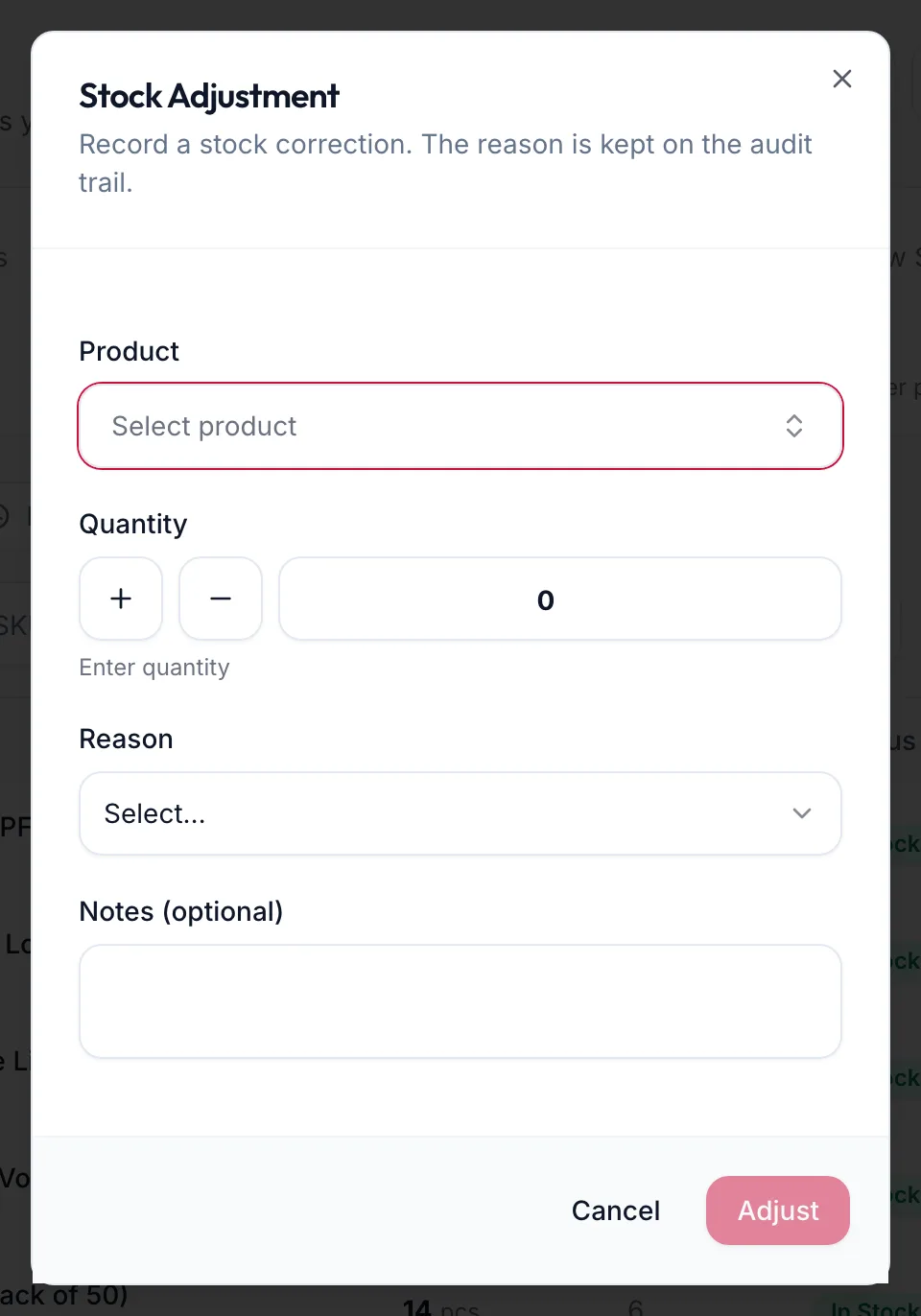
The Stock Adjustment dialog -
Pick the Product.
-
Set the Quantity. Plus adds, minus removes; the helper reads Adding stock or Removing stock.
-
Choose a Reason: Received shipment, Damaged / Expired, Internal use, Data correction, Return to supplier, Customer return or Other.
-
Add Notes (optional) and click the button, which reads Add {{count}} or Remove {{count}}.
The portal confirms with Stock added: +{{count}} or Stock removed: −{{count}}, and the movement appears in Movement History with the reason.
In the app
-
Tap More, then Inventory, choose the Branch, and tap Adjust Stock.
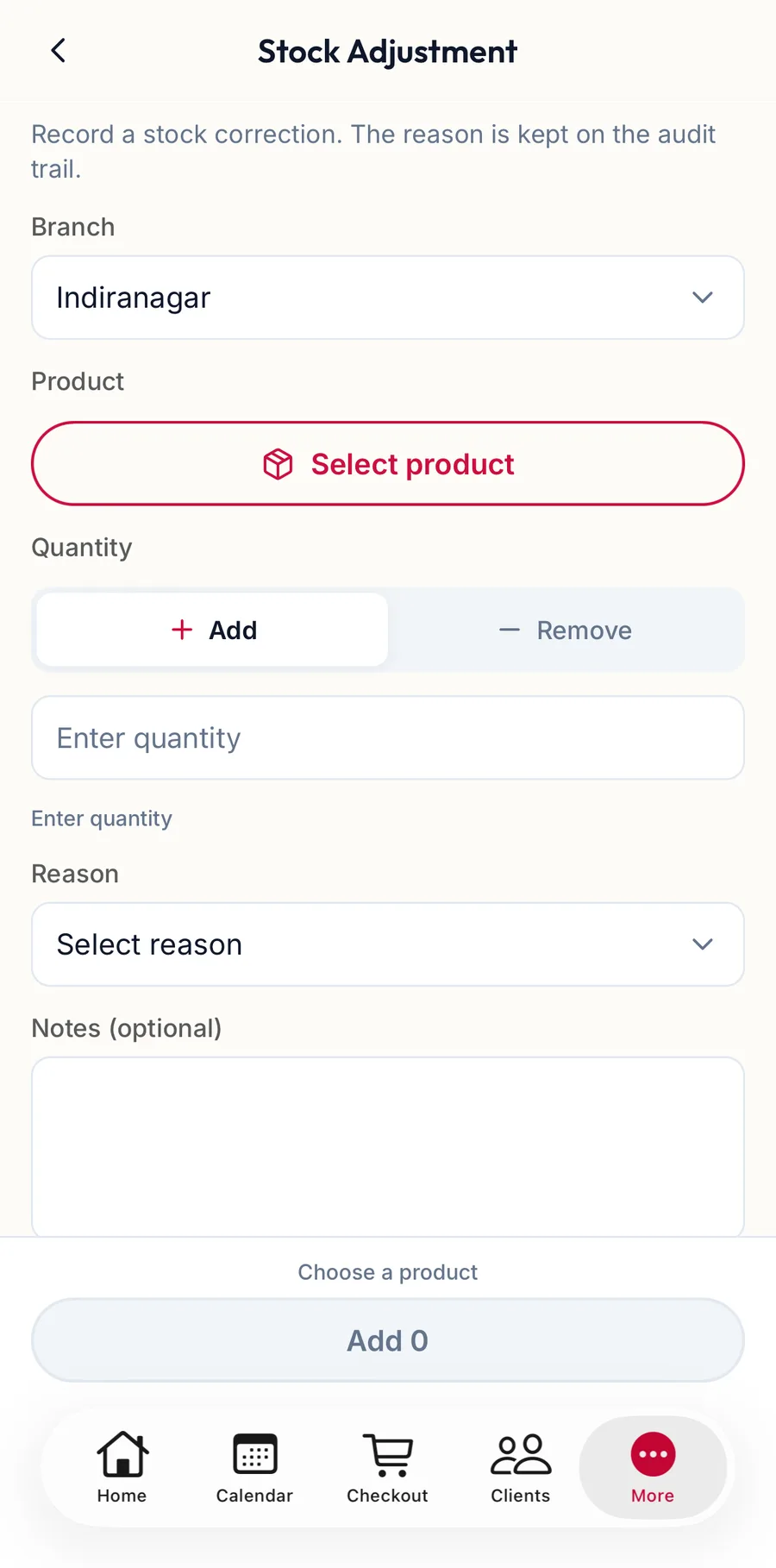
The Stock Adjustment screen in the app -
Pick the Product and set the Quantity. Add and Remove choose the direction.
-
Choose a Reason, add Notes (optional) and tap the button, which reads Add {{count}} or Remove {{count}}.
The movement appears under the Movement History tab with the reason.
Related articles
- Inventory: stock levels, low stock and out of stock · Products & stock
- Physical stocktake · Products & stock
- Movement history · Products & stock